
How to use tags to customize widgets?
Step-by-step guide to creating tags and using them in widgets
A tag is like an invisible label you can attach to your reviews. It helps you classify your reviews by factors such as intent, location, and focus. You can also create tags for different pages in your website, such as home, services, about, etc.
Later, when you are creating a widget to showcase on a specific page on your website, you can use the tags feature to pull reviews relevant to that page. Thus, you can ensure that a customer visiting a service page sees hyper-relevant success stories.
Adding tags while importing reviews
You can add tags to reviews as you import them. Here is how. Navigate to the Reviews page from your project home page and click Import Reviews.
Then, select the source, search your business, and set the parameters, such as minimum rating and number of reviews. Once you are happy with the parameters, click Fetch Reviews.
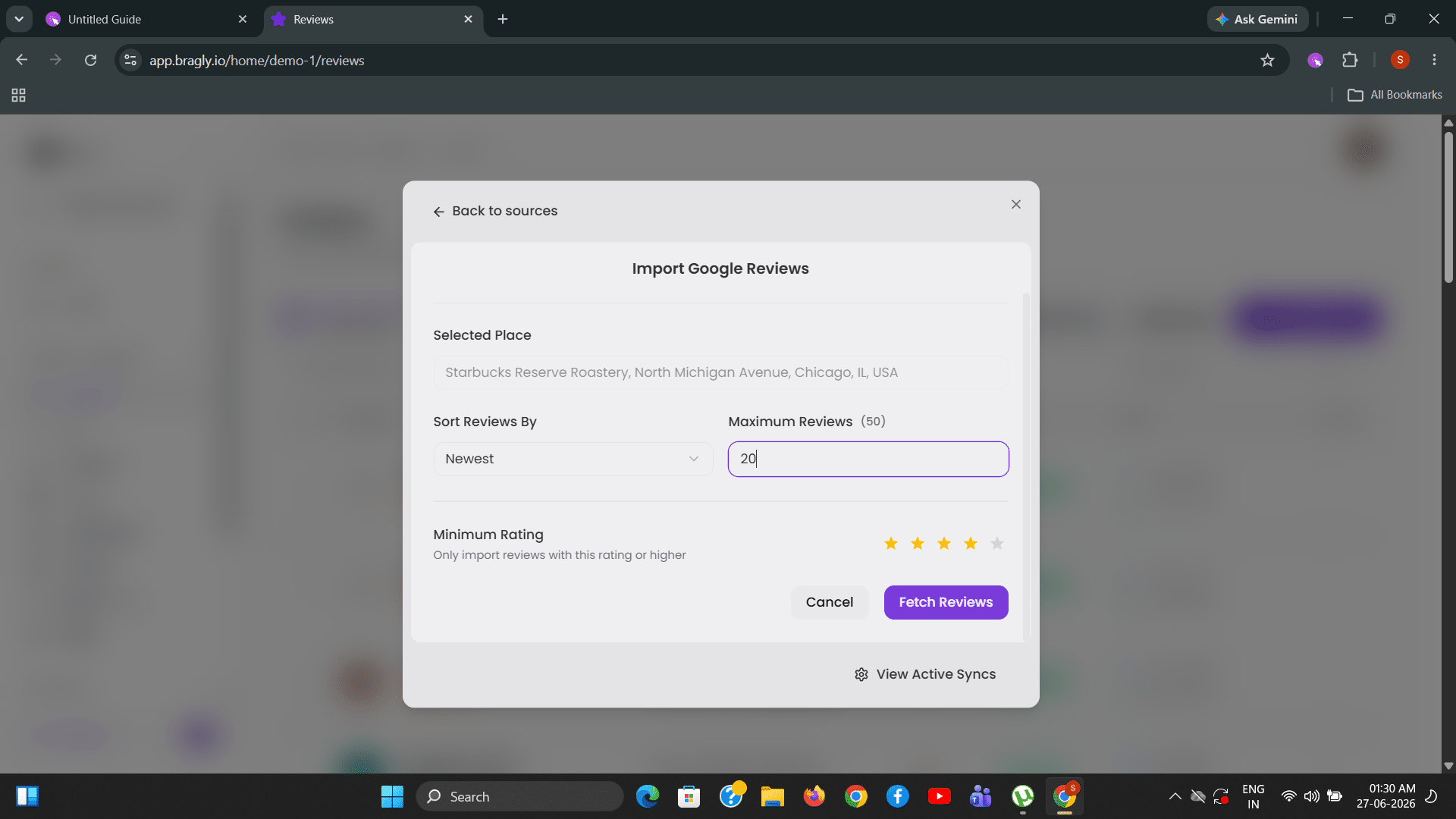
Note: The Fetch Reviews button does not import all the reviews to your Reviews dashboard. Instead, it opens a dialog, showing you all available reviews that meet selected parameters. Here, you can select reviews individually or select all.
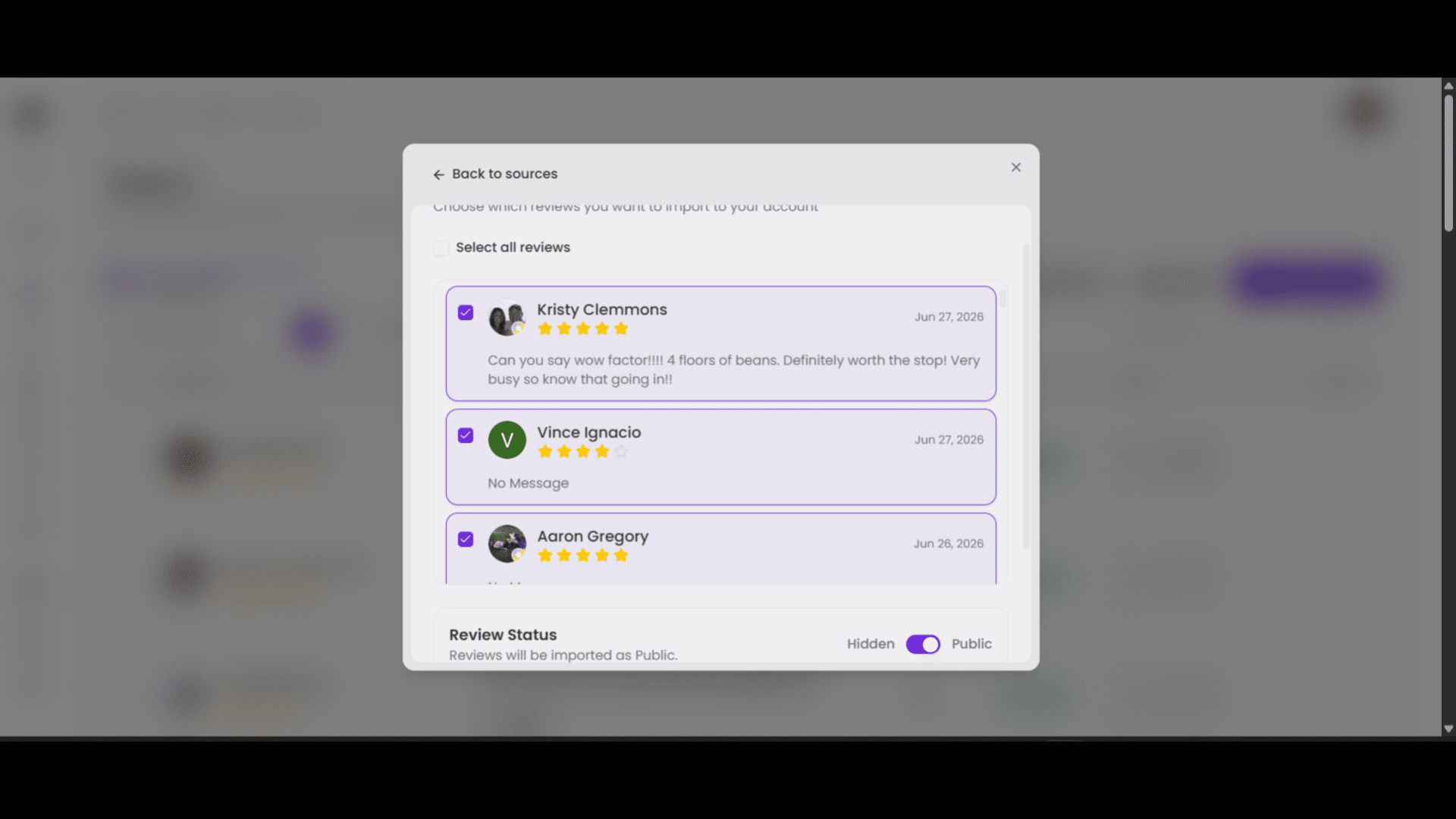
Once you have selected the reviews relevant to your current purpose, scroll down to find the More options drop-down.
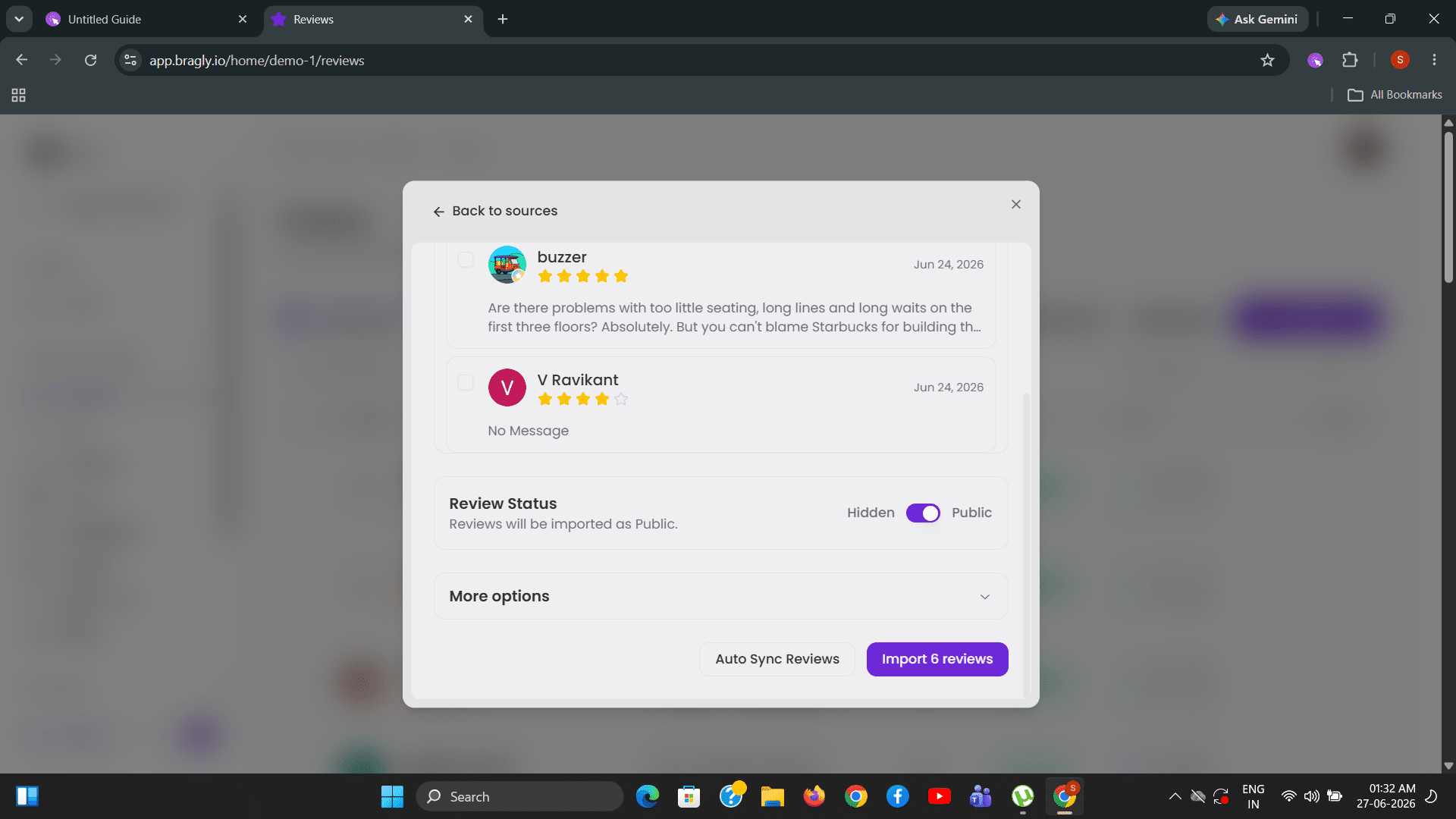
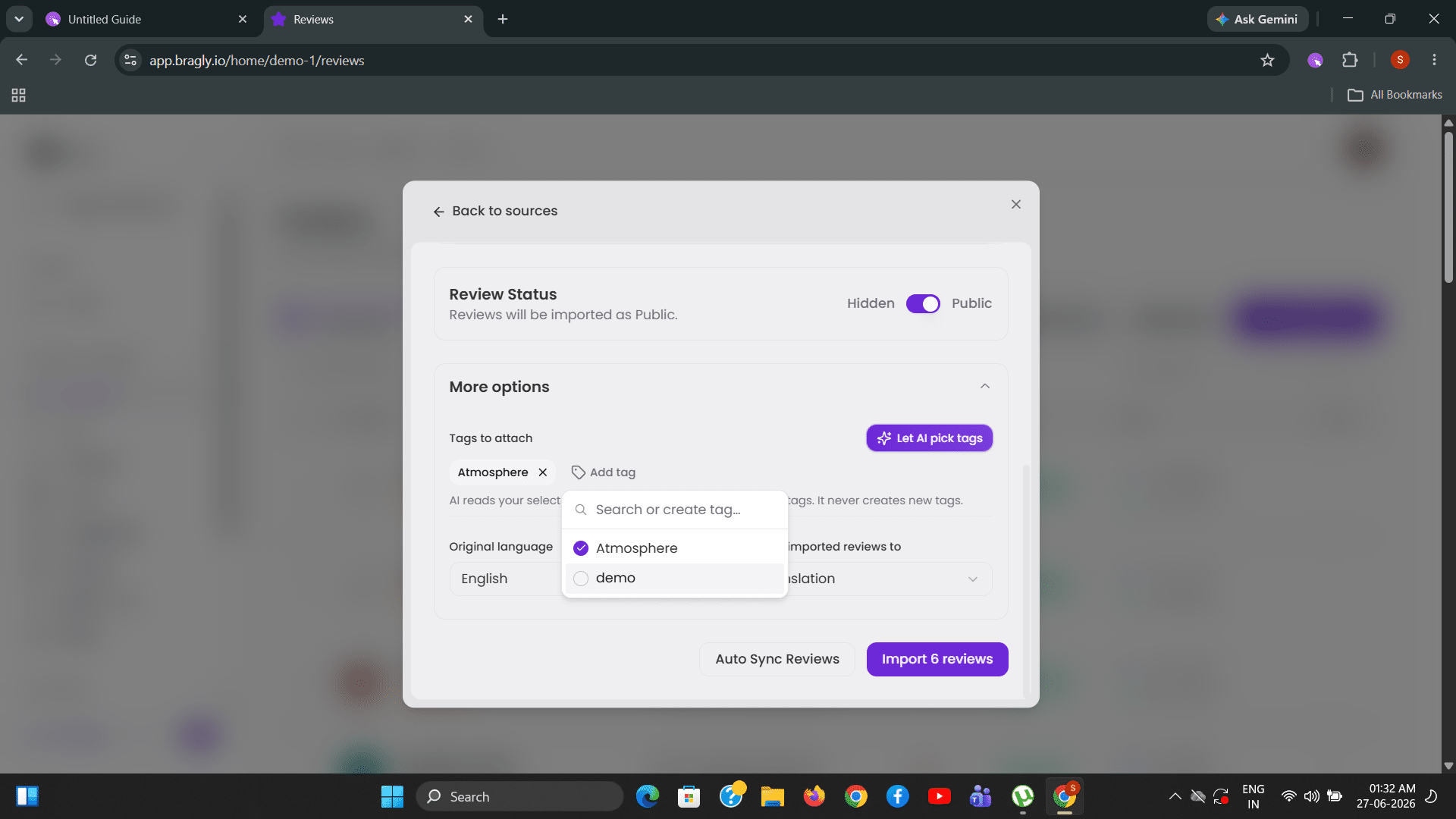
Use the More options drop-down to reveal the Add tag button. Upon clicking Add tag, you are shown the existing tags and an input field labeled Search or create tags. Select an existing tag for the selected reviews or type in a new tag and click Create. Here, we have created a new tag: Atmosphere.
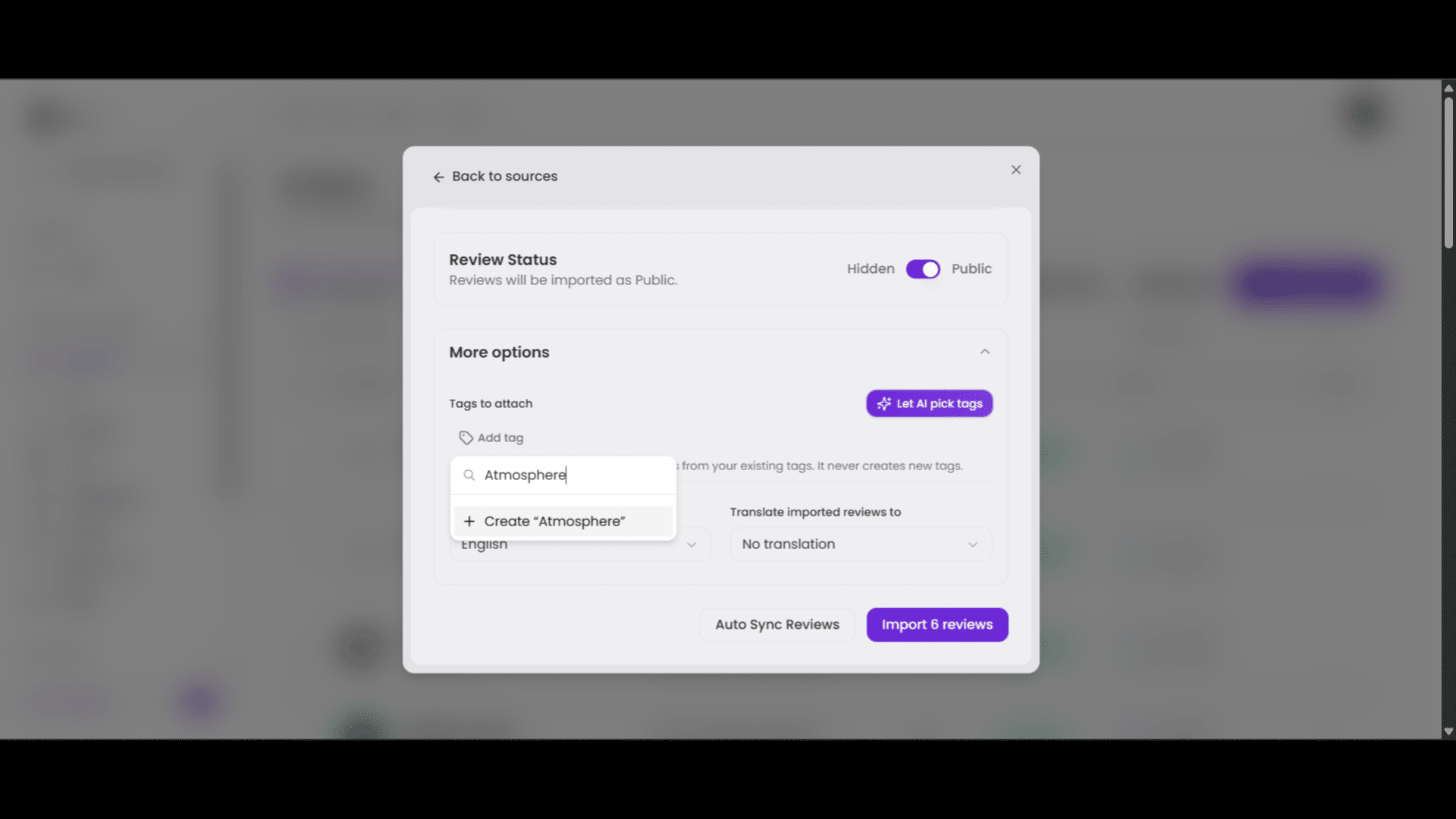
Now, select the appropriate tag, which is Atmosphere in this case. And click Import reviews. This action will add the selected reviews to your Reviews dashboard, and each of them will contain the tag: Atmosphere.
Adding tags to existing reviews
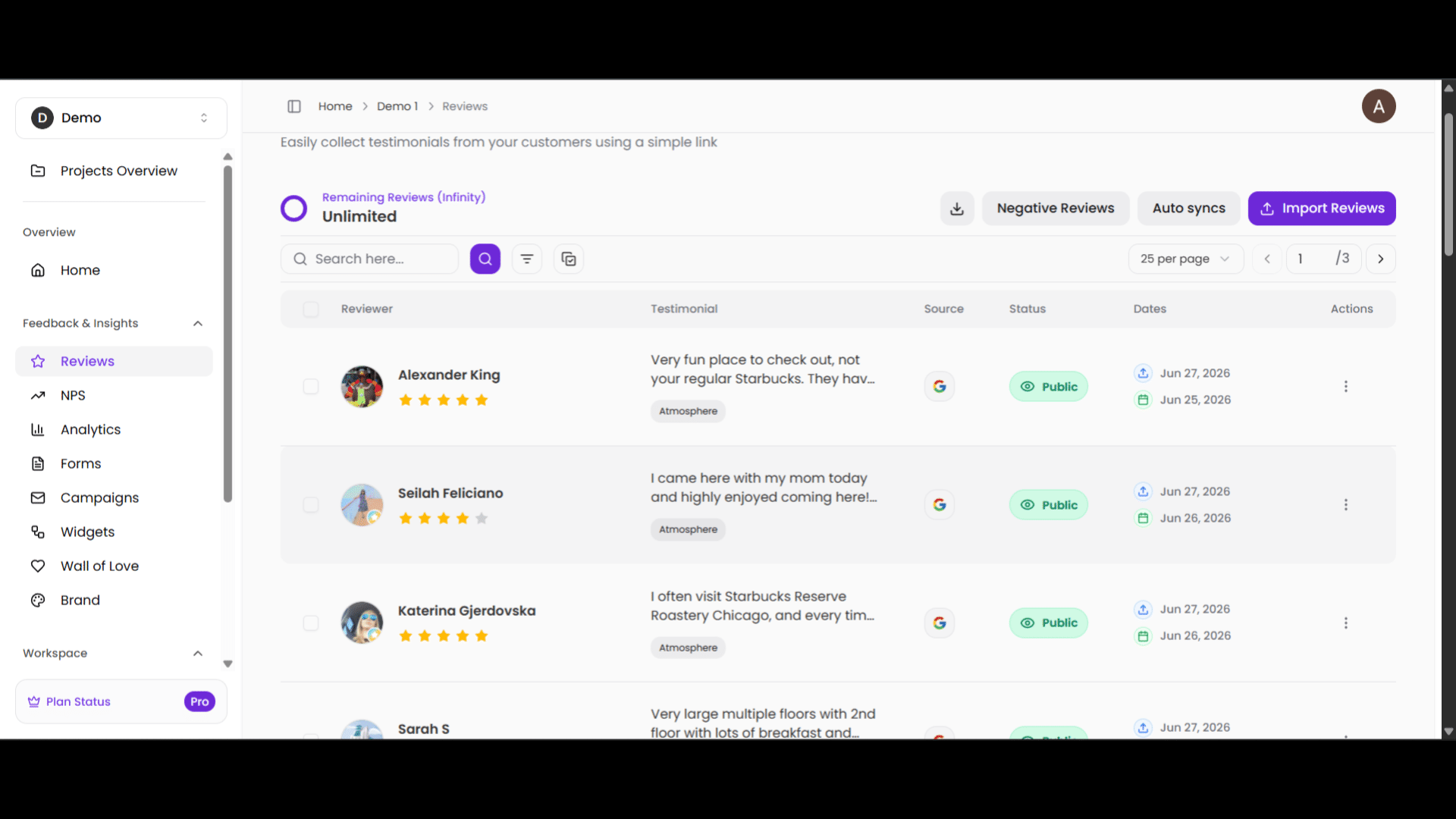
Navigate to the Reviews page from your project home page. You will find your list of reviews. You can see that the reviews at the top have the Atmosphere tag attached to it. This tag was applied while importing these reviews. Now, we'll add the same tag to some pre-existing reviews.
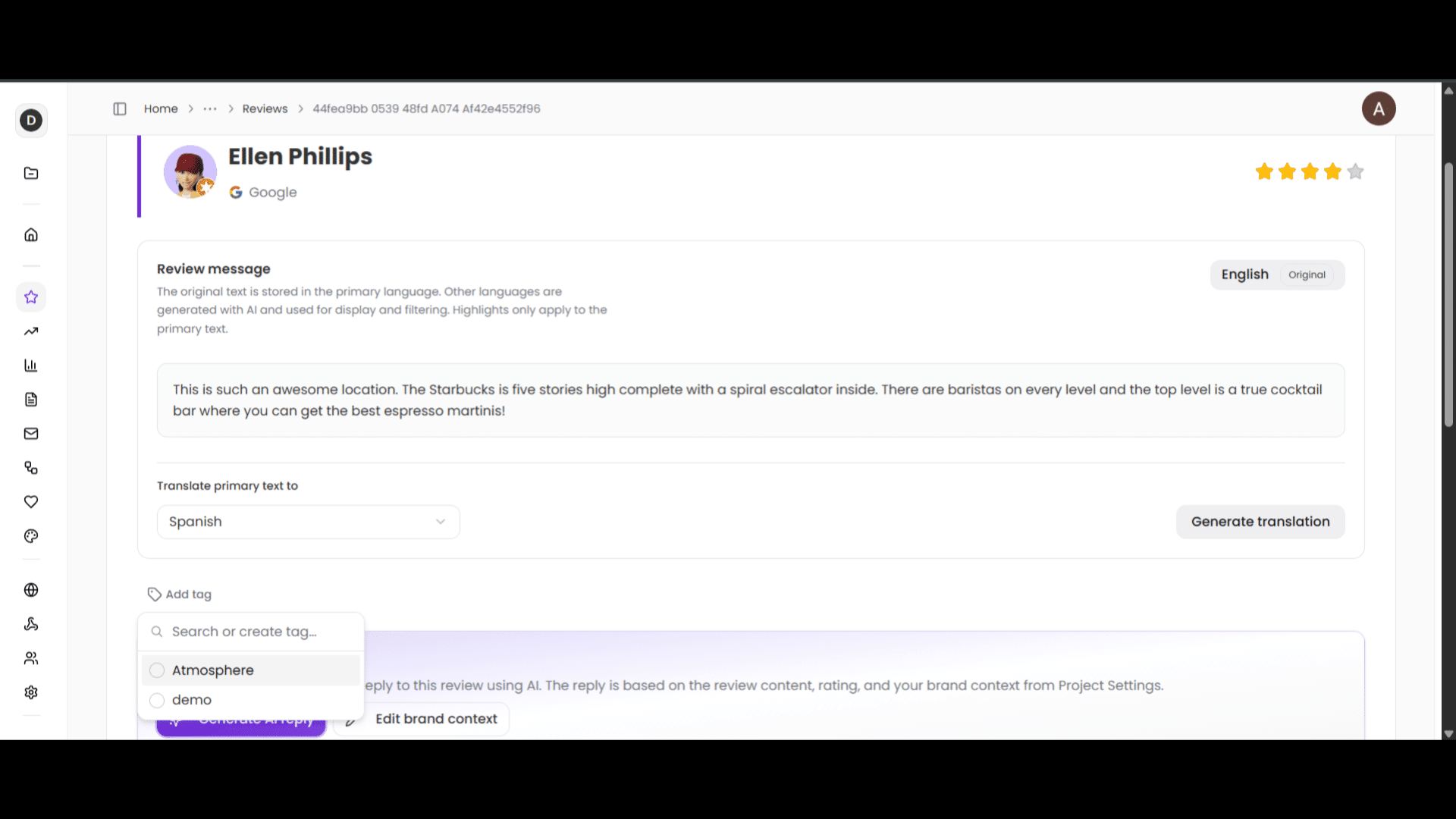
Click on a review, and the Review Details page opens. Now, you can easily spot the Add tags button there. You can use this button to add existing tags to the review or create a new tag.
Upon clicking the Add tags button a list of existing tags appear, along with a search bar that you can use to look up the tag you need. Here, we have only two existing tags, hence those are visible.
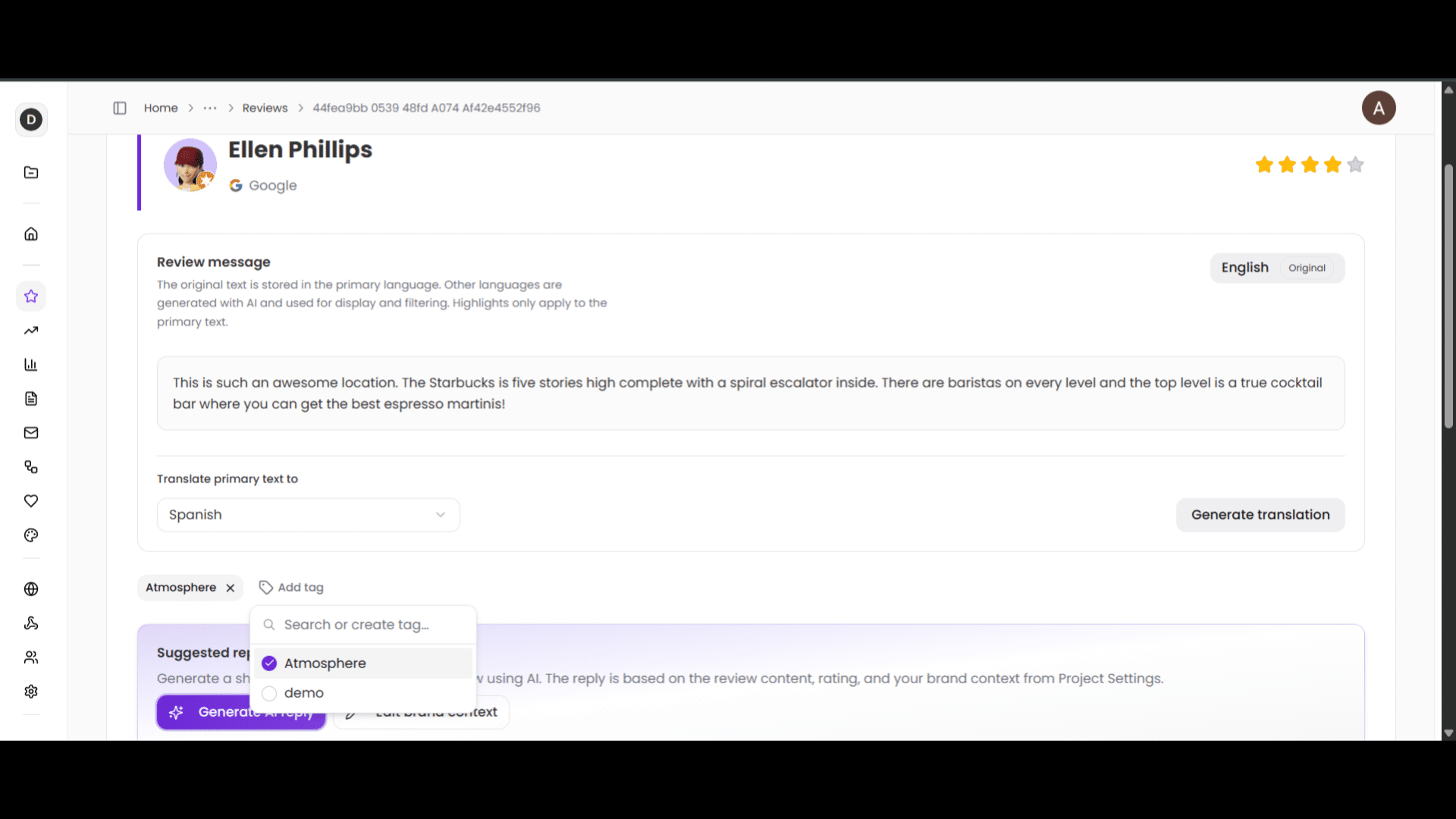
We created the tag called Atmosphere while importing some reviews. Let's add that tag to this review as well. Click on the radio button next to the tag name, and it will be instantly added to your review. You can add multiple tags to a single review.
Alternatively, you can add tags to multiple reviews from the Reviews page itself. Go to the reviews page and select all reviews that you would like to attach tags to. You can select individual reviews using the checkbox on the left of each review, or you can use the checkbox at the top left to select all reviews on the page.
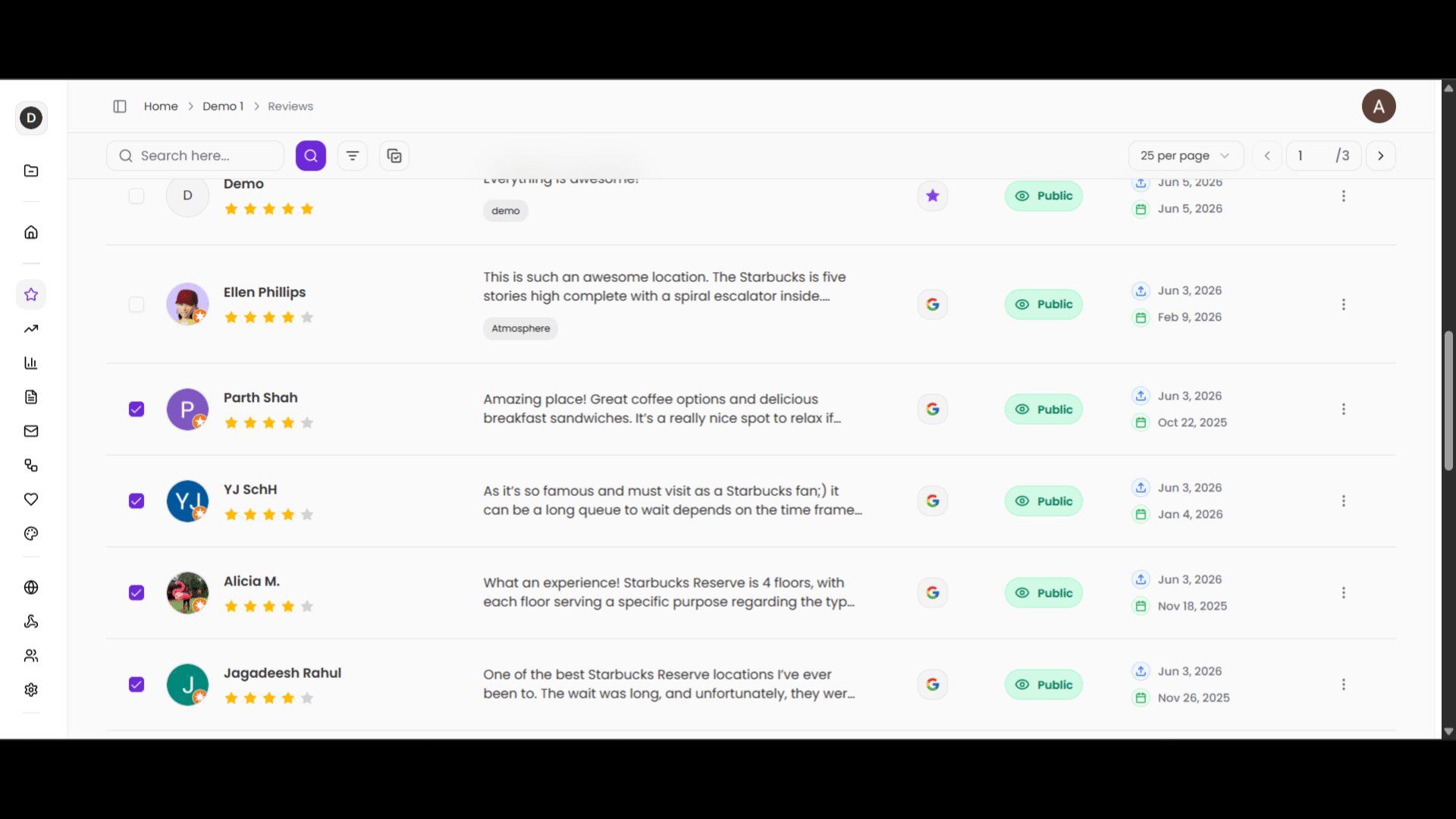
Once you have selected the reviews, scroll up to find the Tags button. Click on it to see a list of existing tags.
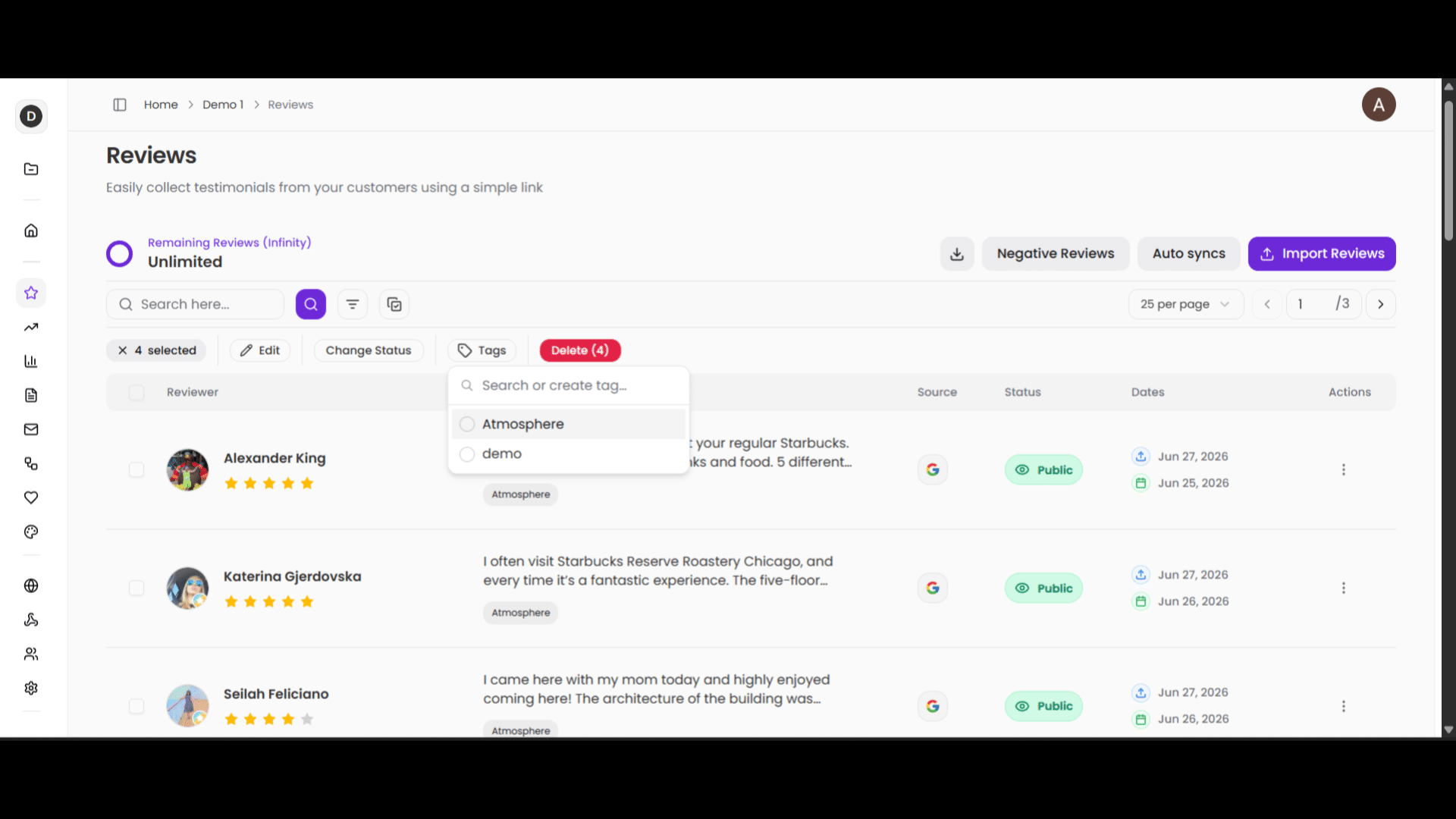
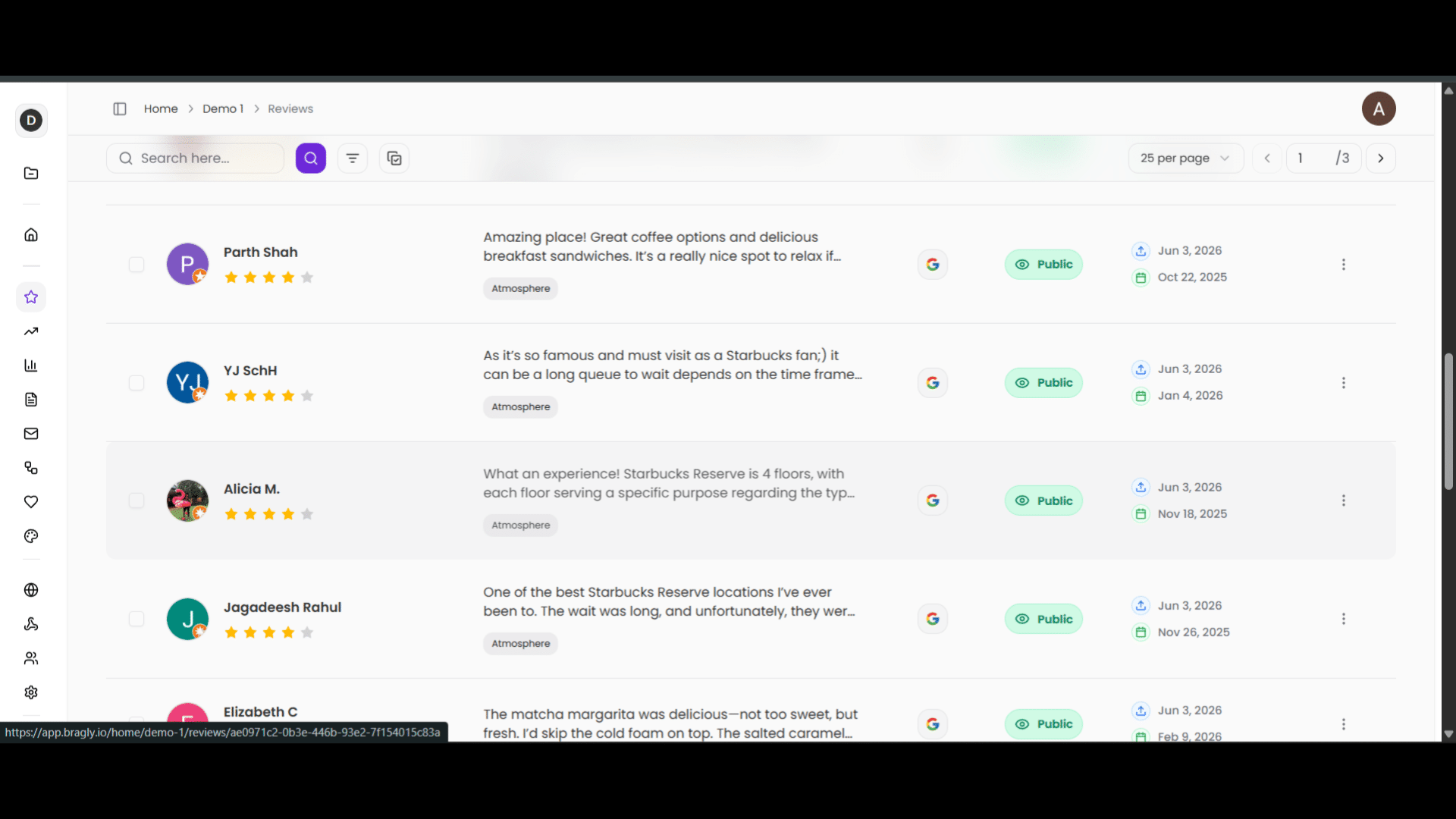
Here we see two previously created tags. We will select on of them for these reviews. As you can see here, with one click, Atmosphere is added to these reviews. Note: It can take a few seconds for the tags to appear on the dashboard.
Using tags on widgets
Navigate to the Widgets page from your project home page. Now, select the widget that you would like to modify with tags. The Edit Widget page will appear.
Now, scroll down the left pane to find the Tags option under the Content Filters section.
You can see that there are no tags added yet. This means your widget will take reviews from your entire review pool.
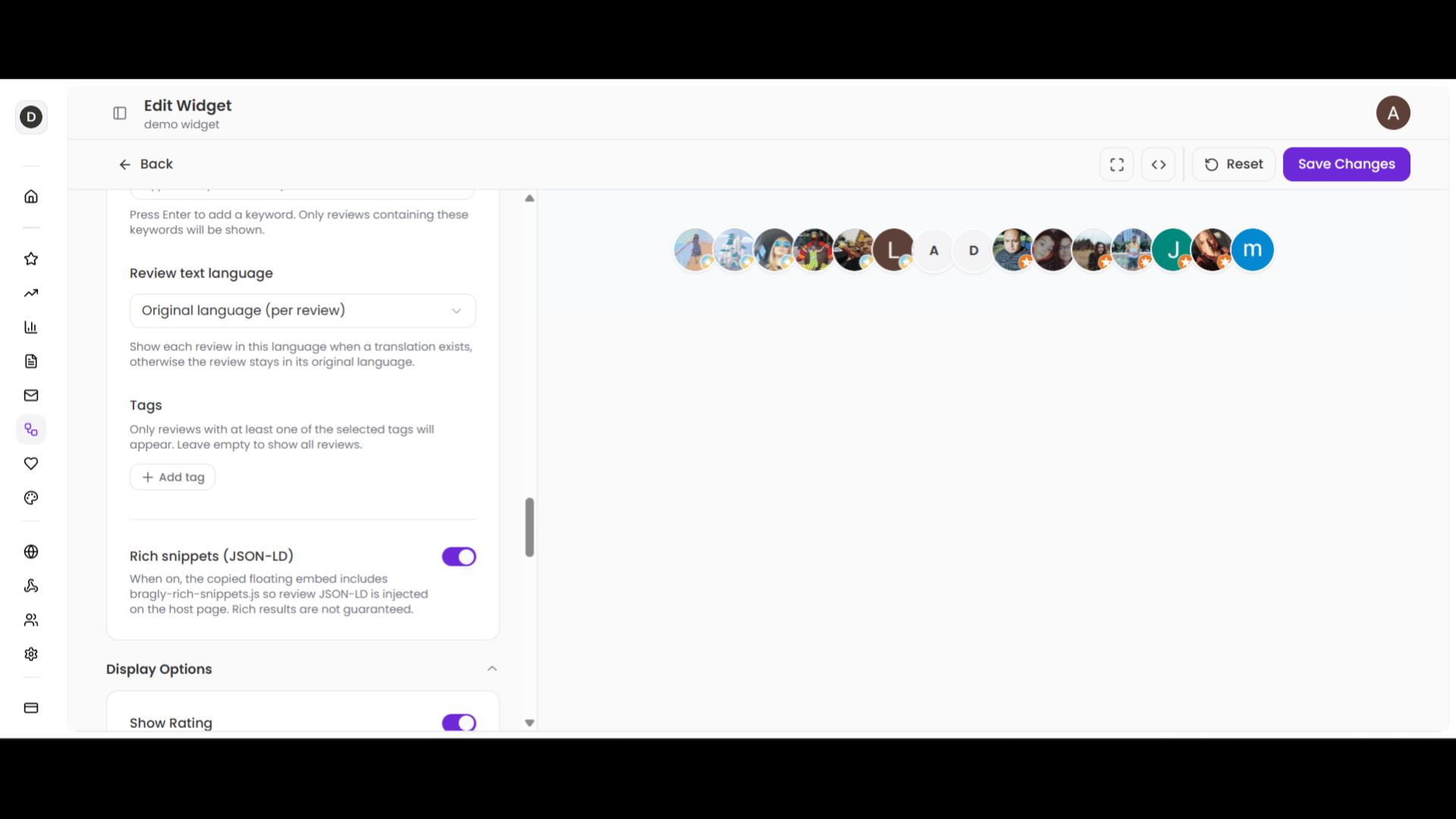
However, we want to pull reviews with a specific tag. So, click on Add tag and select the tag you want to filter for. Once the tag is selected, notice how the number of reviews in the right pane decreases. This smaller number of badges now represents the reviews that contain the tag: Atmosphere.
Note: The Avatar ribbon layout is used here. You can explore a whole bunch of layouts for widgets. The tags button functions similarly for all layouts.
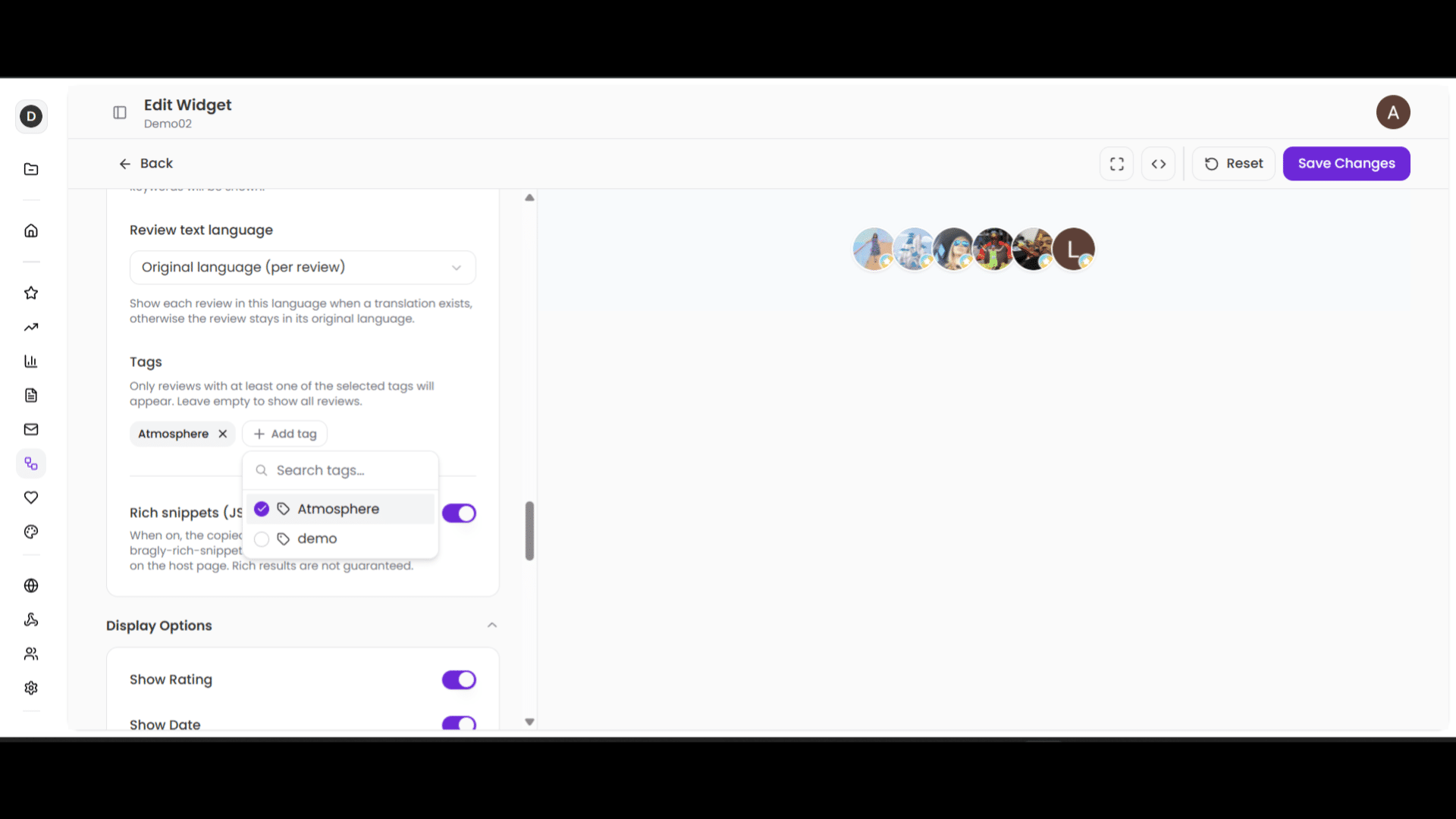
Save the changes. And now your widget is customized using reviews containing a specific tag. You can use multiple tags. This feature allows you to narrow down the focus of your widgets and show relevant reviews to customers visiting a specific page.