
How to Manage Your Forms' Language?
Change the language of your form or get all submissions translated in a few steps.
- In your Project Home page, click on Forms. It will take you to the Forms page where all your forms are listed.
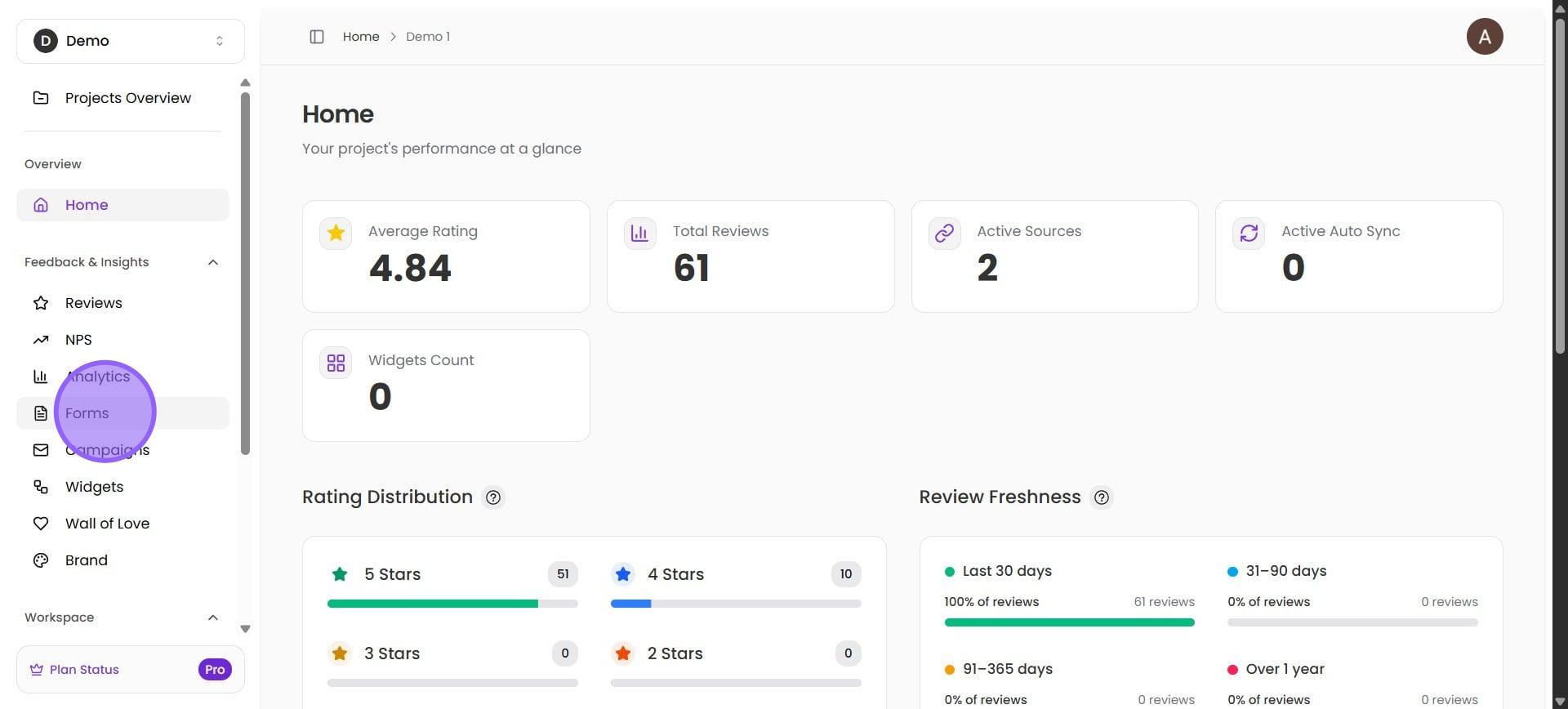
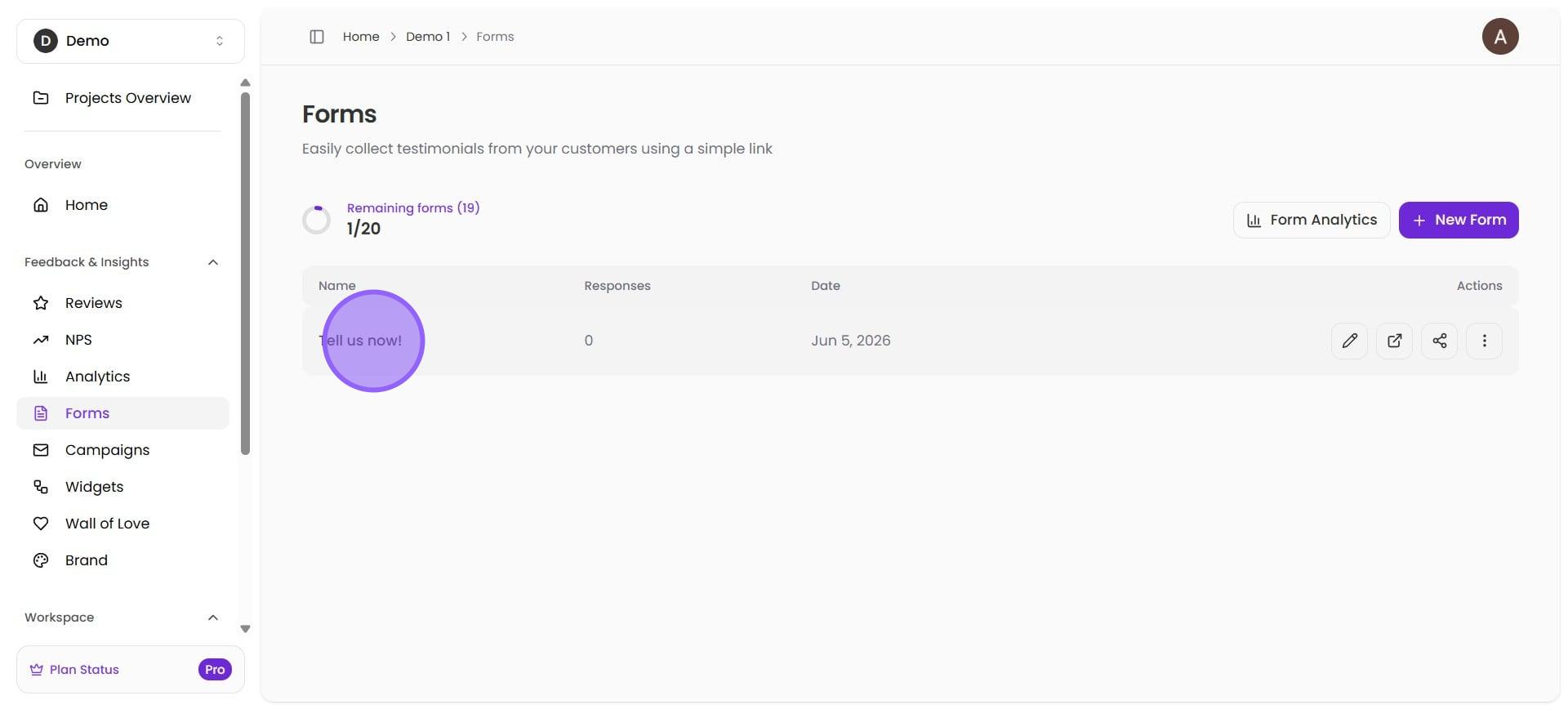
2. Click on the form that you'd like to work on.
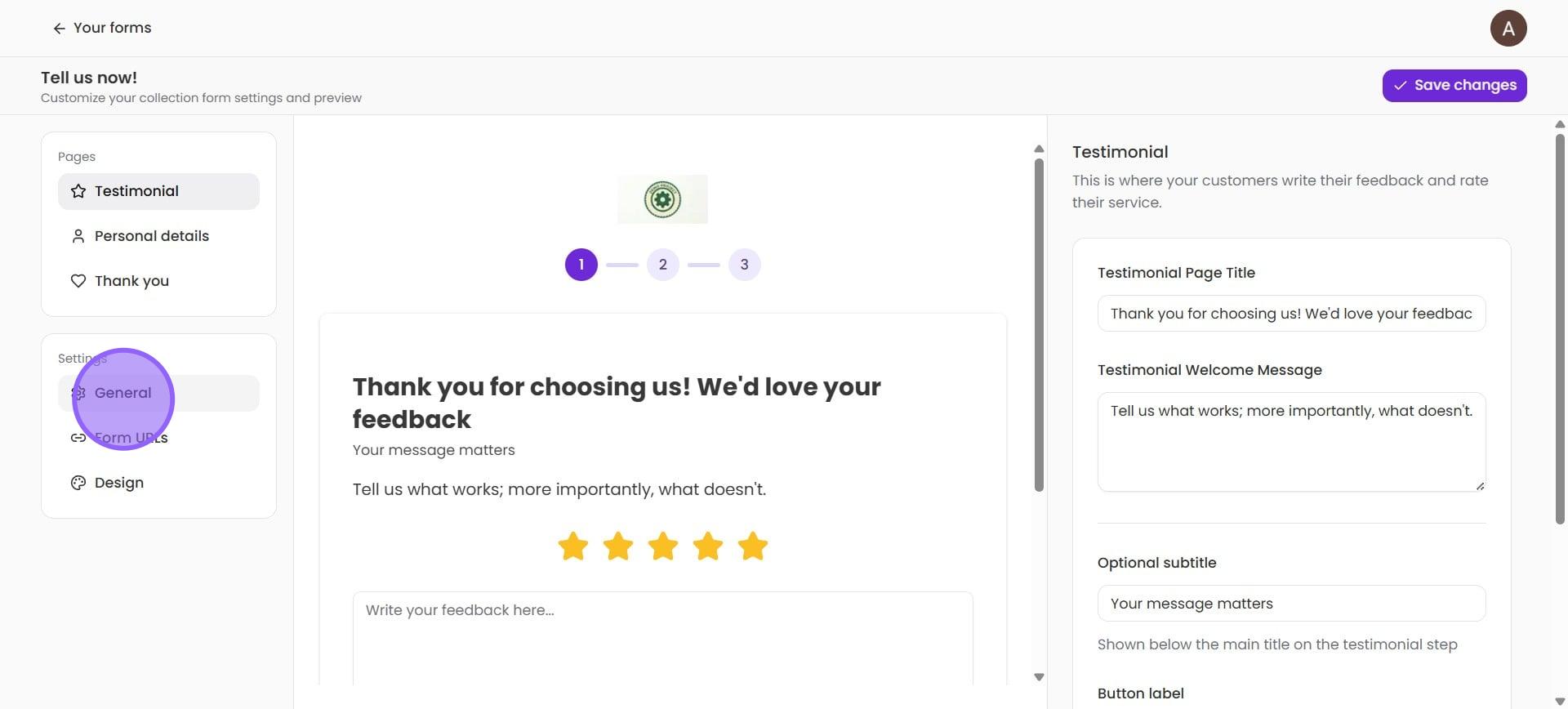
3. Now, click on General under Settings in the left-hand menu.
4. On the right-hand side, you'll see two options at the top. First, Form language: This allows you to change the templatized text on the form to a language of your liking. Click on the drop-down arrow and choose from a long list of languages.
Note: This feature does not call AI, it simply swaps the default English text with translated template strings. Nevertheless, you can still edit each step independently.
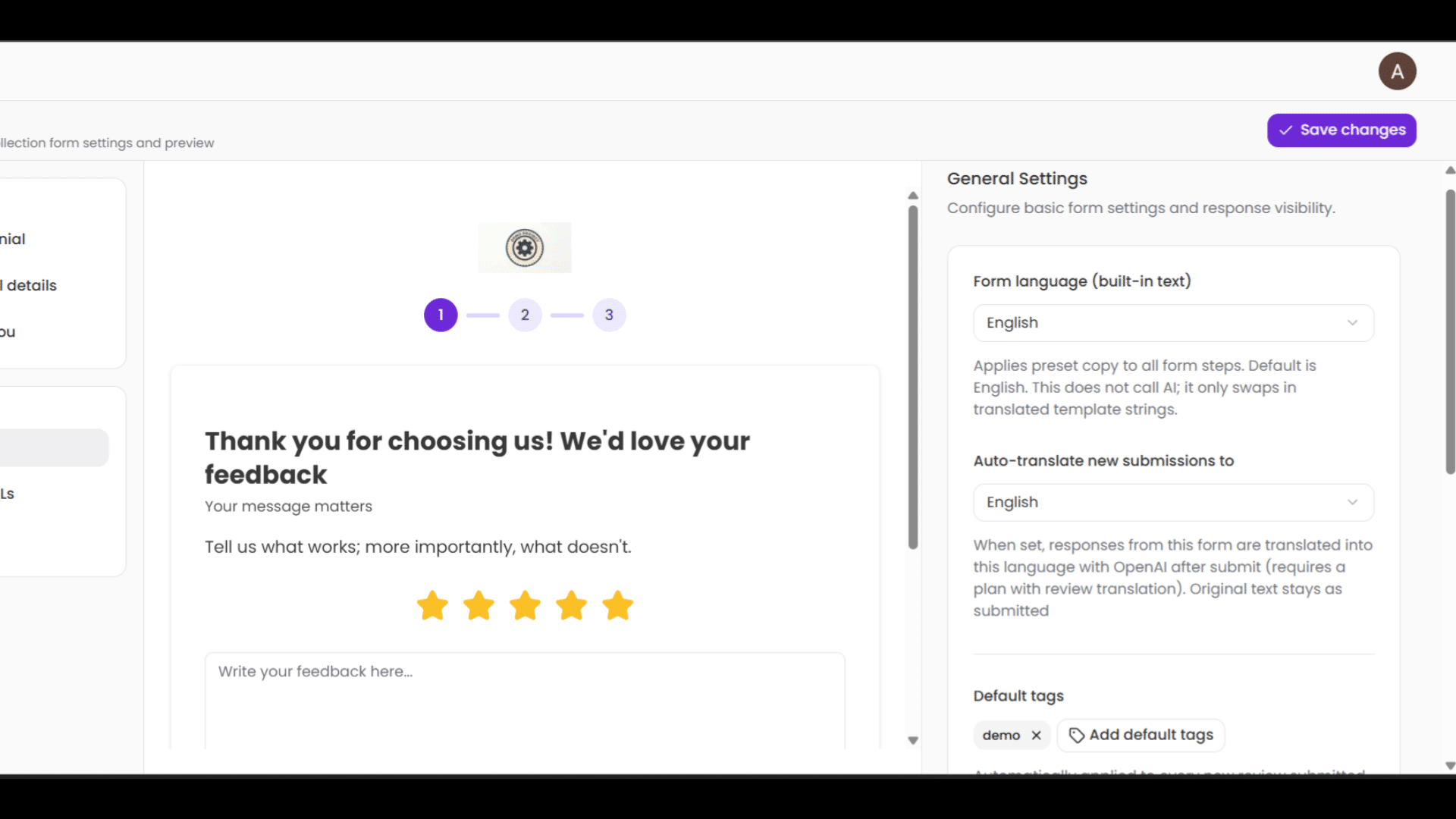
5. Once you choose a language, you get an instant preview of your form in the updated language.
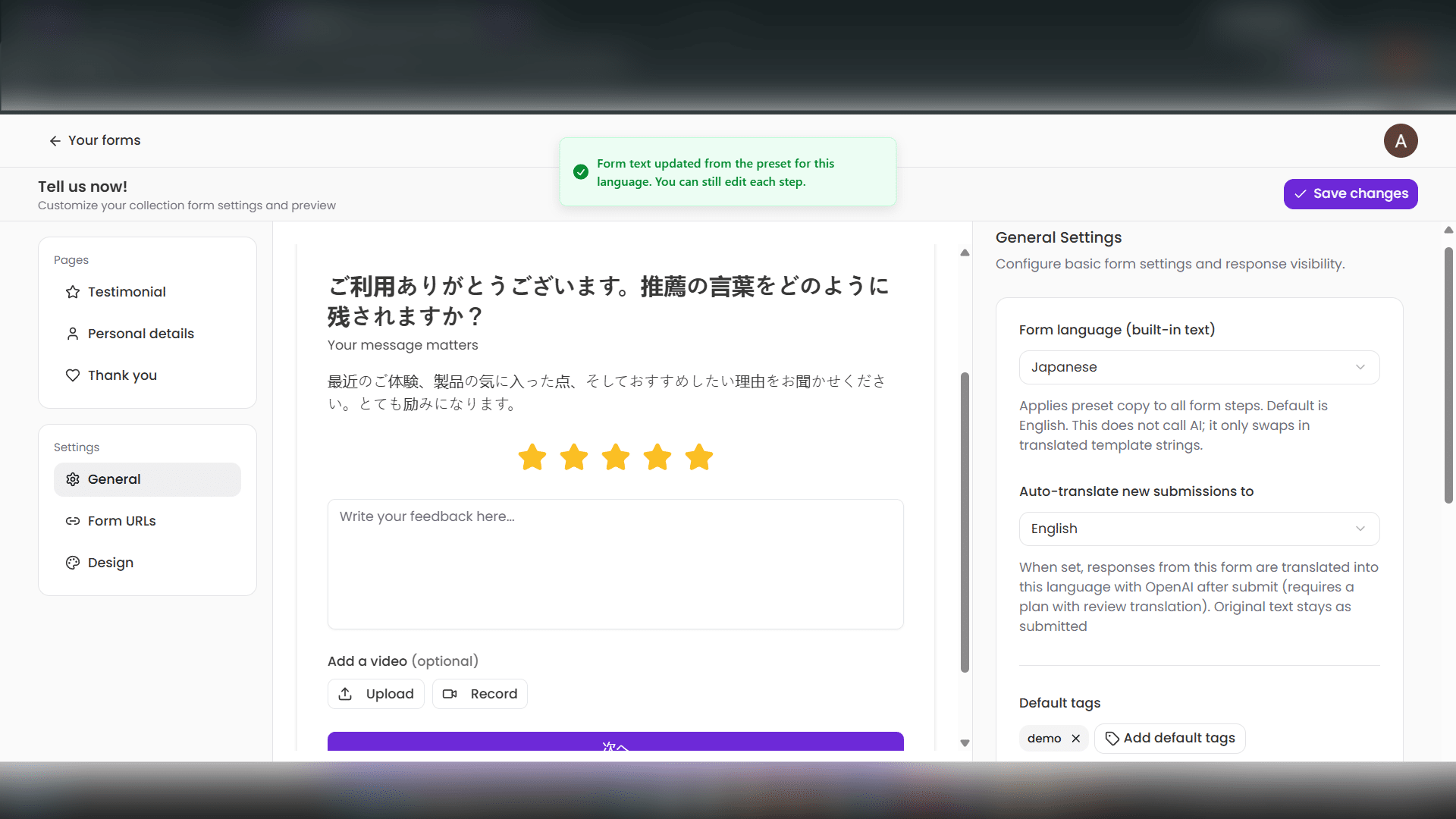
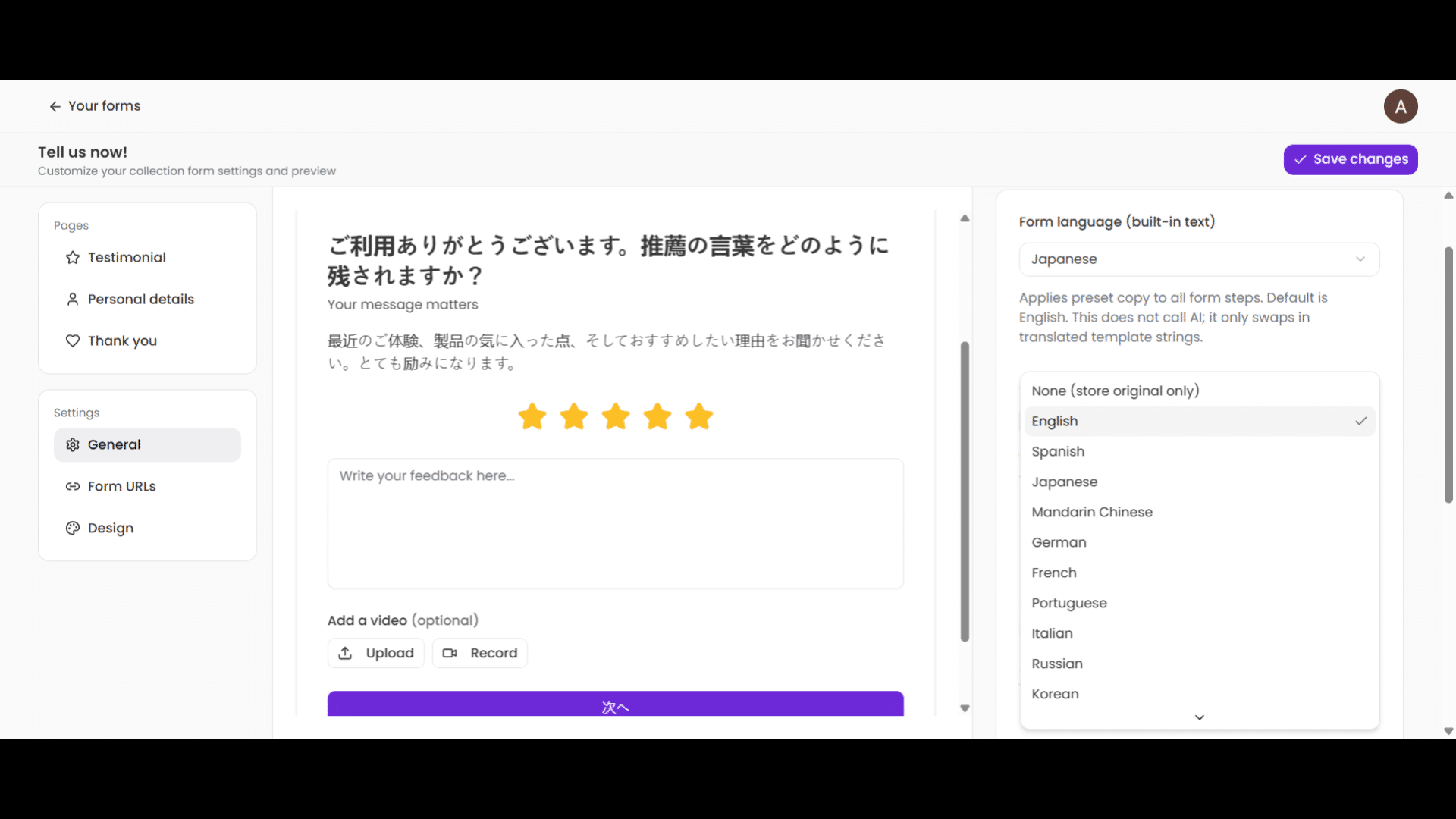
6. The second option is "Auto-translate new submissions to". As the name suggests, this feature translates the user-submitted responses into a language of your choice. Again, choose a language from a long list using the drop-down menu. This feature uses OpenAI for translations.
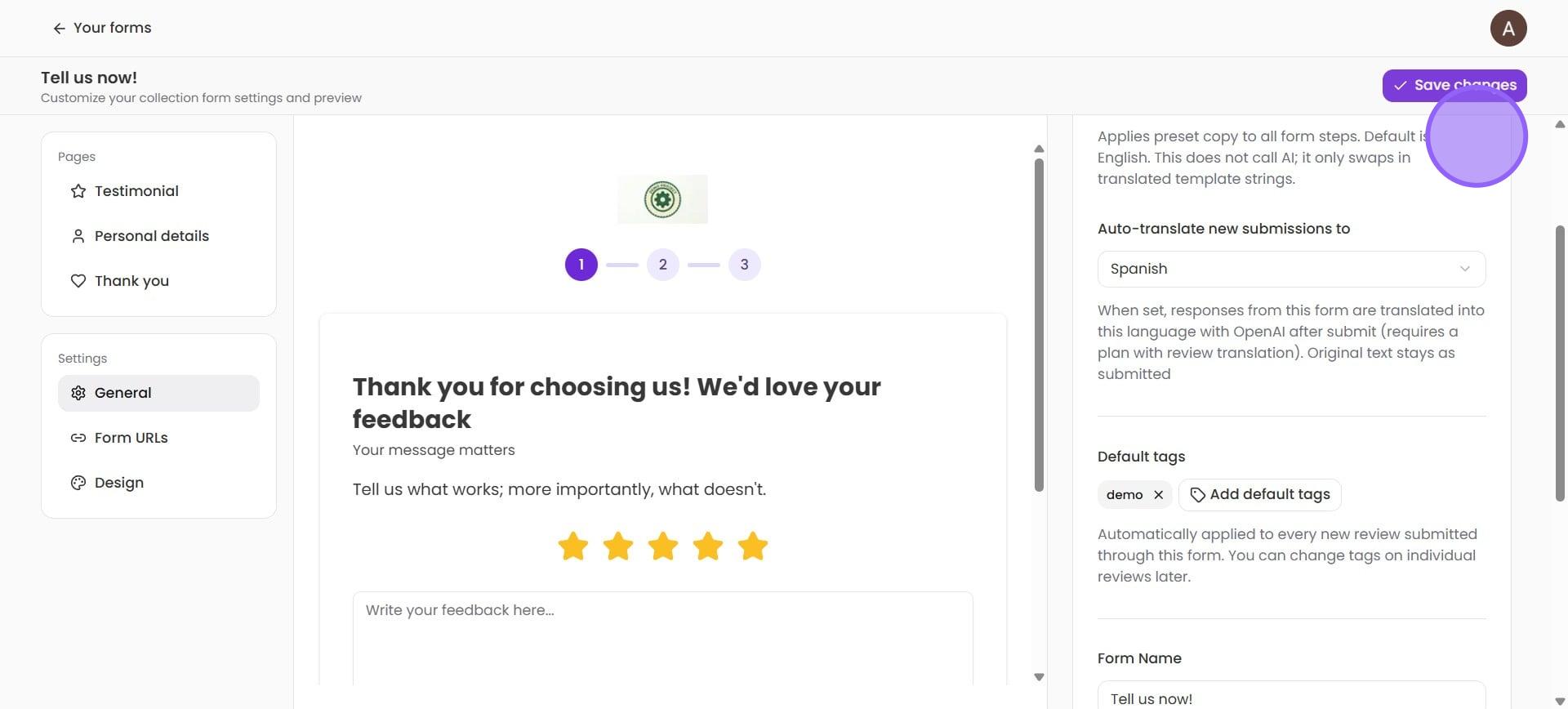
7. Once you are happy with the selections, click on Save changes. Your form will instantly be updated with the new settings.
How is this set of features useful?
Let's say you want to gather testimonials from your customers in Japan. You simply translate the form to Japanese like we did in the example. You still want to be able to read the responses in English, so, you use the auto-translate feature to get the responses in English, like we did in the example. You utilize Bragly's language presets and the power of LLMs to make your forms Global.