Things you can do with a customer response in Bragly
There's a lot you can do right from the dashboard.
Imagine you have a response from a real customer. Bragly lets you take a host of actions with minimal effort, right from the dashboard. You can send a 'thank you' email, download a customized image of your form, translate it, generate a reply, and even generate or manually create a case study out of the response.
Sending a Thank You email
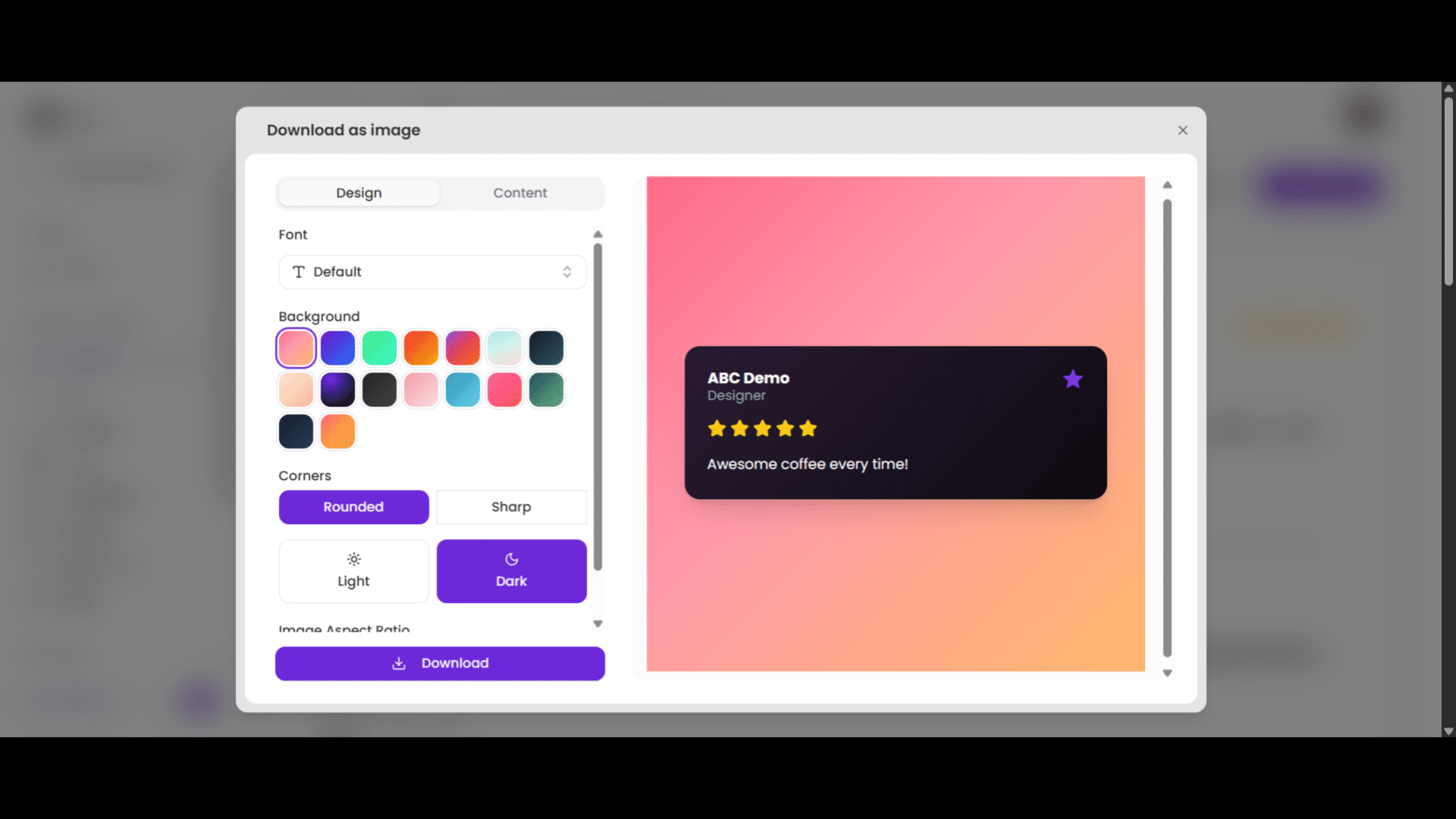
Open the response and click Thank the customer.
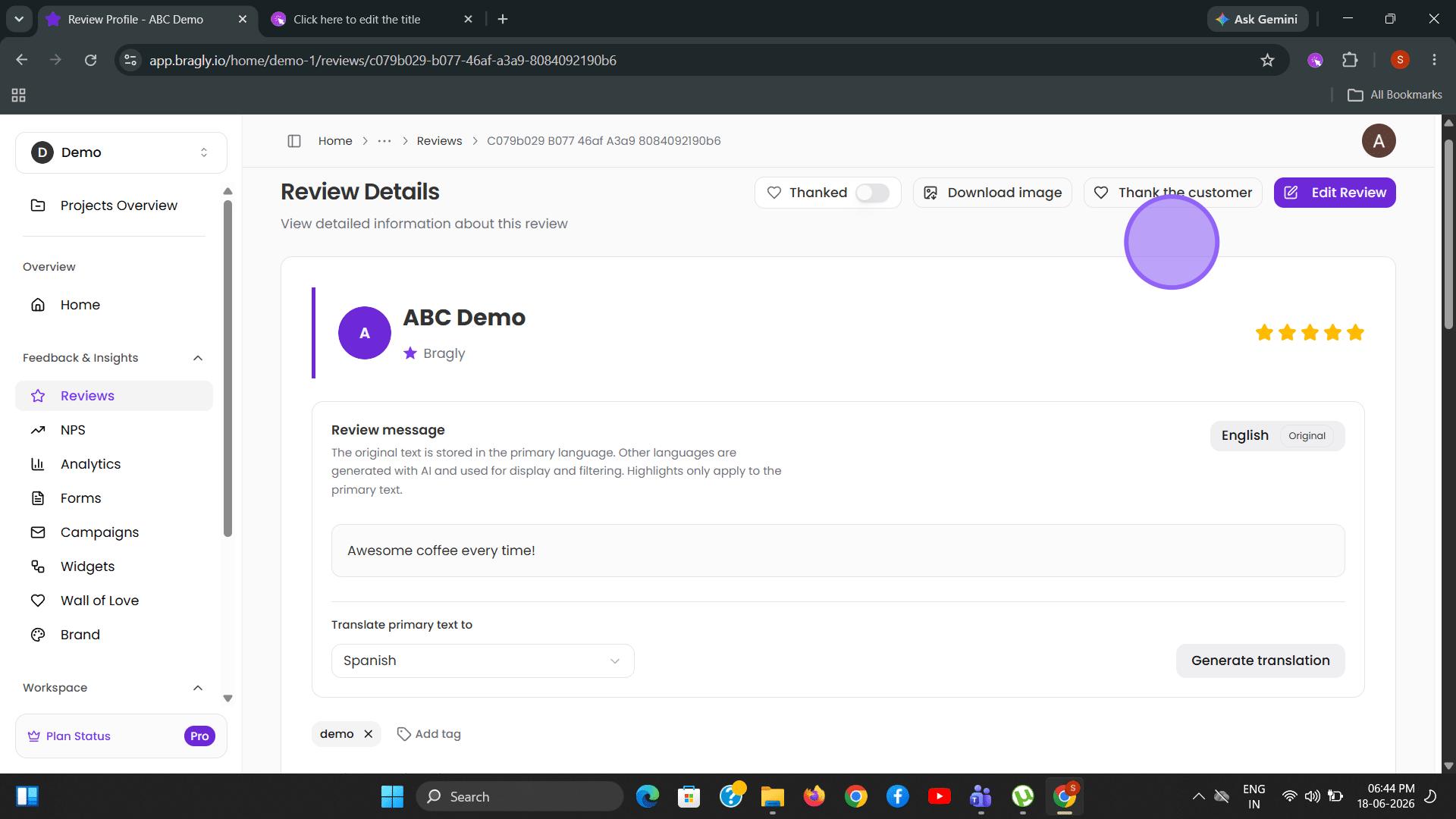
Edit the message to add a personal touch or send it through as it is. Note: this option is enabled only for the responses where an email ID is provided.
Downloading an image
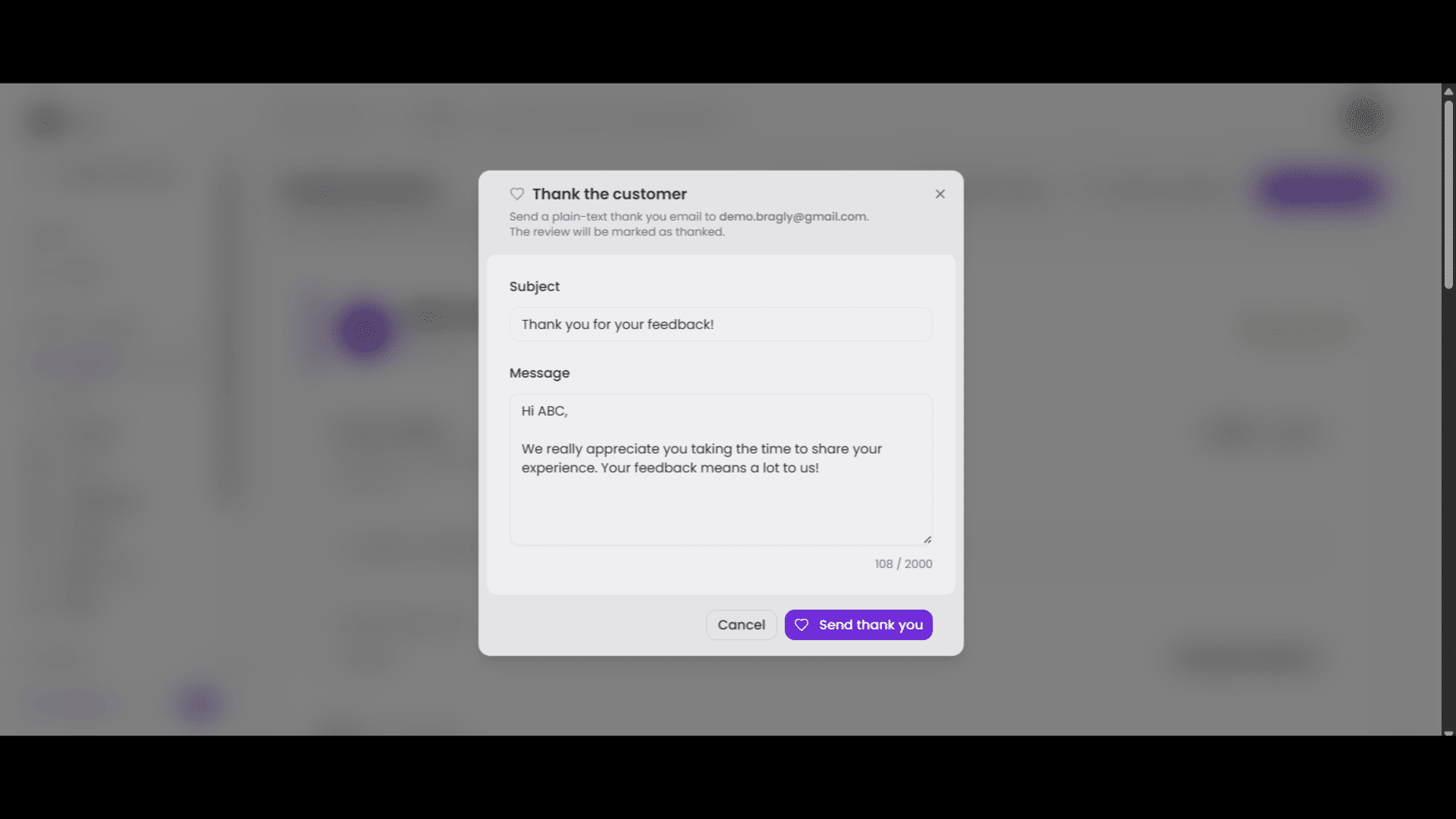
You can get a ready-to-share image with a bunch of customization options. Go back to the Review details page and click Download image. Switch between Design and Content to edit both - or keep it as it is. \ Scroll up and down to explore different customization options. Once you are happy, click Download. \ You can share it on socials, display it on your website, or use it as part of a blog post.
Generate a tailored reply with AI
Select a response from the Reviews page and scroll down to find the Generate AI reply button. Now you can click Generate AI reply to get a message instantly. The AI determines the tone, content, vocabulary, style, and overall brand voice based on the Brand Context section in your project settings. However, you can modify it for a specific reply.
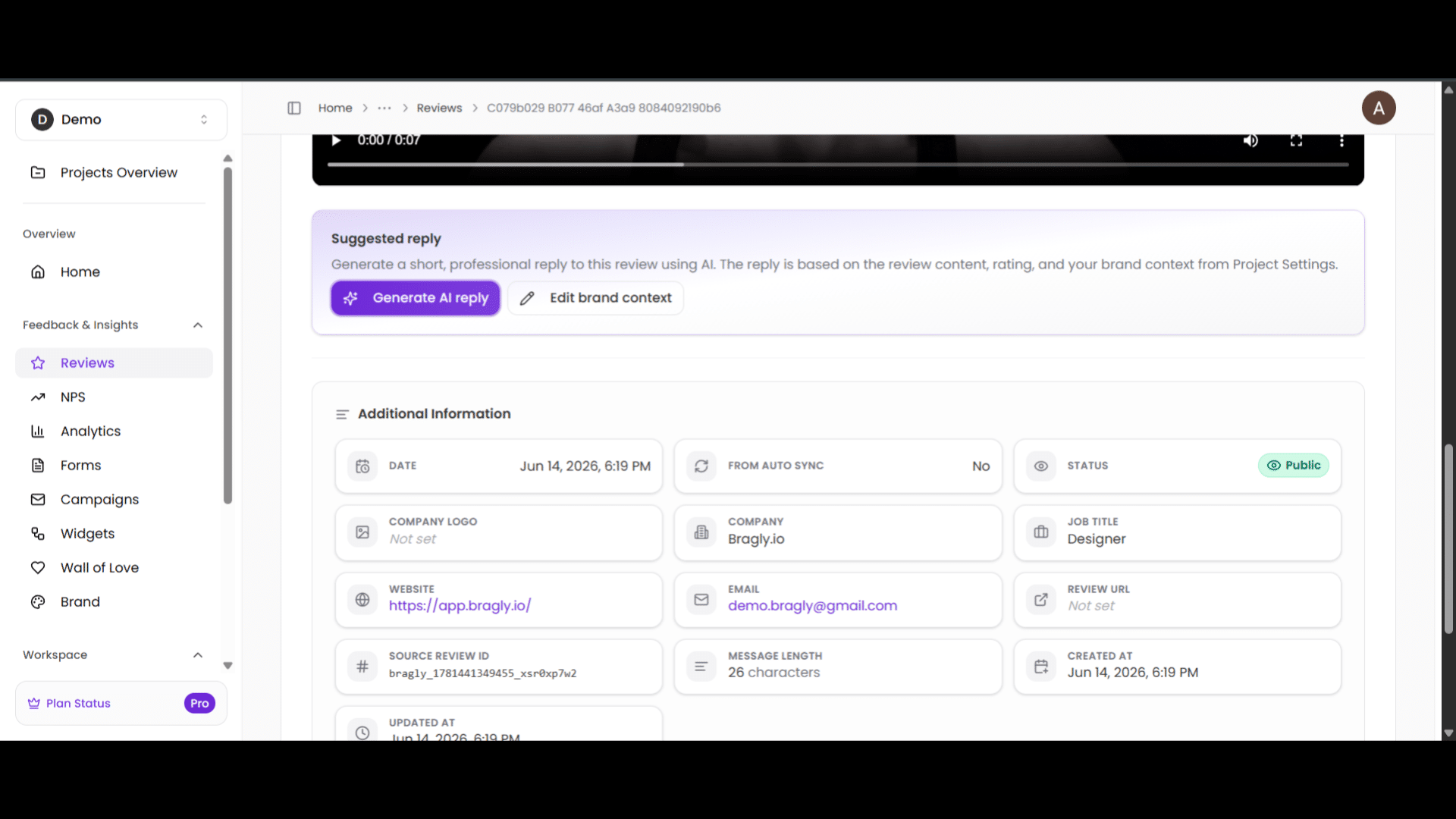
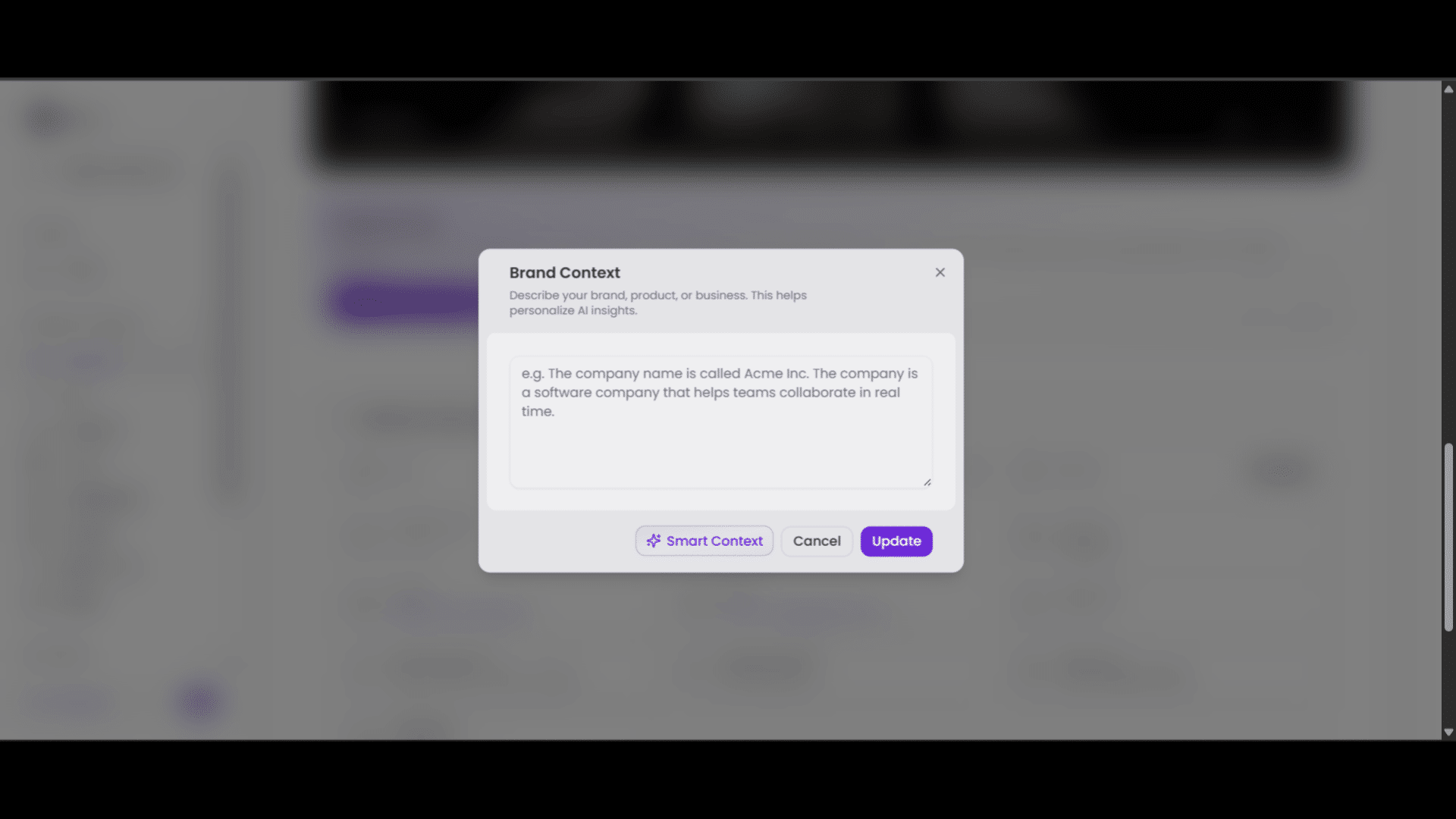
Click Edit brand context to open this dialog. You type your brand context in here, or you can use the Smart context button to make the AI read your website and come up with a brand context. Just provide your website URL and give it a couple of minutes. Once you have your brand context ready, click Update; your AI reply will be generated based on this.
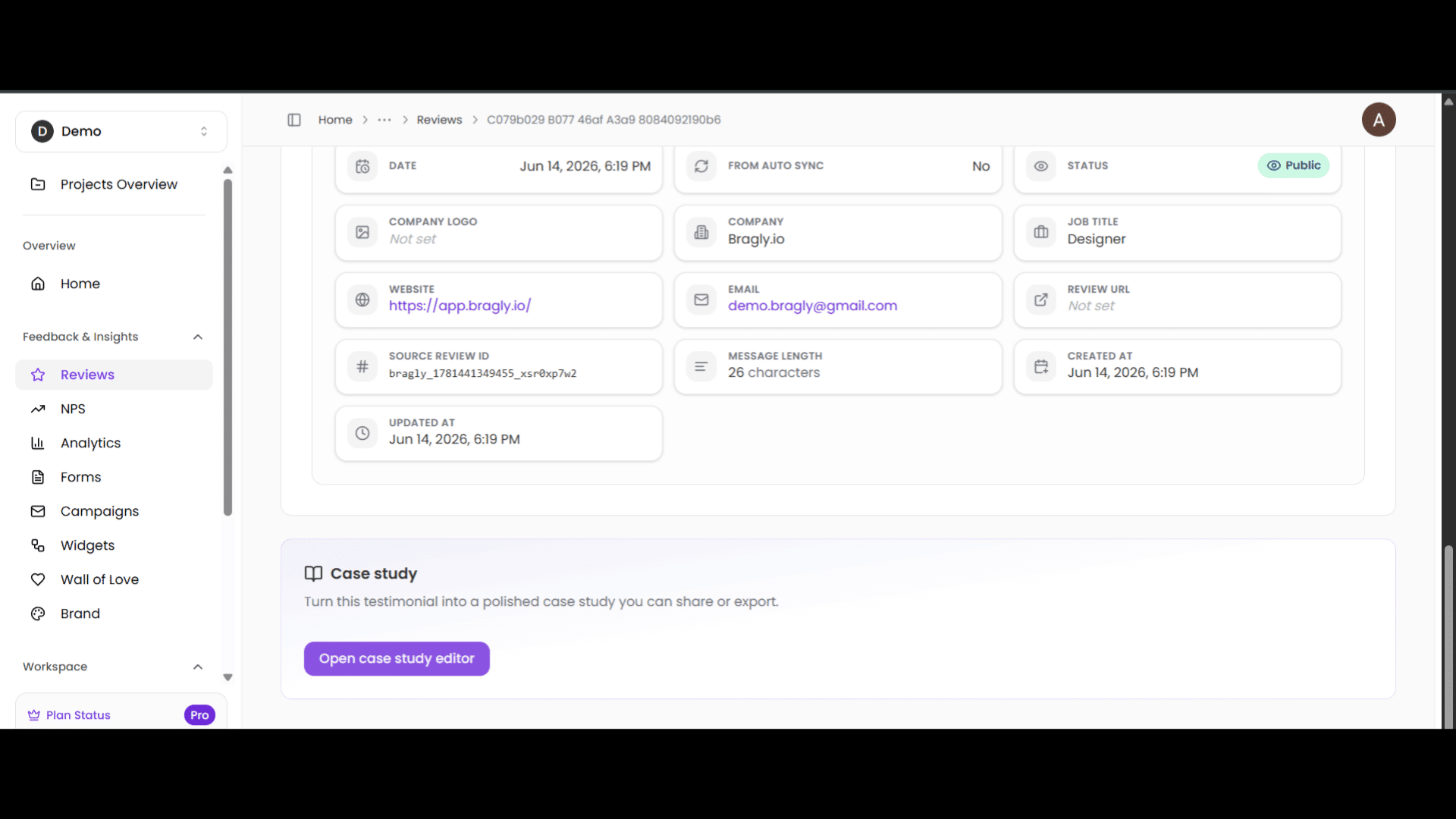
Turn a response into a case study
Open the response you want to work with from the Reviews page and scroll down to the bottom to find the Case study section. Click on the Open case study editor button to begin.
Here, you can manually create a case study, adding an Executive summary, a challenge statement, the solution, and the results. Or you can use the Generate from testimonial button to let AI analyze the response and create a case study for you.
Add a URL slug for the case study and toggle the switch on for the Public share page if you would like to get a globally accessible link.
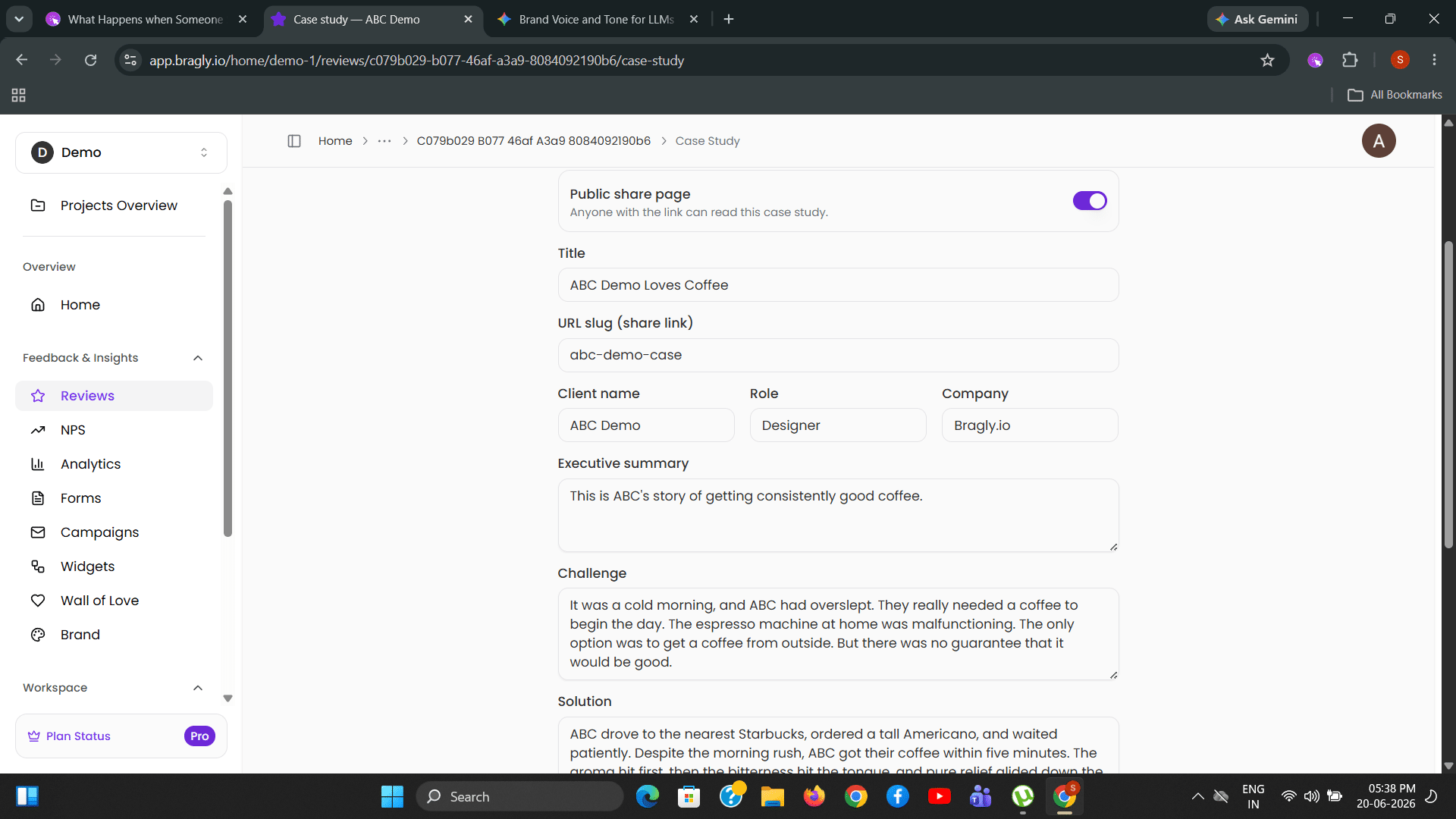
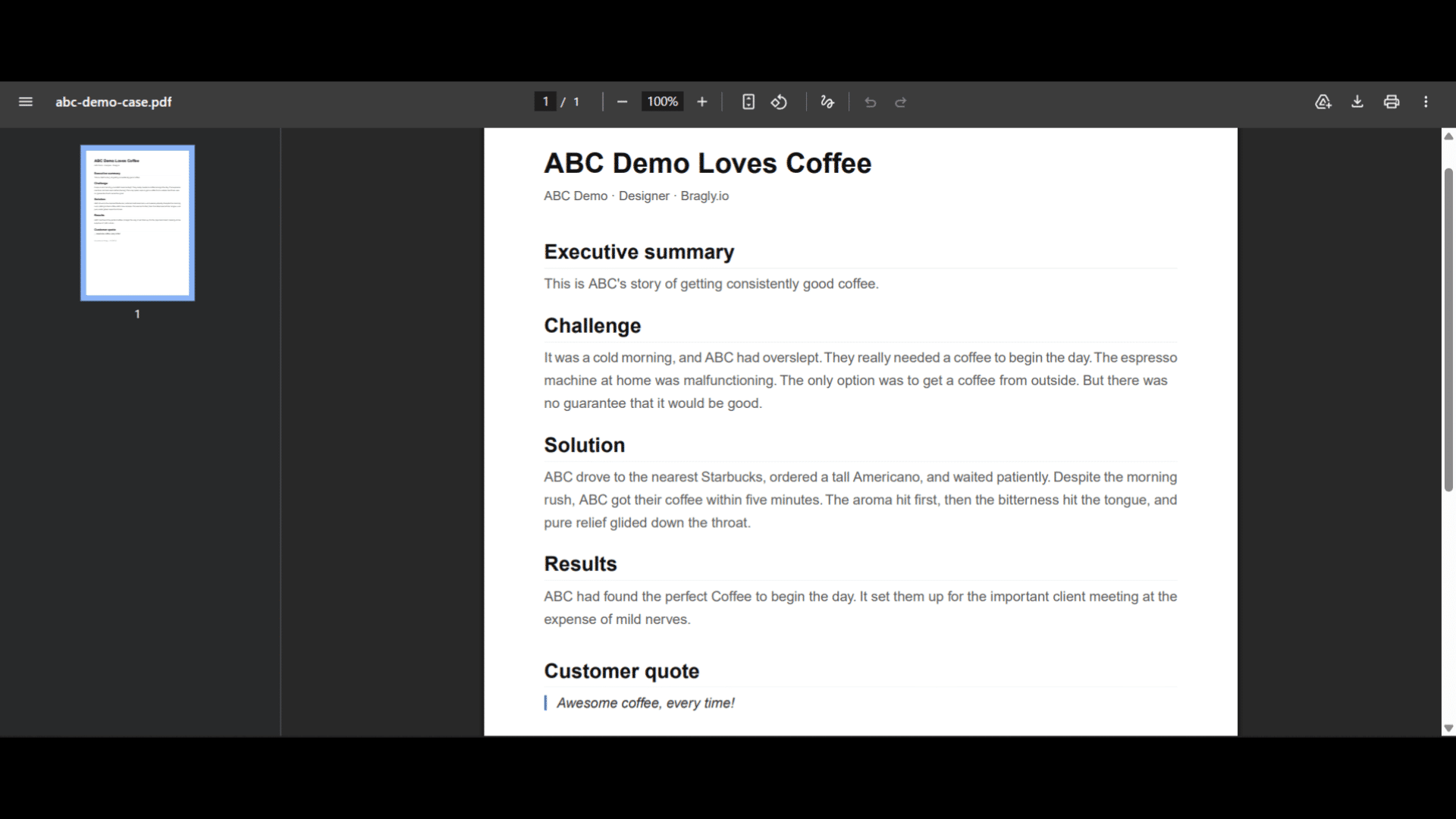
Once you are done, click Save changes at the bottom. You can export it as a PDF, copy a link, or both. Here is what a completed case study looks like.