How to build a widget?
A step-by-step guide to building your first widget on Bragly
If you are ready to create exciting, tailored, and engaging social proof inside your website, review widgets are the way to go.
Follow these simple steps to build your own, ready-to-use widget. Feel free to play around with the layouts to arrive at the best fit.
Don't worry about getting it perfect the first time. Remember, once you have embedded a widget on your site, changes made through Bragly are automatically updated there.
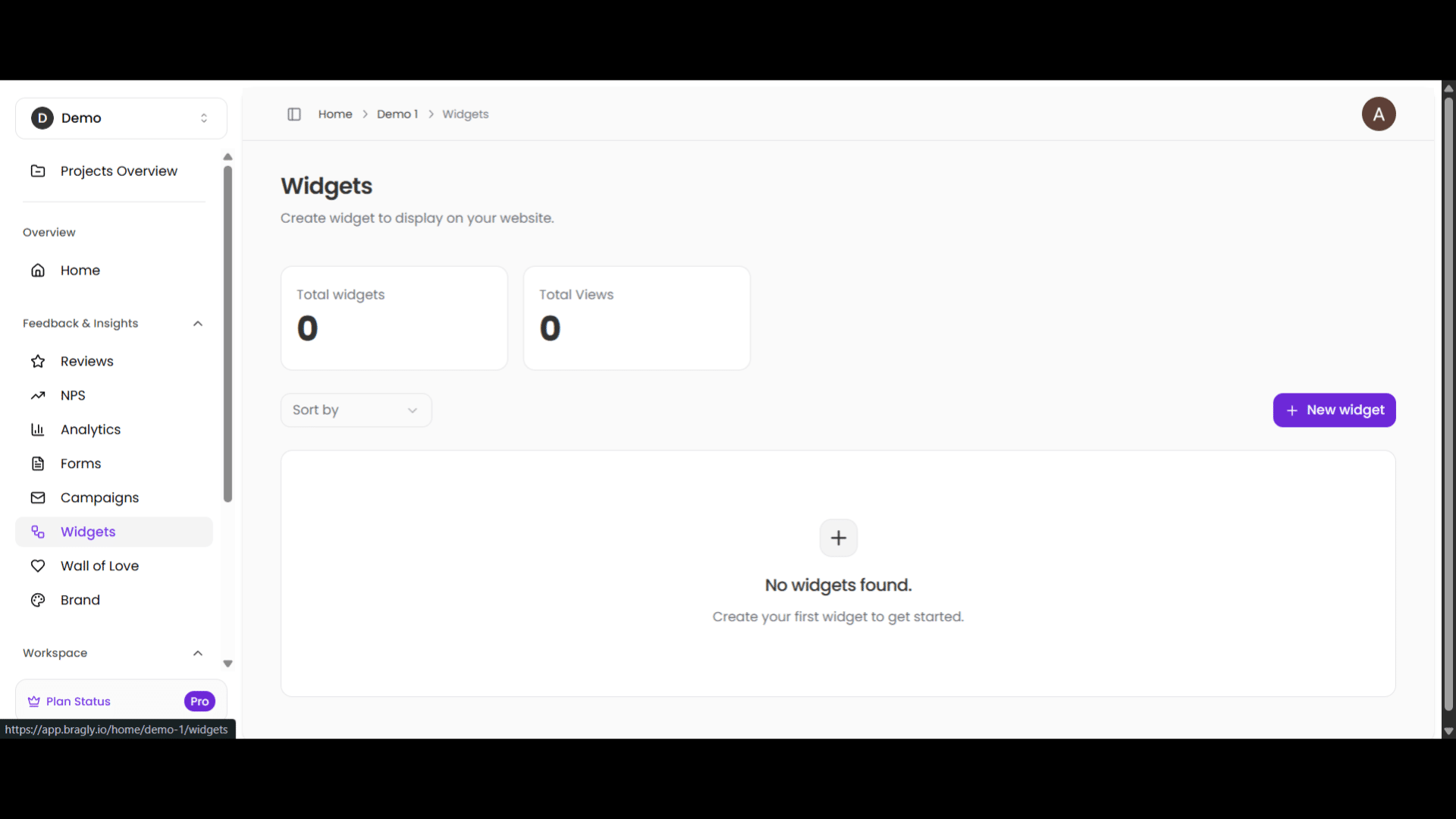
To begin, go to your project home page and select Widgets from the left pane. This will take you to the Widgets page. As you can see, there are no widgets right now. So, we will create one using the +New Widget button.
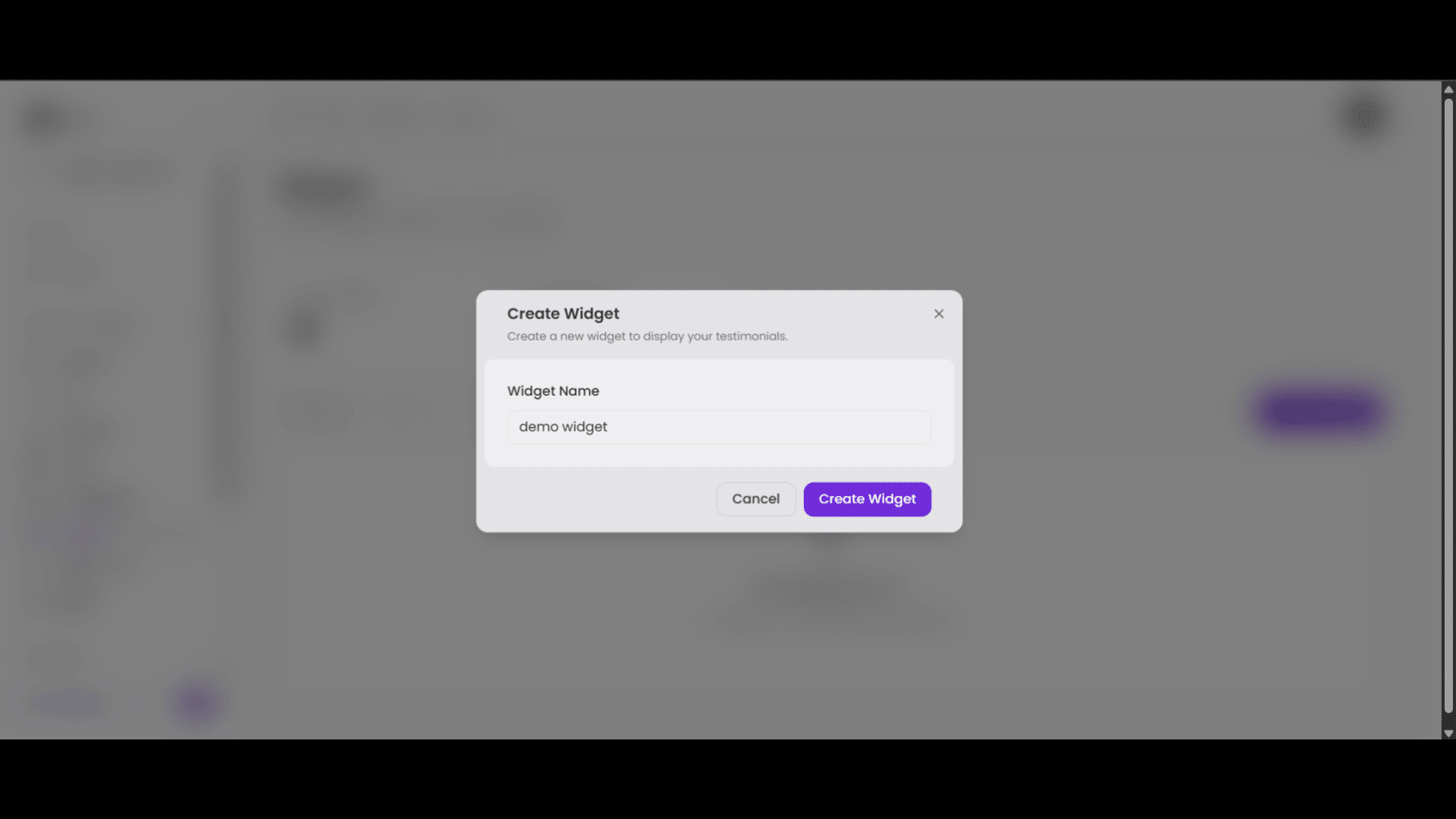
Once you click on New Widget, you'll be asked to give your Widget a name. This is a good opportunity to create a specific identity for your Widget - you can use a thoughtful name to classify widgets for specific pages. Once you are happy with the name, click Create Widget.
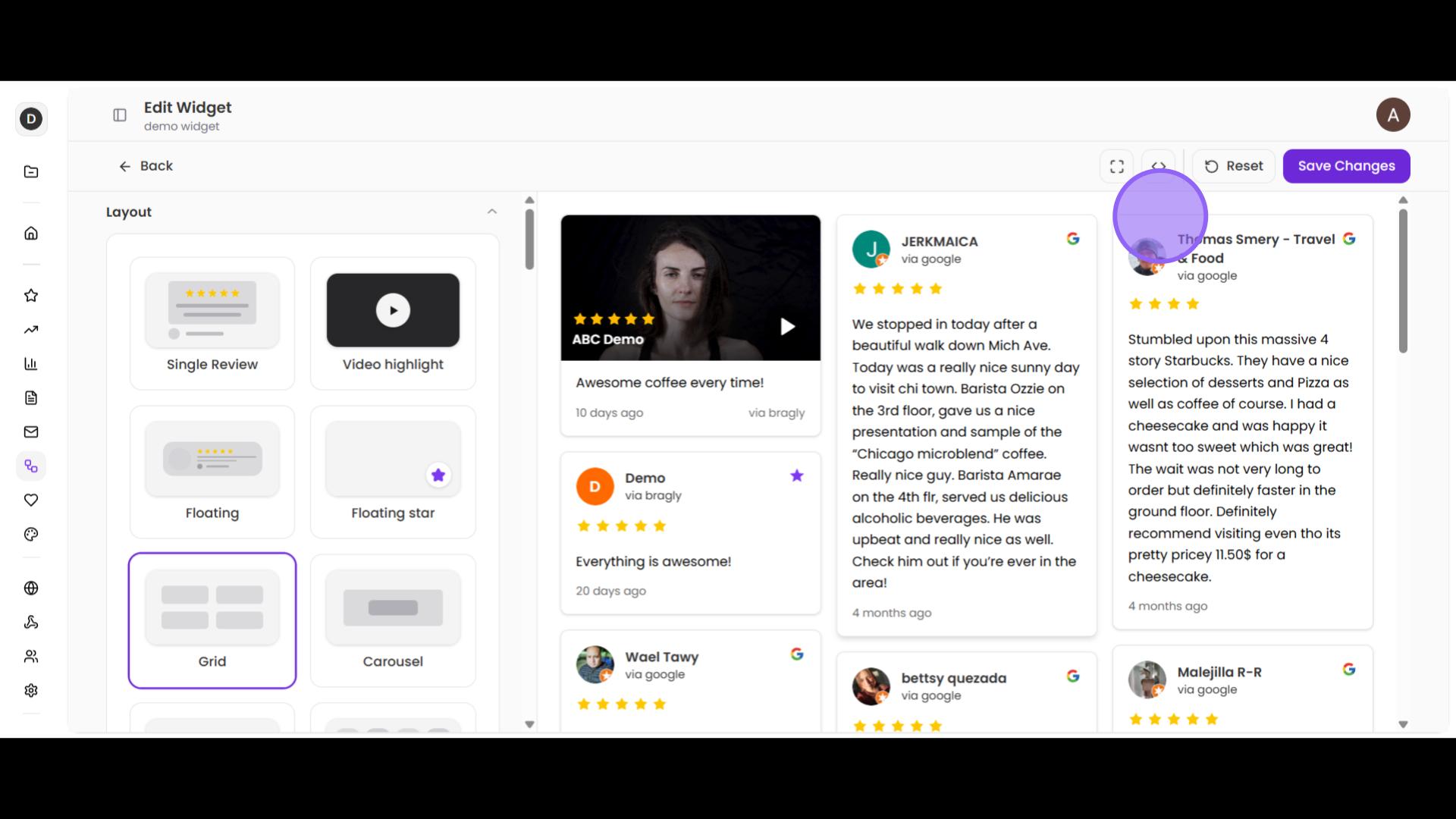
Believe it or not, your review widget is ready to go live. Bragly pulls your top reviews and creates a viable review widget for your site, which is usable as is. Of course, you can try a whole bunch of layouts, micro-adjust every minute detail, and create a perfect fit for your website.
But let's say you are happy with this. So, to go forward with this layout, click on the show code [<>] button.
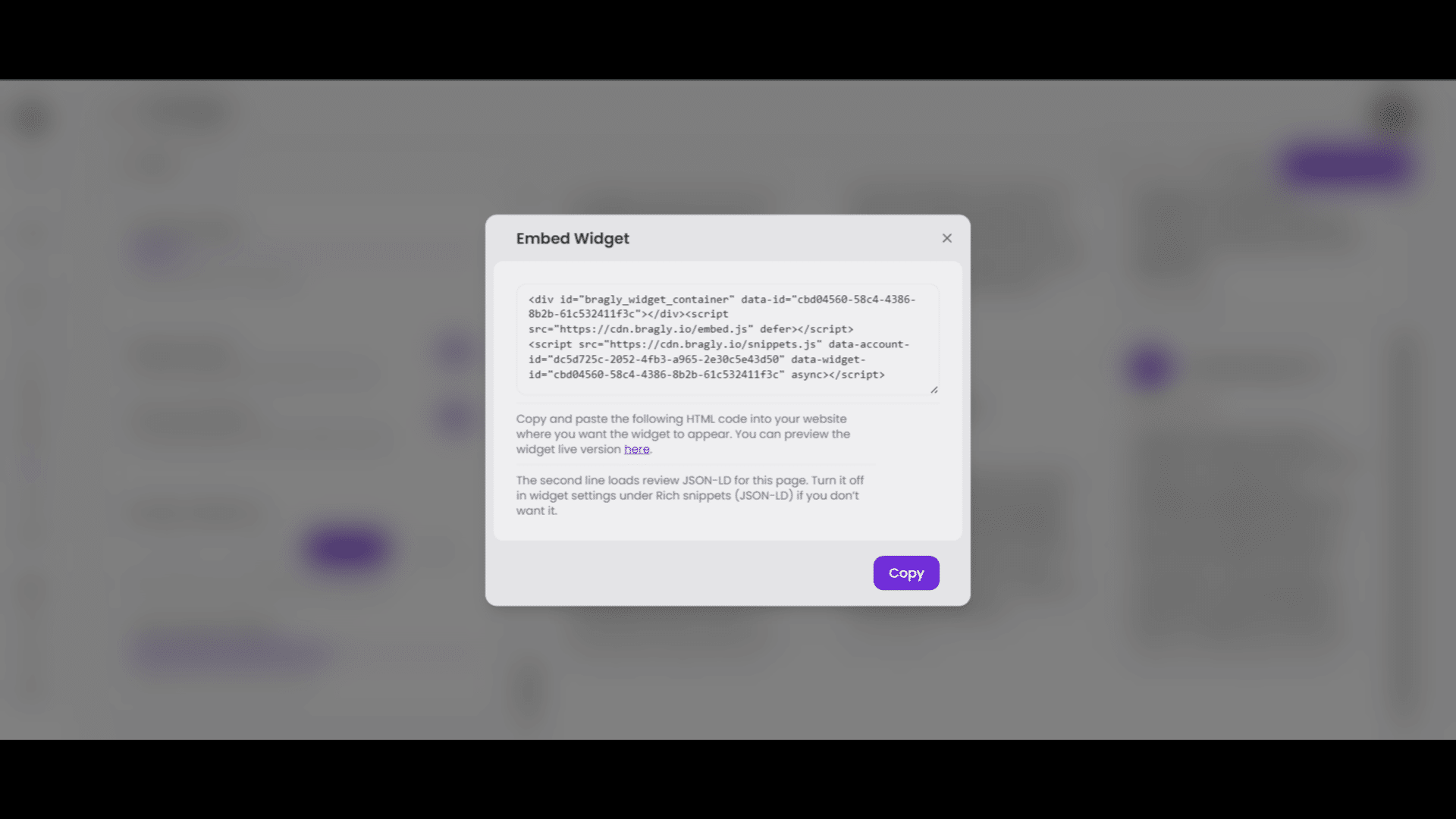
You will see this pop-up titled Embed Widget. Click Copy to copy this piece of HTML code. Navigate to your website editor and paste the code where you want the widget displayed.
Note: Rich Snippet is enabled by default for Widgets. Hence, this snippet also loads the JSON-LD for this widget. You can remove it by disabling Rich Snippet during set up.
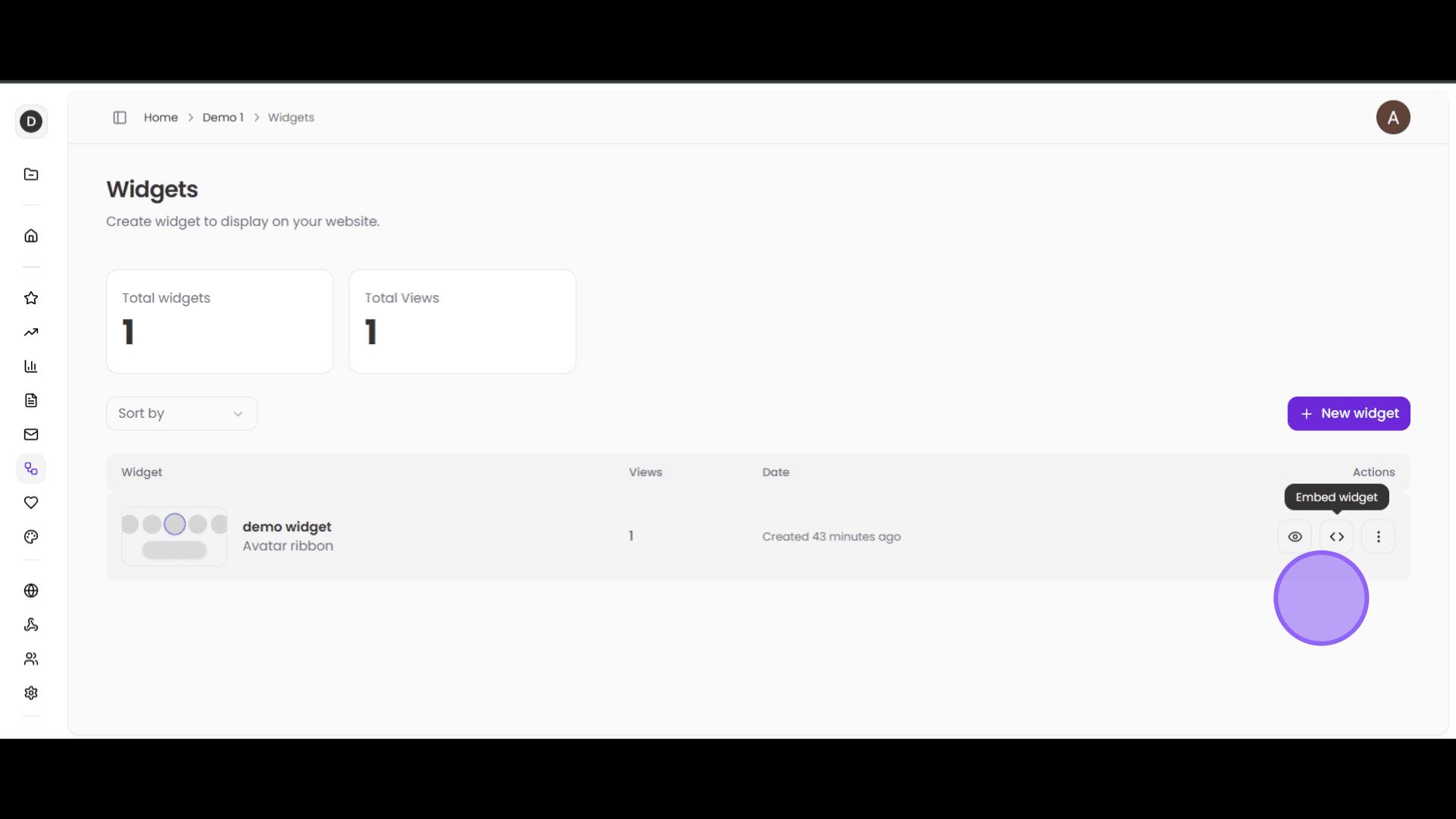
That's it! Your first Bragly review widget is built, and you are ready to put it on your website. If you navigate back to the Widgets page on your Bragly dashboard, you will see the new widget listed. You can preview the widget using the Preview widget button (the eye icon) and also get the code snippet from the Embed widget button.