
Looking for a Shorter Overview?
AI Summary
Key Moments
Google's Technical Requirements for Star Rating Schema
Google requires accurate ratingValue and reviewCount within specified ranges for schema to be valid.Manual vs. Automated Schema Implementation
Manual coding offers control but requires dev resources; automated solutions sync reviews across 33+ platforms.Impact of Star Ratings on Click-Through Rate
Pages with star ratings see 15-35% higher CTR, improving traffic and indirect SEO performance.Common Reasons Star Ratings Don't Show
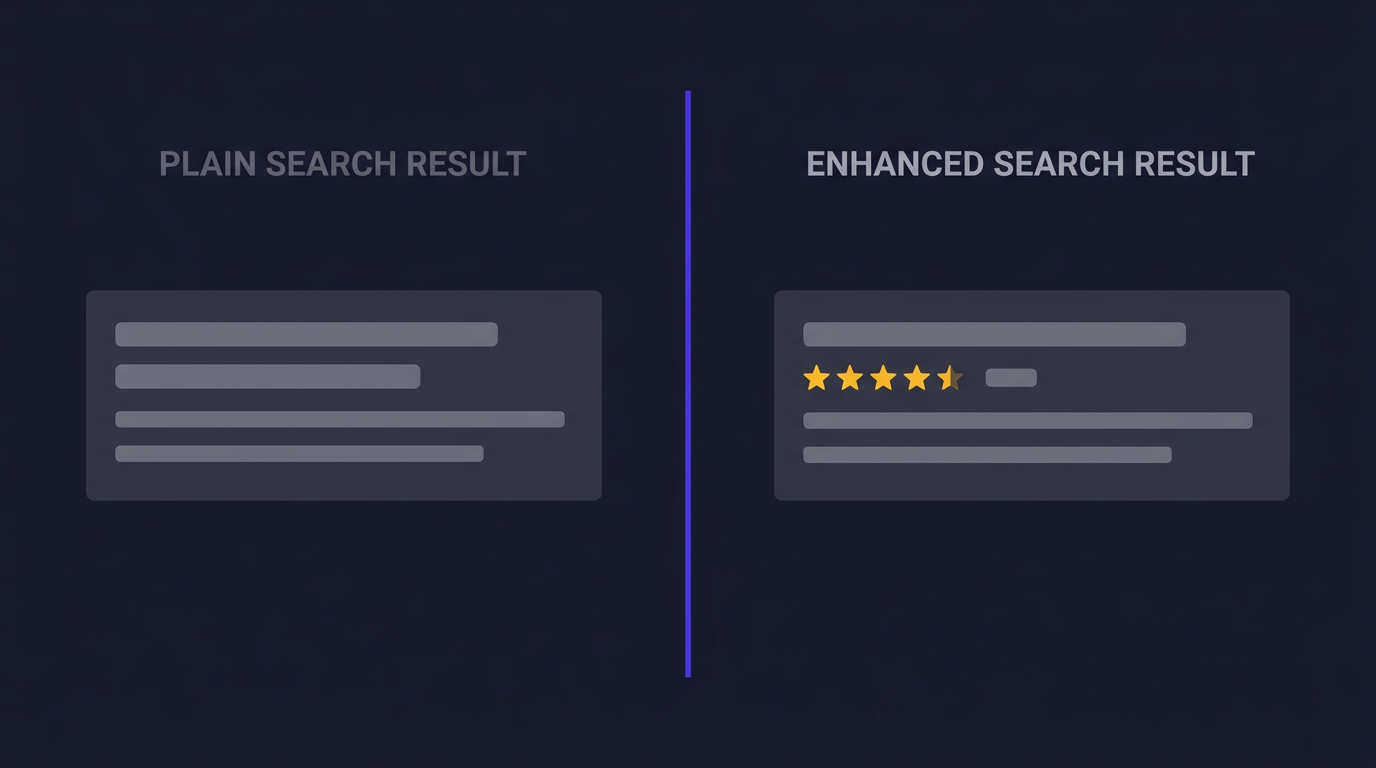
New pages, mismatched schema types, technical errors, and Google manual penalties can prevent star display.Schema markup is a form of structured data — code that tells Google exactly what information lives on your page. When you add star rating schema, you are telling the search engine: “This page has a 4.7-star product with 234 reviews.” Google can then display that as rich snippets: the little gold stars you see under some search results.
Key Takeaway: Skip the manual JSON-LD — if you are already collecting reviews from Google, Trustpilot, or any major platform, connect them to Bragly and the schema markup generates automatically. Your star ratings stay in sync with every new review, with zero ongoing maintenance.

What Is Schema Markup for Star Ratings?
Two schema types handle ratings. AggregateRating summarizes the overall rating across multiple reviews — ratingValue (the score), reviewCount (how many reviews), bestRating, and worstRating. Review schema handles individual reviews with specific author and reviewBody fields. Most businesses need AggregateRating for their product and landing pages.


Why Star Ratings in Search Results Actually Matter
The numbers are hard to argue with. Pages with star ratings in Google search results see a 15–35% lift in click-through rate, according to research from BrightEdge and Search Engine Land. A separate study found that 88% of consumers trust user reviews as much as personal recommendations — and seeing stars in the SERP is often the first signal a potential customer gets.
That trust translates directly into revenue. Products displaying 5+ reviews are 270% more likely to be purchased than those with none. Where you place those reviews on your site matters just as much as having them — homepage hero sections, product pages, and checkout flows each convert differently.
Google’s Technical Requirements for Star Rating Schema
Google has strict rules about when it will display rich snippets. Understanding these upfront saves you from debugging a non-showing schema later.
Required Properties for AggregateRating
| Property | Description | Example |
|---|---|---|
| ratingValue | The numeric rating | 4.7 |
| reviewCount | Total number of reviews | 234 |
| bestRating | Maximum possible rating | 5 |
| worstRating | Minimum possible rating | 1 |
Your ratingValue must fall within the bestRating/worstRating range. The reviewCount must be accurate — Google cross-checks it against the actual number of reviews on the page. If you claim 500 reviews but only show 12, your schema gets flagged.
Google only shows rich snippets for products, recipes, movies, books, and local businesses — not for opinion pieces, news articles, or general web pages. Make sure your page type is eligible before troubleshooting a non-showing schema.
How to Add Star Rating Schema Manually (Code Method)
If you are comfortable editing HTML or have a developer on call, manual implementation gives you full control. Google recommends JSON-LD format — it is cleaner and less error-prone than Microdata.
Step 1: Write the JSON-LD Snippet
<script type="application/ld+json">
{
  "@context": "https://schema.org",
  "@type": "Product",
  "name": "Your Product Name",
  "aggregateRating": {
    "@type": "AggregateRating",
    "ratingValue": "4.7",
    "reviewCount": "234",
    "bestRating": "5",
    "worstRating": "1"
  }
}
</script>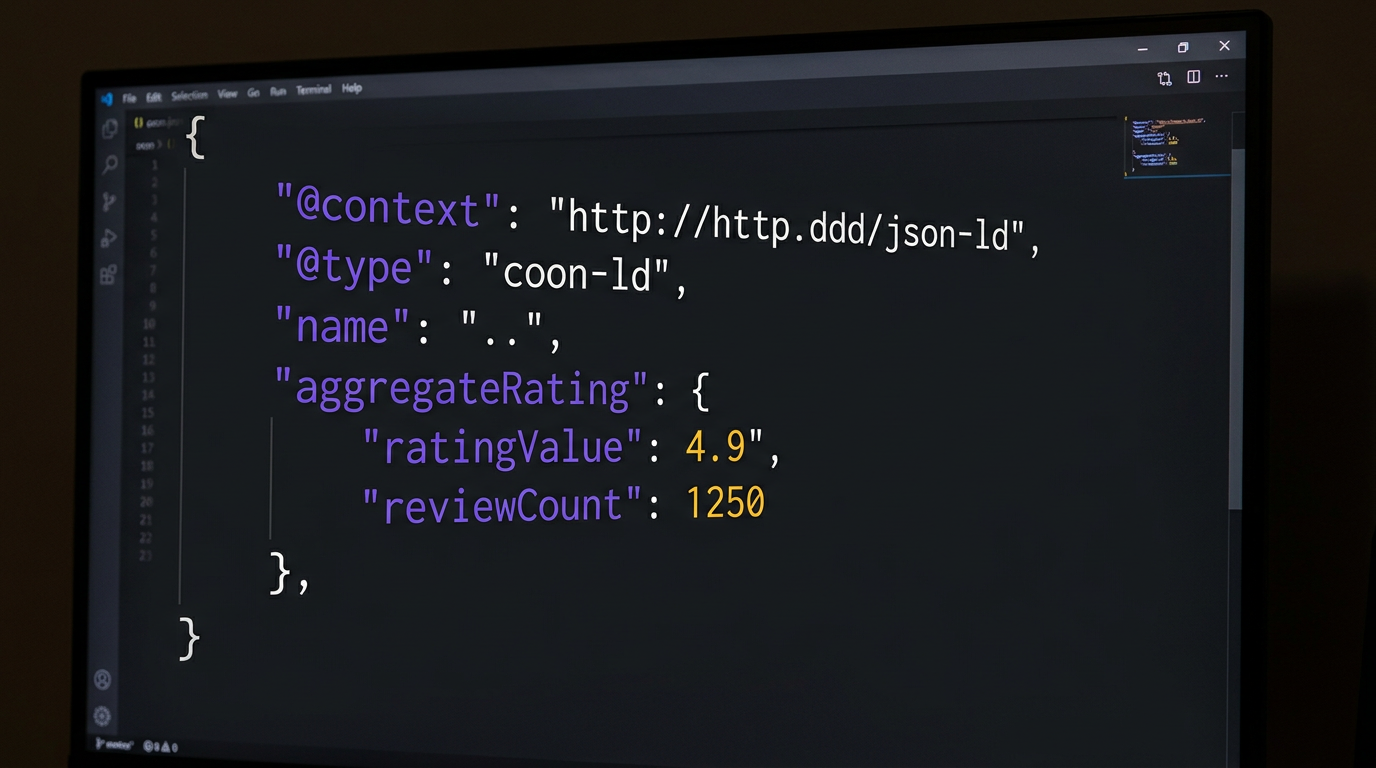
Place this inside the <head> section of your HTML page. The @type must match your page — use Product for product pages, LocalBusiness for service pages, or SoftwareApplication for SaaS.
Step 2: Add Schema to Your Specific Platform
WordPress (Rank Math): Edit the page, open Rank Math, go to Edit Schema, and add a Product schema type. Fill in the rating fields and save.
WordPress (Yoast): Yoast does not support rating schema natively. You will need the Yoast Schema structured data framework or a plugin like Schema Pro.
Webflow: Add the JSON-LD in Page Settings, under the Before </body> tag section. Webflow does not have a native schema UI yet.
Custom / React / Next.js: Add the script tag in your layout file’s <head>. If you are using Next.js 14 or later, use the next/script component with strategy="afterInteractive" to avoid blocking page load.
Step 3: Validate Your Schema
Run your URL through the Google Rich Results Test. If stars do not appear, check the Schema.dev Validator for more detailed error reporting. Common issues: ratingValue is a string instead of a number, reviewCount is missing, or the schema type does not match the page content.
Add Star Ratings in 5 Minutes (No-Code Method)
If the code approach sounds like too much — or if you manage reviews across multiple platforms and want schema that stays in sync automatically — there is a faster path.
Review management platforms that connect your actual review sources (Google, Trustpilot, Yelp, Facebook, and 30+ others) can generate the schema for you. Connect your accounts once, pick which ratings to display, and the platform embeds the correct JSON-LD on your site via a single script tag.
Before worrying about schema, you need reviews to put in it. How to Collect More Google Reviews covers the easiest ways to get your first batch of legitimate reviews from your happiest customers.
Bragly works this way. Connect your review platforms, choose your widget style, and the embedded script includes properly formatted AggregateRating schema that matches your live review data. When new reviews come in, the schema updates automatically — no manual updates, no dev tickets.
<div id="bragly_widget_container" data-id="xxx-xxx-xxx-xxx-xxx"></div>
<script src="https://cdn.bragly.io/embed.js" defer></script>
One thing worth knowing: the widget payload stays under 25 KB with lazy-loading, so it will not slow your pages down. The schema updates with each review sync, daily on the free plan or in real time on Business.
Manual vs. Automated: Which Is Right for You?
| Manual JSON-LD | Bragly (Automated) | |
|---|---|---|
| Time to implement | 30–60 minutes | 5 minutes |
| Requires developer | Yes | No |
| Schema stays in sync | No — you update it manually | Yes — updates automatically |
| Multi-platform reviews | You build the aggregation logic | 33+ sources connected out of the box |
| Schema validation handled | You do it yourself | Platform handles it |
| Works on | One page at a time | All pages with widgets |
How to Validate Your Star Rating Schema
Before declaring victory, validate. Two tools cover everything you need:
- Google Rich Results Test — Enter your URL or paste your code. It tells you exactly which rich results are eligible and which are not.
- Schema.dev Validator — More detailed than Google’s tool. Shows you every schema entity on the page, not just rich results.
Run the validation after publishing. If the page is new, Google may take a few days to index and display the stars. Use Google Search Console’s URL Inspection tool to request re-crawling after fixing schema errors.
Why Your Star Ratings Might Not Be Showing
Even with valid schema, stars sometimes do not appear. Here is the checklist:
- Your page is new. Google takes time to crawl and index structured data. Wait one to two weeks after publishing before you worry.
- The schema type does not match the page. Rating schema on a blog post will not trigger stars — only eligible page types like products, local businesses, and recipes qualify.
- The reviews are brand new. Google is cautious about fresh ratings. A page that accumulated 50 reviews in a single day looks suspicious.
- There are technical errors. Missing required fields, malformed JSON, or duplicate schema on the same page all cause suppression.
- Manual actions or algorithmic penalties. Check Google Search Console. If there is a manual action against your site for structured data abuse, stars will not show until it is resolved. Managing your online reputation across all platforms covers how to monitor and respond to these issues systematically.
Frequently Asked Questions
What is schema markup for star ratings?
Schema markup for star ratings is JSON-LD or Microdata code that tells Google your page contains an AggregateRating or Review. Google uses this to display rich snippets — the star icons and rating numbers — directly in search results.
Does star rating schema improve SEO?
Star ratings do not directly affect Google’s ranking algorithm. However, the click-through rate improvement (15–35% in studies) means more traffic to your page, and higher CTR is an indirect ranking signal. More clicks can lead to better rankings over time.
What is the difference between Review and AggregateRating schema?
AggregateRating gives an overall score across many reviews — ratingValue, reviewCount, bestRating, worstRating. Review schema describes individual reviews with properties like author, reviewBody, and datePublished. Use AggregateRating for product listing pages and summary displays. Use Review for individual testimonial pages.
Can I add schema markup without a plugin?
Yes. You can add JSON-LD directly in your HTML <head> section. On WordPress without Rank Math, manually editing your theme’s header.php file works. For Webflow and other site builders, custom code embedding sections handle it.
Why is my AggregateRating not showing in Google?
Check Google Search Console for structured data errors. Common causes: missing reviewCount, ratingValue outside the bestRating/worstRating range, page type not eligible for rich results, or a recent site migration that reset Google’s index. Run the URL through the Rich Results Test and fix any errors it reports.
The Bottom Line
Star rating schema is one of the few on-page changes that can visibly move your CTR without touching your content. Whether you go the manual route (full control, more time) or the automated route (faster setup, stays in sync with live reviews), the outcome is the same: more clicks, more trust, more conversions.
If you are already collecting reviews from Google, Trustpilot, or any of the major platforms, there is little reason to hand-code schema when your review data changes every week. An automated approach keeps your structured data honest — no manual updates, no stale ratings showing in search.
Ready to add star ratings to your site? Start a free Bragly account. The free plan covers up to 10 reviews and includes schema markup generation via the embed script. No credit card required.