Looking for a Shorter Overview?
AI Summary
Key Moments
Locating Customer Reviews
Customer-written reviews are found under 'Your Contributions' in Google Maps on both desktop and mobile.Accessing Business Reviews
Business owner reviews are accessed via Google Business Profile dashboard, Google Maps search, or Google Search knowledge panel.Common Causes for Missing Reviews
Issues like unverified business, wrong Google account, or spam filters often cause reviews to be missing or hidden.Importance of Responding to Reviews
Responding to every review publicly boosts reputation and can increase business revenue by up to 35%.You left a Google review three weeks ago and now you can’t find it. Or a customer told you they left a glowing review, but you have no idea where to look. Google doesn’t make this obvious.
This guide covers both situations. Finding reviews you wrote as a customer is different from finding reviews left for your business. They live in different places and the steps are different.
Key Takeaways
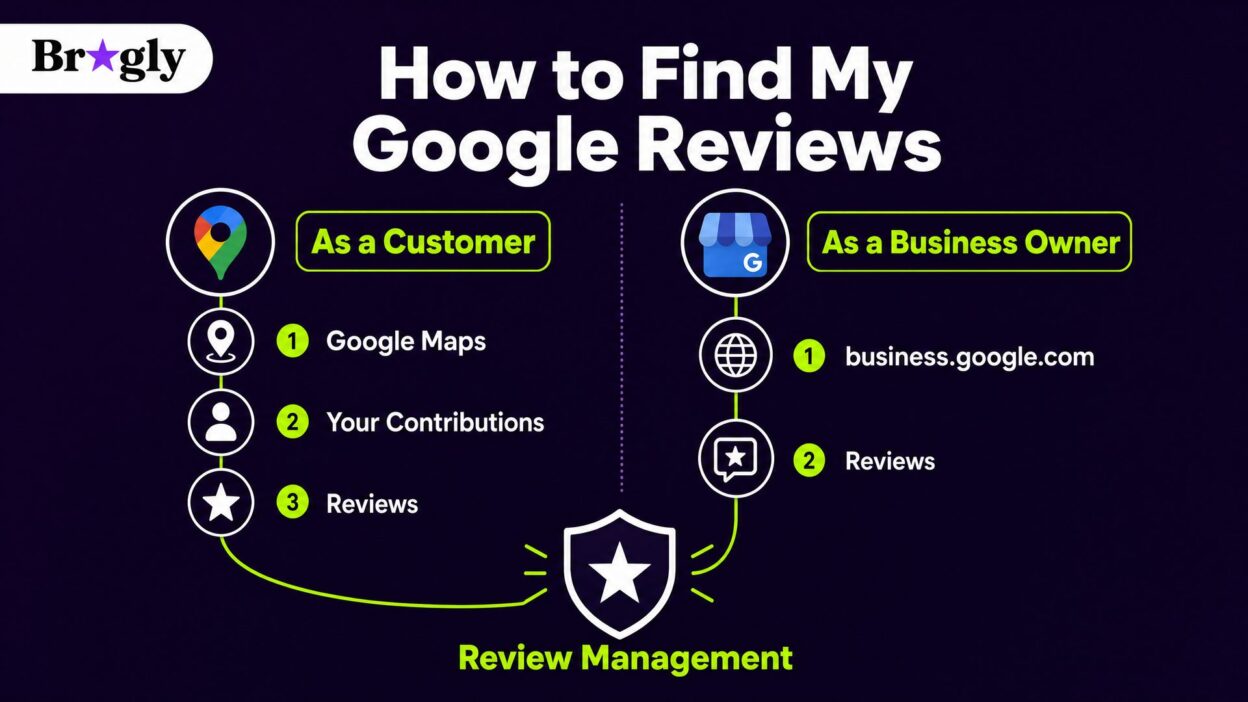
- Reviews you wrote as a customer live in Google Maps under “Your Contributions.”
- Reviews left for your business live in Google Business Profile at business.google.com.
- The fastest desktop shortcut is pasting maps.google.com/contrib/reviews into your browser while signed in.
- If reviews are missing, the most common cause is being logged into the wrong Google account.
- Once you find your reviews, responding to them consistently is one of the best things you can do for your reputation.
Part 1: Finding Reviews You Wrote as a Customer
Every review you have written on Google lives in your Google Maps profile under “Your Contributions.” Here is how to get there.
On Desktop (Google Maps)
Fastest method: While signed into your Google account, paste this URL directly into your browser:
maps.google.com/contrib/reviewsGoogle takes you straight to your personal review history. No menu navigation needed.
Step-by-step method:
- Open maps.google.com in your browser.
- Click the three horizontal lines (menu icon) in the top left.
- Select Your contributions.
- Click the Reviews tab.
You will see every review you have written, sorted by date. Click any review to read the full text, share it, or edit it.
On Mobile (Google Maps App)
- Open the Google Maps app (not the mobile browser).
- Tap your profile picture in the top right corner.
- Tap Your contributions.
- Tap the Reviews tab.
On iOS and Android the path is nearly identical. If you see “Your profile” instead of “Your contributions,” tap that. Both get you to the same place.
How to Edit or Delete a Review You Wrote
Once you find a review, tap the three-dot icon next to it. Two options appear:
- Edit review: Change the star rating, rewrite the text, or update photos. Tap Save when done.
- Delete review: Removes it permanently. Google does not restore deleted reviews.
Part 2: Finding Reviews Left for Your Business
If you own a business, customer reviews are in a completely different place. They live in your Google Business Profile, not your personal Google Maps account.
Method 1: Google Business Profile Dashboard (Best for Responding)
- Go to business.google.com and sign in with the Google account linked to your business.
- Select your business location if you manage more than one.
- Click Read Reviews from the options at the top.
This is where you respond to reviews, flag spam, and filter by star rating. If you only check one place, make it this one.
Method 2: Google Maps Search (Fastest Snapshot)
- Go to maps.google.com.
- Search your exact business name.
- Click your listing, then click the Reviews tab.
This shows you what a potential customer sees when they search for you. You are not logged in as the owner here, which is useful. You see the unfiltered public view.
Method 3: Google Search Knowledge Panel (No Login Needed)
- Search your exact business name in Google.
- In the knowledge panel on the right, find the star rating and review count (for example, “4.3 ★ · 127 Google reviews”).
- Click that link to open the full review feed.
No login needed. Good for a quick check when you are away from your main device.
How to Filter and Sort Your Business Reviews
In Google Business Profile you can sort reviews by Newest, Highest Rated, or Lowest Rated. You can also search by keyword. Type “parking” or “wait time” and it pulls up every review mentioning that phrase.
Sort by lowest rated once a week. If three or four reviews mention the same issue, that is a pattern worth fixing, not a one-off complaint.
Why Can’t I Find My Google Reviews?
Most “I can’t find my reviews” problems come down to five causes:
| Problem | Most Likely Cause | Fix |
|---|---|---|
| No reviews showing for your business | Business not verified | Claim via business.google.com/add |
| Wrong reviews showing | Logged into the wrong Google account | Sign out, then sign into your business Gmail |
| Review count dropped | Google’s spam filter removed some | Check Reviews > Spam & Policy in your dashboard |
| Reviews showing for the wrong location | Multiple location issue | Switch location in the Google Business Profile dropdown |
| A specific review disappeared | Google moderation or spam filter | It may return on its own; you cannot force it back |
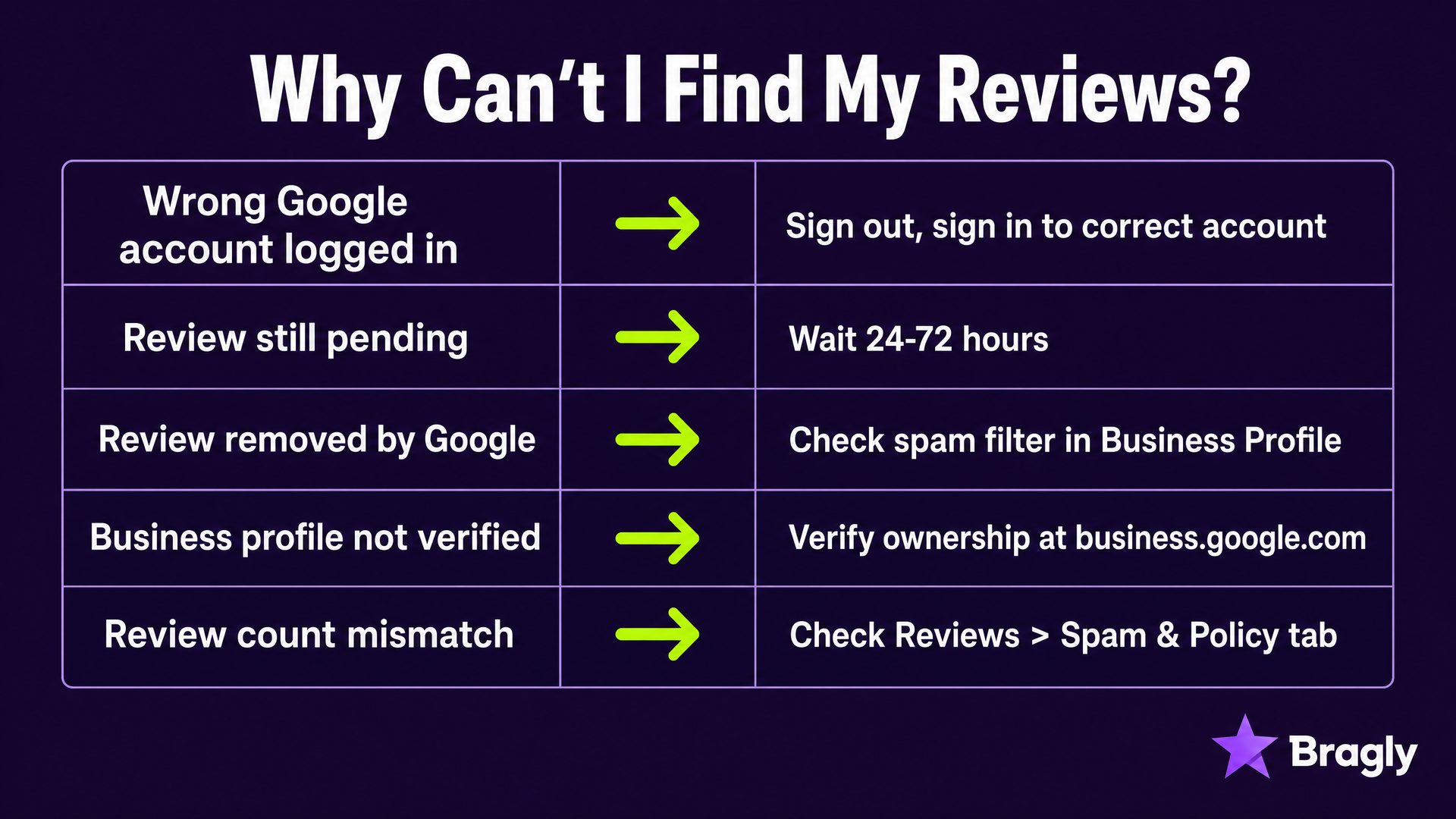
If your review count in Google Business Profile does not match what Google Maps shows, the difference is usually reviews caught in Google’s spam filter. They are not gone permanently. Go to Reviews > Spam & Policy in your dashboard to find them.
What to Do After You Find Your Reviews
Finding your reviews is step one. What you do next is what actually moves the needle.
Respond to Every Review
Your response is not for the person who left the review. It is a public signal to everyone else who reads it. BrightLocal found that 88% of consumers would choose a business that responds to all its reviews. Businesses that respond consistently earn roughly 35% more revenue than those that don’t.
For a positive review, keep it short and specific. For a negative one, acknowledge the issue, skip the argument, and offer to take it offline. When you are managing a high volume of reviews across multiple platforms, AI-powered response suggestions help you draft replies faster without losing your brand voice.
Display Your Best Reviews on Your Website
Google reviews are among the most trusted social proof you have. Leaving them only on Google means most of your website visitors never see them.
You can embed Google reviews directly on your website using testimonial widgets that pull in your latest reviews automatically. No copy-pasting, no manual updates. Visitors see real, current reviews without leaving your site.
Track Patterns Over Time
One review tells you one person’s experience. A hundred reviews tell you what your business actually looks like to customers. Use review analytics to spot recurring themes, track your average rating over time, and see which locations or products get the most feedback.
If you are getting reviews across Google, Trustpilot, Yelp, and other platforms, managing them from a single centralized dashboard saves a lot of time compared to checking each platform one by one.
Get More Reviews
Most customers who had a good experience forget to leave a review. A follow-up email or SMS asking for feedback is usually enough to change that. Read our guide on how to collect more Google reviews for strategies that actually work.
Final Thoughts
Finding your Google reviews takes under a minute once you know where to look. Reviews you wrote as a customer live in Google Maps under “Your Contributions.” Reviews left for your business live in Google Business Profile at business.google.com.
The real opportunity is what comes after. Respond to every review, display your best ones on your website, and track patterns over time. That is how a review presence becomes something that actually drives business.
Frequently Asked Questions
Where do my Google reviews go after I write them?
They appear in your Google Maps profile under “Your Contributions” and are publicly visible on the listing you reviewed. They stay there unless you delete them or Google removes them for a policy violation.
Can I see all the reviews I have ever left on Google?
Yes. Go to maps.google.com, open the menu, click “Your contributions,” then click “Reviews.” Every review you have written is listed there, including old ones.
Why are some of my business reviews not showing up?
Google’s spam filter removes reviews it considers suspicious, even legitimate ones. Check Reviews > Spam & Policy in your Google Business Profile dashboard. Reviews caught there may reappear over time, but you cannot manually restore them.
Can I see who viewed my Google reviews?
No. Google does not show you who has viewed your reviews or your reviewer profile. You can see how many people found your reviews helpful (the thumbs up count), but not who they are.
How do I find Google reviews for a specific location if I manage multiple businesses?
In Google Business Profile, use the location dropdown at the top of the dashboard to switch between locations. Each location has its own review feed, response history, and analytics.