
Looking for a Shorter Overview?
AI Summary
Key Moments
Prioritize the First Testimonial
The first slide carries disproportionate weight, so always feature the strongest testimonial first.Use Semantic HTML for Accessibility
Structure the slider with proper HTML elements and roles to support keyboard and screen reader users.Choose CSS Techniques for Resilience
Employ scroll snapping or transform tracks to balance responsiveness with controlled transitions.Consider Hand-Coded vs No-Code Widgets
Evaluate maintenance needs and update frequency to decide between custom sliders or managed widgets like Bragly.A testimonial slider isn't automatically a better way to present customer proof. In fact, the most attractive carousel on a page may hide the evidence you most want visitors to see. The practical question isn't how to make cards move. It's whether your testimonial slider HTML remains readable, accessible, fast, and useful when nobody clicks, JavaScript fails, or a visitor needs more time to read.
This tutorial builds that foundation without a dependency. You'll start with semantic HTML, add responsive CSS, enhance it with small JavaScript controls, and finish with a no-JS fallback. You'll also see when maintaining that code yourself makes sense, and when a managed widget is the more responsible choice.
Why Most Testimonial Sliders Fail Before the Code Starts
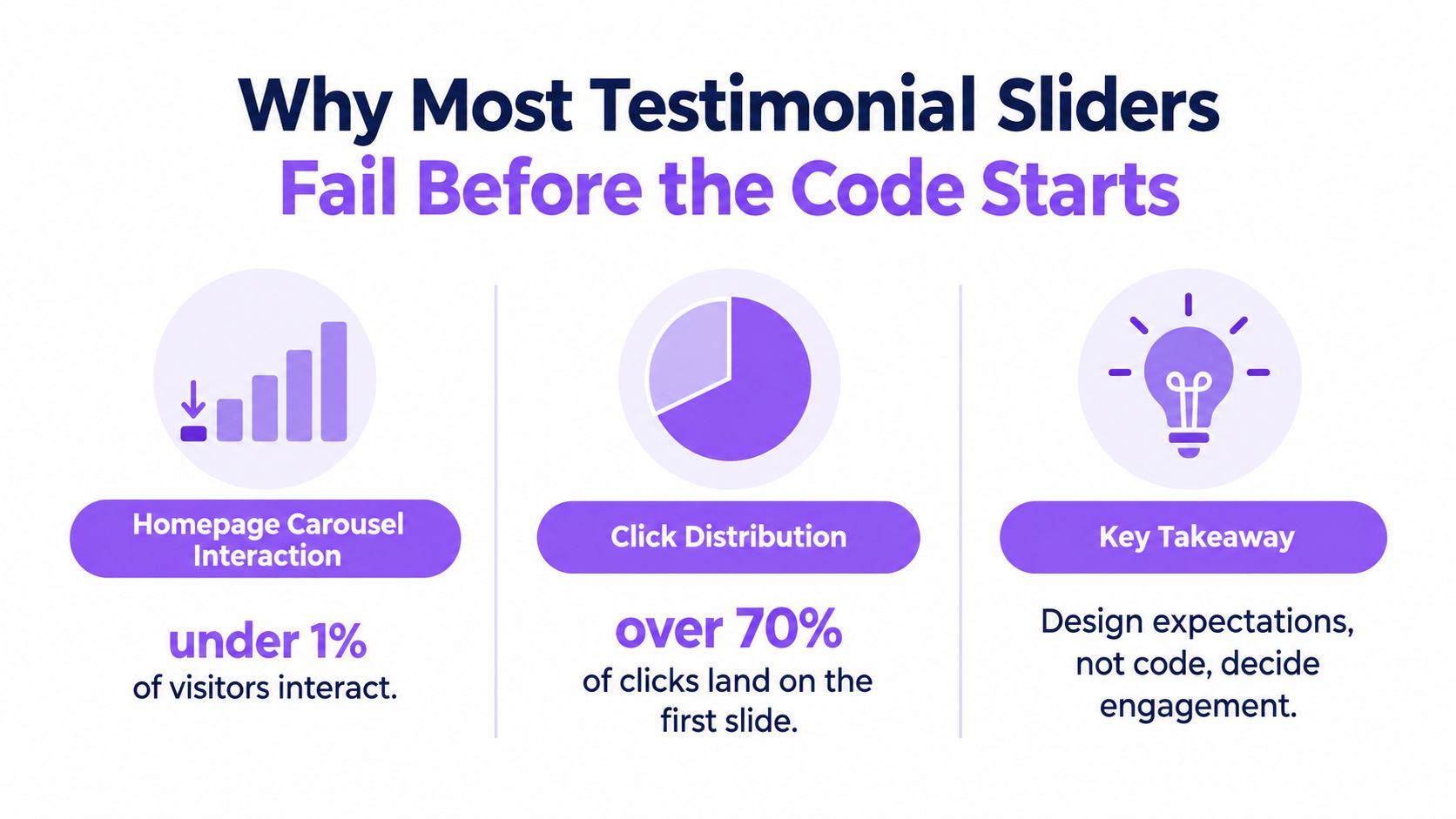
The common assumption is that rotating testimonials create engagement by showing more proof in less space. Homepage carousel data published by Erik Runyon for the University of Notre Dame found that only about 1% of homepage visitors clicked a carousel, and approximately 84% of those clicks went to the first slide. The carousel usability evidence also reports B2B click-through examples of 0.65%, 0.22%, and 0.16%, while one Swedish test cited by Silktide compared a rotating carousel with a static first image and recorded 2% click rate for the carousel versus 40% for the static version.


Those figures don't prove that every testimonial slider is a mistake. They do establish a constraint: the first review carries disproportionate weight. If your strongest customer story sits on slide four, most visitors may never reach it. If autoplay changes the quote while someone is reading, the component is working against the content.
Treat the slider as a layout choice
A slider solves a space problem. It doesn't guarantee trust, comprehension, or conversion. Customer proof often works better as a visible list or grid when visitors need to compare several experiences, especially when the quotes address different objections.
Design rule: Put the most relevant testimonial first, make navigation obvious, and never hide essential proof exclusively behind movement.
Consumer confidence in online reviews has also changed. BrightLocal's 2025 Local Consumer Review Survey reports that 42% of consumers trust online reviews as much as personal recommendations from friends and family, compared with 79% in 2020, a decline of 37 percentage points (survey summary and source). That doesn't turn a slider into a conversion benchmark. It does mean anonymous stars and vague praise aren't enough. Show customer context, detailed experiences, and the source of the review where permission allows.
The build below follows four principles:
- Lead with evidence: Make the initial testimonial substantive, specific, and relevant to the page.
- Keep controls visible: Users should find Previous and Next without guessing what dots mean.
- Prefer user control: Don't make visitors chase moving text.
- Preserve the content: Testimonials should still render as useful HTML when JavaScript or a remote data request fails.
A polished animation is optional. A readable testimonial is not.
Structuring the Slider with Semantic HTML
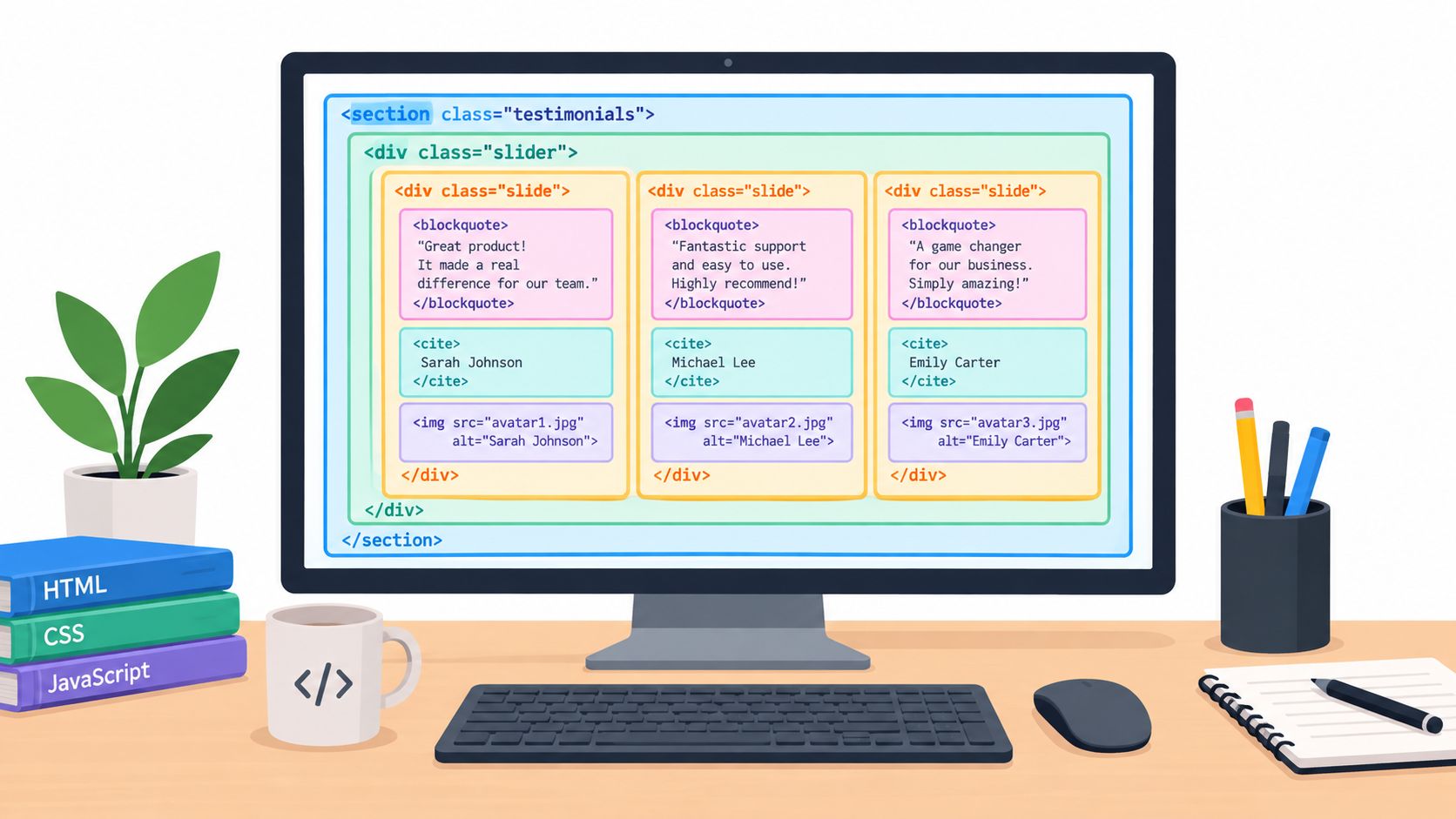
Start with content, not transitions. The HTML should describe a labelled region, a collection of individual testimonials, and controls that have native keyboard behavior. A section gives the component a meaningful boundary, blockquote identifies quoted material, cite associates the words with an author, and real button elements provide interaction without recreating browser behavior.
The original web had a much smaller markup vocabulary than modern interactive components. The history of HTML, CSS, and JavaScript explains why a testimonial slider is best treated as layers: this overview of the web's HTML foundation and standards milestones describes HTML as structure, CSS as presentation, and JavaScript as behavior. Keep those responsibilities separate.
A usable three-slide foundation
<section class="testimonials" aria-labelledby="testimonials-title">
  <div class="testimonials__header">
    <h2 id="testimonials-title">What our customers say</h2>

    <div class="testimonials__controls">
      <button
        class="testimonials__button testimonials__button--prev"
        type="button"
        aria-label="Show previous testimonial">
        Previous
      </button>

      <button
        class="testimonials__button testimonials__button--next"
        type="button"
        aria-label="Show next testimonial">
        Next
      </button>
    </div>
  </div>

  <div class="testimonials__viewport">
    <div class="testimonials__track">
      <article class="testimonial" id="testimonial-1">
        <blockquote>
          <p>
            The onboarding process became much easier to understand once we
            added the customer examples to our product pages.
          </p>
          <footer>
            <cite>
              <span class="testimonial__name">Maya Chen</span>
              <span class="testimonial__role">Product lead, Northstar</span>
            </cite>
          </footer>
        </blockquote>
      </article>

      <article class="testimonial" id="testimonial-2" hidden>
        <blockquote>
          <p>
            The review content gives prospective customers a clearer picture
            of how the service fits into their daily workflow.
          </p>
          <footer>
            <cite>
              <span class="testimonial__name">Jon Bell</span>
              <span class="testimonial__role">Founder, Fieldwork</span>
            </cite>
          </footer>
        </blockquote>
      </article>

      <article class="testimonial" id="testimonial-3" hidden>
        <blockquote>
          <p>
            We use specific customer stories instead of generic claims, and
            the page feels more credible as a result.
          </p>
          <footer>
            <cite>
              <span class="testimonial__name">Aisha Patel</span>
              <span class="testimonial__role">Marketing director, Cedar</span>
            </cite>
          </footer>
        </blockquote>
      </article>
    </div>
  </div>

  <p class="testimonials__status" aria-live="polite">
    Showing testimonial 1 of 3
  </p>
</section>
The example uses hidden as an initial state for later slides, but a CSS-only fallback can override that behavior and display the collection as a horizontal list. If you include avatars, give each image intrinsic dimensions:
<img
  src="/images/maya-chen.jpg"
  width="96"
  height="96"
  alt="Maya Chen"
  loading="lazy">
Don't build the component from anonymous div elements and CSS transforms alone. A transform changes pixels, not meaning. Without updated visibility, labels, focus behavior, and announcements, assistive technology may expose the wrong testimonial or give no indication that the content changed.
For teams publishing reviews inside Webflow, an HTML Google Reviews embed for Webflow can be a practical alternative to maintaining every quote manually. The same semantic principles still apply, whether you own the markup or receive it from an embed.
Styling a Responsive Testimonial Slider with CSS
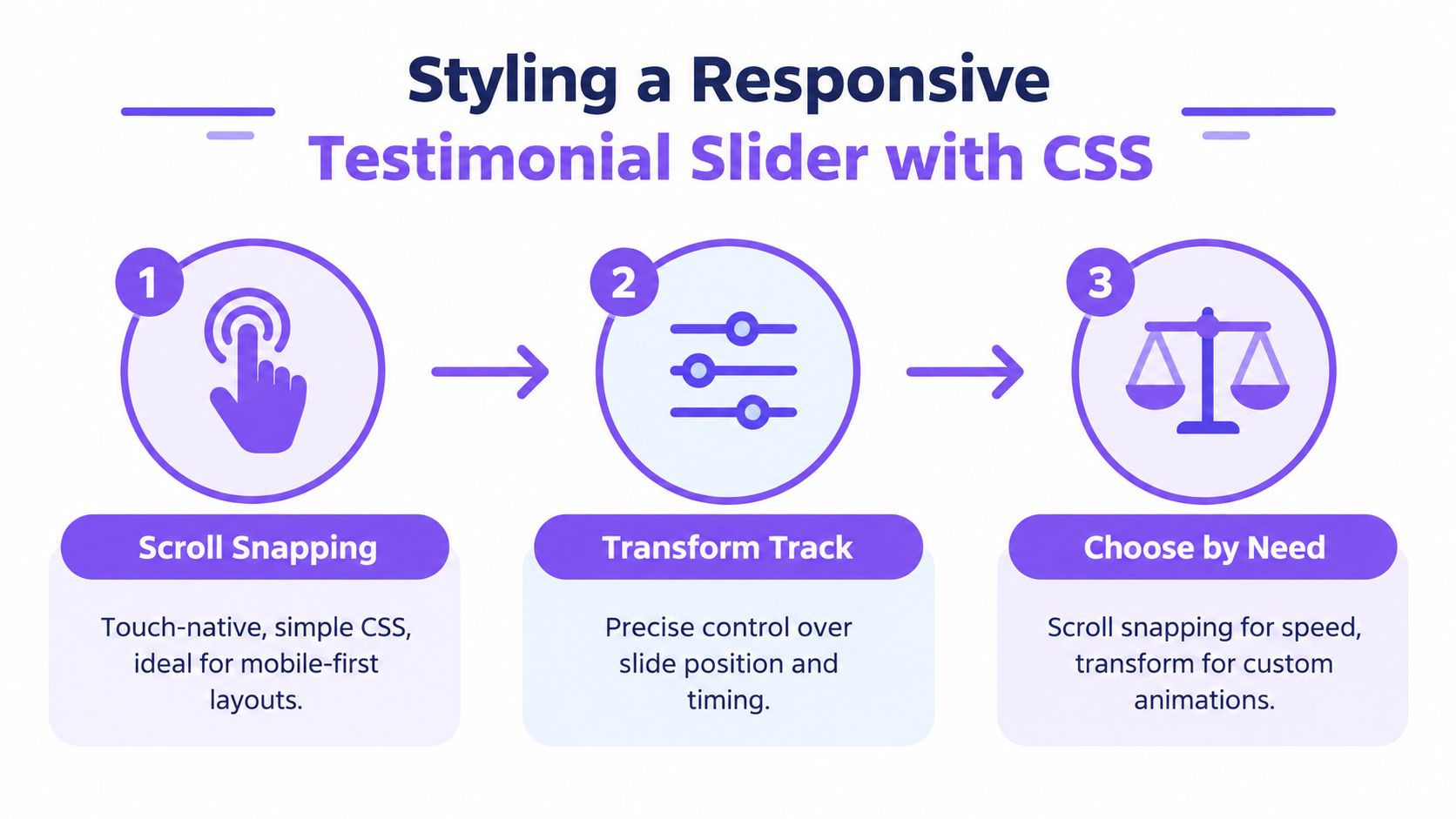
CSS should make the content comfortable to read before it tries to make it impressive. For a dependency-free component, I usually choose between scroll snapping and a transform track. Scroll snapping works naturally with touch input and offers a strong fallback. A transform track gives JavaScript precise control over position, but it needs more state management and careful handling of hidden slides.
Scroll snapping for the resilient default
.testimonials {
  max-width: 72rem;
  margin-inline: auto;
  padding: 2rem 1rem;
  color: #202124;
}

.testimonials__header {
  display: flex;
  align-items: center;
  justify-content: space-between;
  gap: 1rem;
}

.testimonials__viewport {
  overflow-x: auto;
  scroll-snap-type: x mandatory;
  scrollbar-width: thin;
}

.testimonials__track {
  display: grid;
  grid-auto-flow: column;
  grid-auto-columns: minmax(min(100%, 28rem), 1fr);
  gap: 1rem;
}

.testimonial {
  min-height: clamp(14rem, 30vw, 22rem);
  padding: clamp(1.25rem, 3vw, 2.5rem);
  border: 1px solid #dedee8;
  border-radius: 1rem;
  background: #fff;
  scroll-snap-align: start;
}

.testimonial blockquote {
  margin: 0;
}

.testimonial p {
  max-width: 60ch;
  margin-block: 0 1.5rem;
  font-size: clamp(1.05rem, 2vw, 1.35rem);
  line-height: 1.6;
}

.testimonial__role {
  display: block;
  margin-top: 0.35rem;
  color: #5d6070;
  font-style: normal;
}

.testimonials__button {
  min-width: 6rem;
  min-height: 2.75rem;
  border: 1px solid #5d35b5;
  border-radius: 999px;
  background: #fff;
  color: #3c2378;
  cursor: pointer;
}

.testimonials__button:focus-visible {
  outline: 3px solid #8c5cf7;
  outline-offset: 4px;
}
clamp() keeps type and spacing flexible across narrow phones and large displays without forcing a fixed desktop card onto a small viewport. The min-height prevents cards from changing size dramatically as different quotes appear, but don't force a rigid height if your content varies significantly. A content-aware minimum is safer than clipping a long customer story.
Transform tracks for custom motion
If you need one-card-at-a-time movement, add a track transform rather than loading a carousel library:
.testimonials__track {
  display: flex;
  transition: transform 300ms ease;
}

.testimonial {
  flex: 0 0 100%;
}

@media (prefers-reduced-motion: reduce) {
  .testimonials__track {
    transition: none;
  }

  html {
    scroll-behavior: auto;
  }
}
Use scroll snapping when touch behavior and resilience matter most. Use a transform track when you need controlled transitions, but keep the no-script layout readable and avoid making the transform the only way to discover content.
Avatar dimensions belong in the HTML or CSS aspect-ratio calculation. Reserving that space prevents late image loading from pushing the quote and controls around. For media below the fold, use responsive srcset and lazy loading. Keep the first visible testimonial lightweight because top-of-viewport media competes with the content visitors need immediately. The CSS slider implementation guidance also emphasizes image prioritization, responsive sizing, and reduced-motion handling.
Adding JavaScript for Controls and Accessibility
JavaScript should enhance the semantic component, not rescue an empty one. The smallest useful script tracks the current index, toggles visibility, updates the status message, and gives the buttons a reliable action.
const slider = document.querySelector('.testimonials');
const slides = [...slider.querySelectorAll('.testimonial')];
const previous = slider.querySelector('.testimonials__button--prev');
const next = slider.querySelector('.testimonials__button--next');
const status = slider.querySelector('.testimonials__status');

let current = 0;

function showSlide(index) {
  current = (index + slides.length) % slides.length;

  slides.forEach((slide, slideIndex) => {
    const active = slideIndex === current;
    slide.hidden = !active;
    slide.setAttribute('aria-hidden', String(!active));
  });

  previous.disabled = slides.length < 2;
  next.disabled = slides.length < 2;
  status.textContent = `Showing testimonial ${current + 1} of ${slides.length}`;
}

previous.addEventListener('click', () => showSlide(current - 1));
next.addEventListener('click', () => showSlide(current + 1));

showSlide(0);
The aria-live="polite" status lets a screen reader receive the update without interrupting the current sentence. Don't move focus to the slide after every click. Visitors using a keyboard should keep focus on the button they activated, while the announcement communicates the change.
For the complete interaction model, follow the W3C carousel tutorial. It recommends a labelled region, distinct slides, keyboard-operable controls, understandable focus management, communicated slide changes, and user control over movement. Guidance on web accessibility from Wistec is also useful when reviewing the wider page around the component, not just its buttons.
Autoplay needs an explicit escape
I don't enable automatic rotation unless the page has a strong reason for it. If movement starts automatically, lasts more than five seconds, and appears alongside other content, WCAG's pause and stop requirement applies. Add a visible Pause button, stop rotation when focus enters the carousel, and pause when the pointer hovers over it. Honor prefers-reduced-motion by disabling automatic movement for users who request less motion.
A dependable widget may also use aria-roledescription="carousel" and slide labels such as “1 of 3”, but don't add ARIA just to decorate generic markup. Every state exposed to assistive technology must match what sighted users can see.
If the script never loads, the HTML still contains the quotes. The CSS can leave the testimonials as a scrollable row or stacked list, so social proof doesn't vanish because of a failed bundle, blocked request, or temporary dependency outage. That same principle applies when adding video testimonials to a review workflow: the fallback should preserve the underlying content rather than show an empty shell.
When a No-Code Widget Beats Hand-Coding
Hand-coding gives you control, but it also creates an ownership task. Every new review may require content edits, image preparation, source attribution, layout checks, and another accessibility pass. A developer can make that trade when the testimonial set is stable and the component has unusual design or integration needs.
A managed widget changes the trade-off. Bragly aggregates reviews from 50+ sources, including Google, Trustpilot, G2, and Yelp, can auto-sync connected sources, and provides carousel, grid, slider, and mosaic layouts that can be embedded through copy-paste on Webflow, WordPress, Wix, or a custom site. Those capabilities reduce manual publishing work, but they don't remove the need to test the rendered result. Third-party scripts can add latency, alter markup, or create behavior your team doesn't fully control.
Hand-coded slider vs no-code widget
| Criterion | Hand-Coded HTML Slider | No-Code Widget (e.g. Bragly) |
|---|---|---|
| Maintenance | Your team updates markup, images, and behavior | Connected sources can update the displayed content automatically |
| Review sources | You add and normalize each source yourself | Aggregates reviews from 50+ sources, including Google, Trustpilot, G2, and Yelp |
| Design control | Full control over HTML, CSS, JavaScript, and rendering | Choose configured layouts such as carousel, grid, slider, or mosaic |
| Performance | You control script weight, loading, and fallback behavior | You must evaluate the embed, remote requests, and rendered output |
| Accessibility | You own the interaction model and testing | You still need to verify keyboard and screen-reader behavior |
| Skill needed | Front-end development and ongoing QA | Configuration, embed placement, and implementation testing |
| Best fit | Stable content, custom experiences, strict technical control | Frequent review updates, multiple sources, and limited developer time |
A founder or marketer usually values current testimonials more than ownership of the transition code. A front-end developer may choose the opposite because a server-rendered list, custom analytics, or strict performance budget matters more than automatic synchronization.
Use the widget when review operations are the problem. Use hand-coded HTML when the component is part of a carefully controlled design system. The testimonial widget options are relevant when you need several display formats rather than one bespoke slider, but treat any embed as production code: inspect it, measure it, and provide a fallback where possible.
Testing Your Slider Before It Ships
A slider can look correct in a desktop browser and still fail the people who need it most. Run this pass before publishing:
- Keyboard navigation: Use only Tab, Shift+Tab, Enter, and Space. Confirm the buttons have clear names, focus indicators remain visible, and focus never lands on a hidden testimonial.
- Reading order: Start at the heading and move through the component. The region label, quote, author, controls, and status should make sense without visual context.
- Screen reader announcements: Activate Next and Previous. Verify that the status announces the new position politely and that hidden slides aren't exposed as active content.
- Zoom and narrow layouts: Test at 200% zoom and on a narrow viewport. Long names, multi-line quotes, buttons, and controls must remain usable without clipping.
- Motion controls: If rotation exists, verify that hover and keyboard focus pause it. Confirm the Pause or Play control works and that reduced-motion preferences remove nonessential transitions.
- Image loading: Give avatars
widthandheightattributes. Use responsivesrcset, and lazy-load media below the fold. Keep the first testimonial's content and imagery light enough for above-the-fold rendering. - Failure behavior: Disable JavaScript and simulate a failed review request. The testimonials should remain readable, not collapse into an empty container.
The W3C slider tutorial treats pause control, keyboard operation, slide structure, and focus handling as core requirements, not optional polish. Automatic movement is especially risky for long testimonials because the content can disappear before someone finishes reading. Texas A&M's accessibility guidance cites a Nielsen Norman Group study in which users failed to find requested content inside an auto-rotating carousel, with automatic movement, ad-like appearance, and insufficient reading time identified as contributing problems (guidance on avoiding automatic forwarding content).
Final check: If visitors need to compare several testimonials side by side, publish a static grid or list. Animation can save space, but the strongest first review, readable source context, and reliable fallback matter more than motion.
If you want to avoid maintaining testimonial slider HTML across multiple sources, Bragly can collect and organize reviews, sync connected platforms, and publish embeddable layouts for your site. Visit Bragly to choose between a managed widget and a custom implementation based on how often your proof changes and how much control your team needs.