
Looking for a Shorter Overview?
AI Summary
Key Moments
Importance of Genuine Reviews
Accurate and firsthand reviews help customers and businesses and avoid removal by Google.Necessary Steps Before Reviewing
Sign into the right Google Account and verify the correct business listing before writing a review.Writing Effective Reviews
Clear, specific accounts that match star ratings provide helpful insights to others.Ethical Customer Review Requests
Businesses should invite honest reviews without incentives or pressure, following Google's guidelines.Leaving a Google review requires a signed-in Google Account, the correct business listing, and a genuine firsthand experience. Find the business in Google Maps, choose a rating, describe what happened, and post.
Maybe you're heading home after a meal, finishing a service appointment, or looking at a product you bought. You want to leave useful feedback, but the process isn't obvious, or you're unsure whether a brief review will get published. The steps are simple. The part that deserves more care is making sure your review reflects your own experience and follows Google's rules.
Why a Quick Google Review Matters More Than You Think
Google Maps is a vast public directory as well as a place where customers share their experiences. Google says it contains approximately 300 million places generally eligible for reviews, and its 2025 reporting recorded 1.14 billion reviews published. Reviews help people understand what a business is like before they decide whether to visit or buy. Google's Maps transparency reporting also shows the other side of that scale: 292 million reviews were removed in 2025.


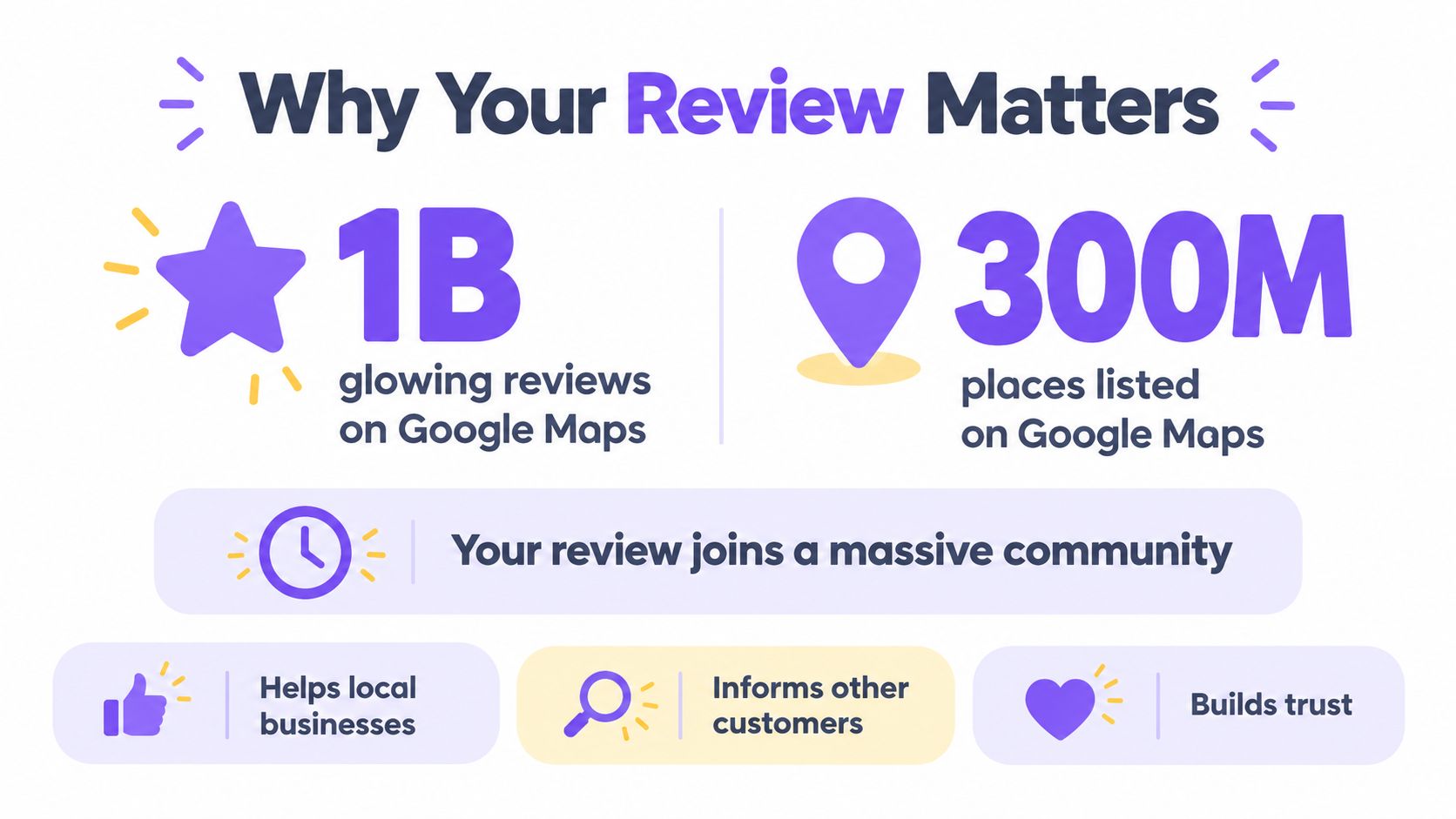
That enforcement context matters. Google categorized 15.4% of removed reviews as fake or misleading and 3.9% as vandalism or off-topic content. A genuine, relevant account adds useful information; a review written to manipulate a rating may be removed. The practical lesson is that accuracy and firsthand detail matter more than polished marketing language.
A review doesn't need to sound like an advertisement or a formal report. It should help the next person understand what you experienced. For example, describing how staff handled a reservation issue is more useful than writing a string of generic praise. If you're a business owner thinking about how customer feedback fits into your broader online presence, this reputation power play guide offers additional context on managing reputation thoughtfully.
For businesses, reviews also provide a public record of customer experiences. A Google review calculator can help you explore rating scenarios, but a numerical target shouldn't come at the expense of honest feedback. The best contribution is the one that tells the truth clearly.
What You Need Before Writing Your Review
Before opening the review form, check two things: which Google Account you're using and which business listing you've opened. Google requires reviewers to be signed in, but the account doesn't have to use a Gmail address. You can't post anonymously. Google's review guidance explains the account requirement and how businesses can make review links available to customers.
If you use separate personal and work profiles, look at the profile icon in Google Maps before you begin. A different account may show a different public profile name, and switching accounts midway can make it harder to find the review later. You don't need a Gmail inbox to write a review, but you do need access to the Google Account you plan to use.
Then verify the listing. Businesses with similar names, branches in the same area, and locations inside malls can be easy to confuse. Check the address and business details against the place you visited, rather than choosing the first matching result.
Before you type: Confirm the business address and listing. A clear review attached to the wrong branch helps nobody.
It's also worth deciding what you can describe from firsthand experience. A visit, purchase, appointment, or service interaction gives you something concrete to share. If you haven't personally dealt with the business, don't write as though you have.
Writing a Review on Desktop Through Google Maps
On a computer, open Google Maps and sign in to the Google Account you want associated with the review. Search for the business, then select the correct result. Take a moment to check the location in the profile panel, especially when the search returns multiple branches or businesses with similar names.
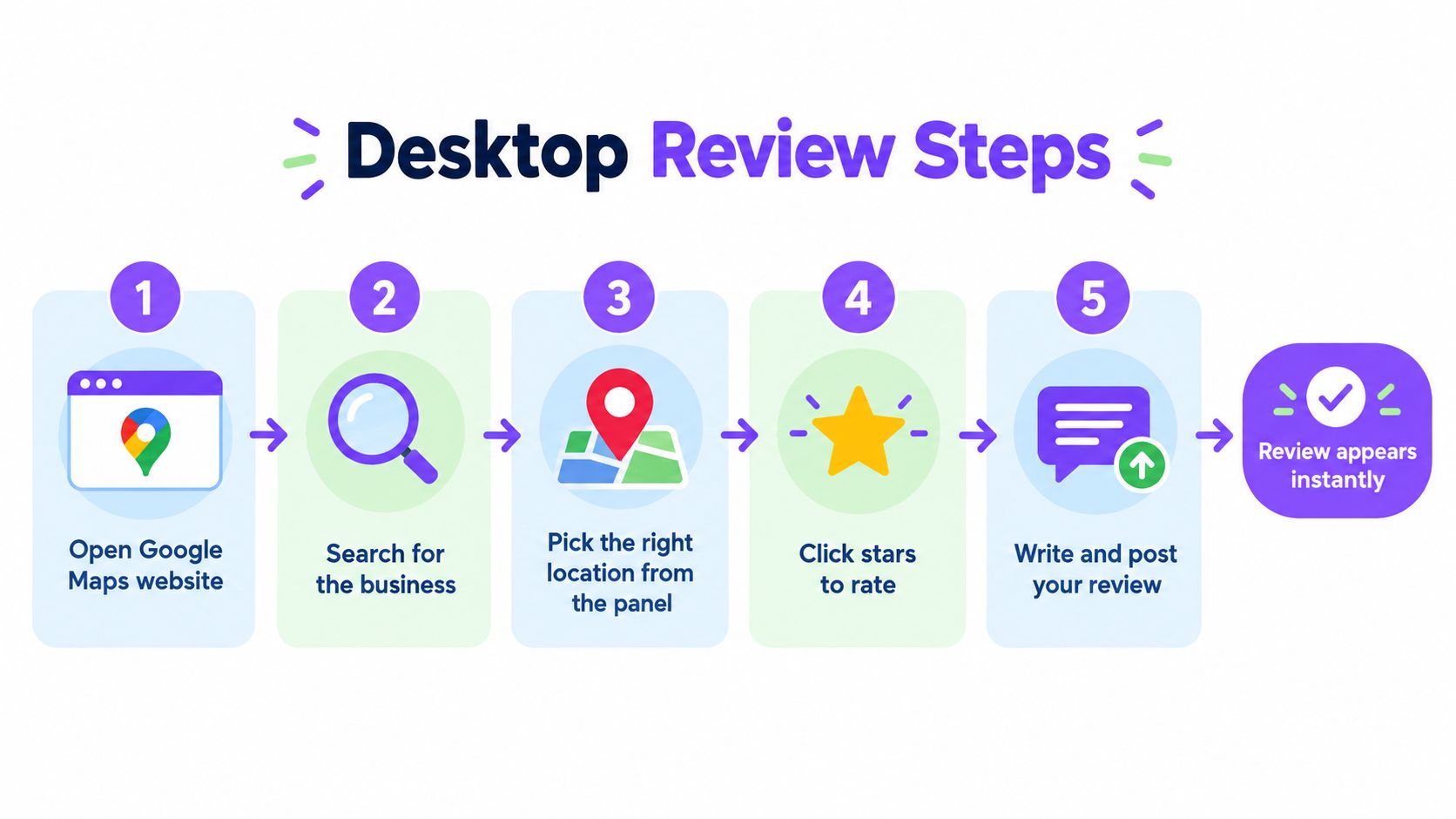
In the business listing, choose “Write a review.” Select the star rating that matches your experience, add your written feedback, and attach photos if they help explain what happened. Read through the review once before publishing, then submit it. Google's desktop instructions for writing a Maps review describe the same basic flow.
The star rating and written details should agree. If you select a low rating but describe an entirely positive visit, readers may find the review confusing. The reverse is true, too: a high rating alongside a complaint needs enough context for others to understand what you valued despite the issue.
Keep the writing focused. Mention what you bought or why you visited, a detail that stood out, and the outcome. You don't need to describe every moment. A specific sentence about how a staff member resolved a booking problem can be more useful than a long list of broad compliments.
Photos are optional. Add them when they provide relevant context, such as showing the item or setting you're discussing. Avoid sharing anything that exposes private information or distracts from the experience.
Posting a Review From Your Phone Using the Maps App
On your phone, open the Google Maps app and make sure you're signed in. Search for the business, or tap its location on the map, then open the listing by selecting the business name or address. Check that it's the place you visited before moving to the review controls.
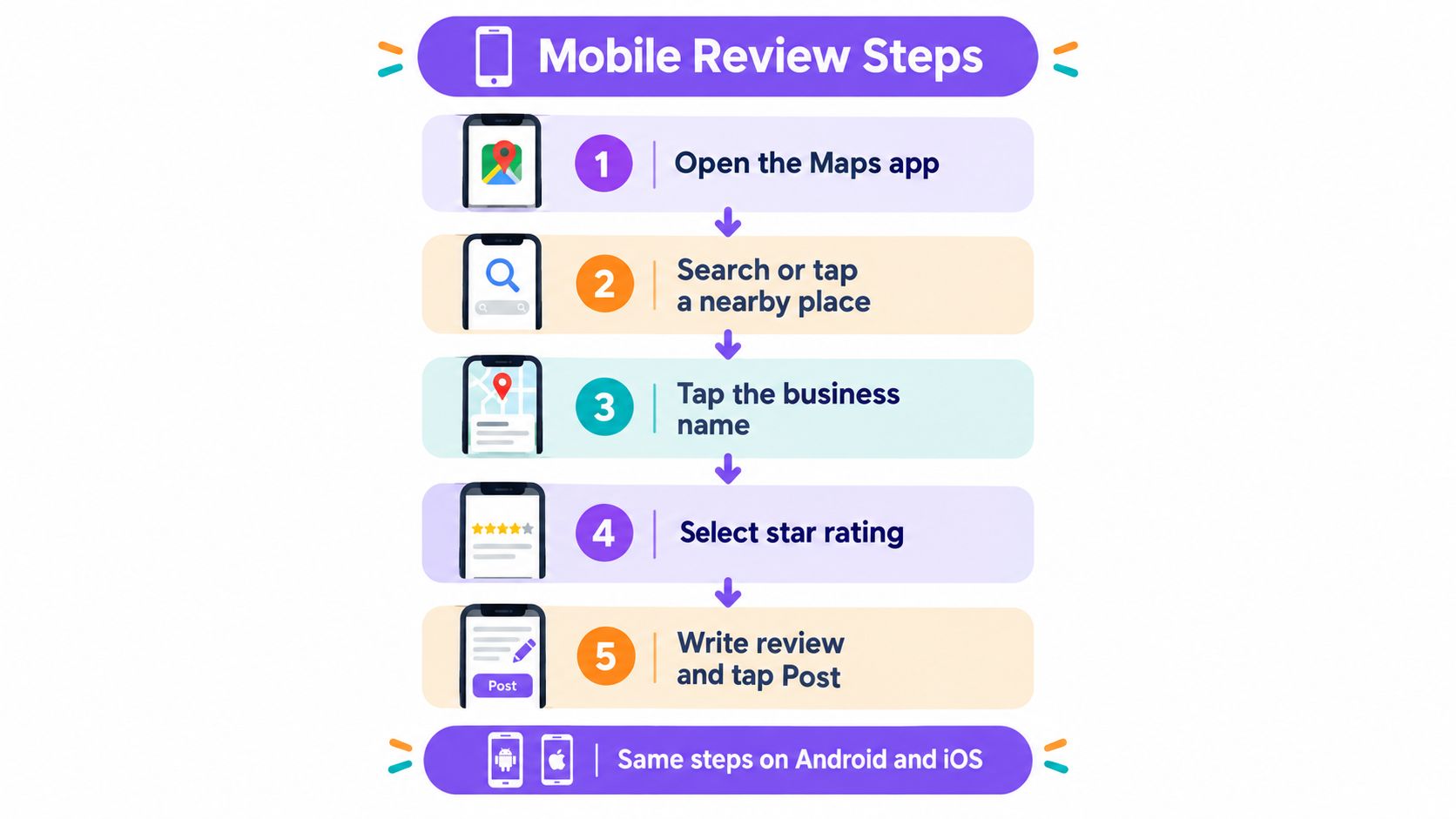
Open “Reviews,” select the empty stars to choose a rating, and enter your experience in the review field. On Android, Google's flow labels the writing area “Share more about your experience.” Add a photo if it helps, then submit the review.
If Maps is already open, the Contribute tab provides another route: choose “Write review” and select the place you want to review. This can be convenient when you know which business you visited but haven't searched for its listing yet.
Phone screens make it easy to rush. A one-word comment may communicate how you felt, but it won't tell the next customer what happened. Aim for a short account that includes the reason for your visit, one concrete observation, and the result. You can draft a sentence before opening the review form if the smaller keyboard makes composing difficult.
Autocomplete can also steer you toward a nearby location with a similar name. Don't rely on the search suggestion alone. Open the listing and check its address before you publish. The device changes the taps, not the standard for the content: write what you personally experienced and keep the rating consistent with it.
Writing Review Content That Survives Google's Checks
A review that appears briefly isn't necessarily one that stays up. Google says it automatically assesses reviews against its content policies, and its 2025 reporting records 292 million reviews removed, including 15.4% categorized as fake or misleading and 3.9% as vandalism or off-topic content. Those categories aren't a checklist of guaranteed outcomes, but they underline why truthful, relevant writing is the safest approach.
Start with your own experience. Describe the visit, purchase, or service interaction without exaggerating or repeating claims you can't verify. “The technician explained the repair and arrived within the agreed appointment window” gives readers a clearer picture than “Amazing service!!!”
A useful review usually follows a simple pattern:
- Give context: Say what you went in for or what you bought.
- Name a detail: Describe a specific part of the service, product, or visit.
- Explain the outcome: Say what worked, what didn't, or what changed.
- Choose a fitting rating: Make sure the stars match the account.
Keep out promotional copy, commercial calls to action, external links, and private information such as phone numbers or email addresses. Copying the same text across reviews can also make a contribution look less like an individual account of an experience. A fake review checker may help businesses review suspicious content, but no tool can make an inauthentic review compliant.
Google prohibits reviews influenced by money, discounts, free products, free services, or another benefit. It also identifies conflicts of interest and other biased contributions as rating manipulation that may be removed, as explained in its contribution policy on fake engagement. If you work for the business, own it, or have a professional relationship with it, don't present yourself as an independent customer.
Practical rule: Write the review you could explain plainly to someone who asked what happened. If you'd have to invent details or hide an incentive, don't post it.
Editing, Deleting, and Finding Reviews You Already Left
You can manage a review after publishing it. Google doesn't allow anonymous reviews, and your contribution is public. If you want to correct a detail, revise the wording, change the rating, update the included photos, or remove the review, use the controls in Google Maps.
On desktop, open the menu and choose Your contributions, then Reviews. Find the review and select the option to edit or delete it. Google's Maps guidance on managing contributions confirms that authors can edit their text, rating, or pictures and delete reviews.
On a phone, open Google Maps and go to your profile or contributions area to find your reviews. The exact layout can vary, so look for the review list associated with your account rather than searching the business again.
If a review seems to have disappeared, first check that you're signed into the account you used to post it. Then open your contributions and look for it there. A review may also be unavailable if Google removed it under its policies, so don't assume that refreshing the business page will resolve every case.
Editing is useful when your original review contains an error or your experience changes. Keep any update honest and specific. If you delete the review, you can choose whether to write a new one later, provided it still reflects a genuine experience.
Asking Customers to Review Your Business the Right Way
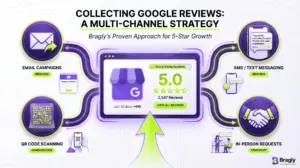
Businesses can make it easier for customers to leave feedback without trying to steer what they say. Google allows businesses to share a review link or QR code, which can be placed on a receipt, follow-up message, or printed material. The request should invite an honest account, not promise a reward or dictate a rating.
Can you ask every customer to review your business? You can invite customers to share feedback, provided the request doesn't pressure them or influence what they write. Can you offer a discount? No. A discount, free service, product, or other benefit tied to a review conflicts with Google's rules. And don't ask for five stars. Request a review, not a particular verdict.
Useful habits include:
- Make access simple: Share the review link or QR code where customers can find it after an interaction.
- Keep the wording neutral: Ask for honest feedback rather than a positive rating or scripted response.
- Respect customer choice: Don't make a benefit, refund, or service outcome depend on whether someone reviews you.
- Handle suspicious reviews properly: Use Google's reporting process rather than retaliating with fake or coordinated reviews.
For a practical overview of how to request feedback without crossing those lines, see this guide on getting more Google reviews ethically. Businesses can also use a review request generator to develop neutral invitation wording, then adapt it to match their own customer experience.
Treat review collection as a long-term reputation practice, not a shortcut to a higher star rating. Businesses that gather feedback transparently can learn from what customers say and make it easier for prospective customers to assess the experience. Bragly is one option for aggregating reviews from third-party platforms and displaying them through no-code website widgets, alongside tools businesses use to request and manage feedback.
If you manage customer feedback as well as request it, Bragly can bring reviews from multiple platforms together and display them on your website with no-code widgets. Explore the platform to see whether its review aggregation and display tools fit your business's workflow.