Looking for a Shorter Overview?
AI Summary
Key Moments
Start with Correct Sign-In
Use the original sign-in method and verify your workspace to avoid duplicate accounts.Connect Relevant Review Sources
Deliberately link key platforms first and check sync statuses for accurate review imports.Choose Appropriate Widget Layout
Select widget formats based on page placement and visitor needs to maximize impact.Troubleshoot Systematically
Diagnose issues by checking connections, filters, embed codes, and environment differences.You're trying to get back to your reviews, but the email you remember doesn't reveal the right workspace, the reviews aren't on your site, or the widget looks different from the one you expected. If you're thinking, “I have an account already,” that's useful context, but it's only the starting point. The next step depends on whether you need to regain access, connect a review source, choose what to display, or fix an existing embed.
A smooth return path keeps those jobs separate. Sign in first, confirm you're in the right team workspace, then check the source connection and widget before changing anything on your website. That order helps you avoid duplicate accounts and makes it easier to pinpoint what's holding up your reviews.
Why This Guide Starts at the Sign-In Screen
An account gets you into a workspace. It doesn't guarantee that the right reviews are connected or that a widget is ready to display them. When you land on bragly.io expecting everything to be in place, treat the sign-in screen as a decision point: regain access, select the right workspace, or work out whether you've accidentally created another account.


Start with a quick workspace check before importing anything. Confirm that you're in the account your team uses, that the expected review sources are listed, and that the site or project you need is recognizable. If the workspace looks empty, don't rush to reconnect every source. You might have signed in with a different email or authentication method.
Practical rule: Confirm the workspace before you import. It's easier to resolve an account mismatch early than to sort out reviews that have landed in the wrong place.
Then decide what you want the reviews to do. A homepage carousel, a product-page review block, and a full testimonials page call for different layouts and different selections. It's also easier to think through your plan, source list, and widget placement before you've loaded and organized a large batch of reviews.
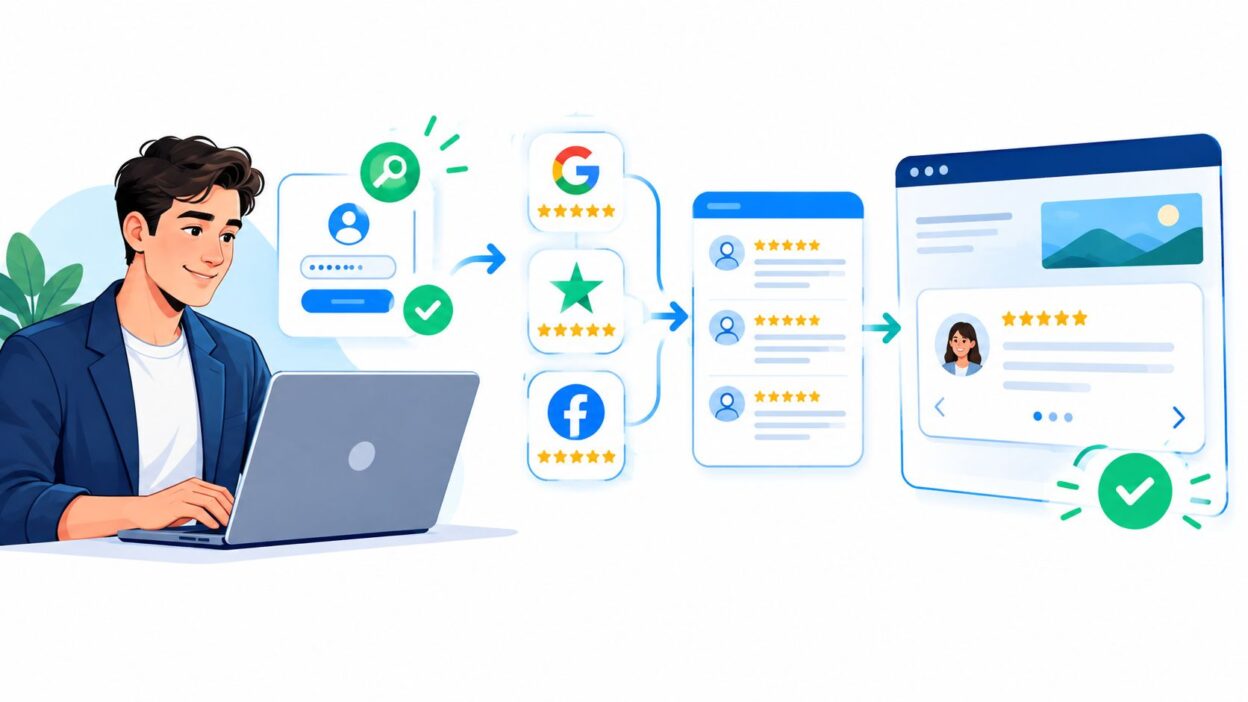
The return path is straightforward when you handle it in order: access, import, display, embed, recover. If you're mapping account and team workflows for a product, the guide for product managers offers helpful context on designing a clear user journey. Here, the priority is practical: sign in to the right place, confirm what's connected, and make one change at a time.
Signing In and Recovering Access the Right Way
Use the same sign-in method you used when you first set up your account. If you registered with Google, try the Google sign-in option rather than repeatedly entering a password that may never have been set. If you used email and password, choose Sign in and use the email address associated with the workspace.
A useful decision rule is to start with what you still remember:
- You remember the email but not the password: Use password reset. Check spam and promotions if the reset email doesn't appear, and make sure you've searched the inbox for the address you used at signup.
- You remember the workspace but not the email: Ask a teammate which address they invited, or check your saved password manager entries. Don't guess by registering another address.
- You remember signing in with Google: Choose Google again and make sure you select the same Google account. A different signed-in browser profile can take you to a different workspace.
Check the person and the workspace
Your login identifies you. The team workspace holds the shared reviews, connections, and settings. After signing in, check the workspace selector or team area if your usual sources or team members aren't visible. You may have authenticated successfully but entered a personal or alternate workspace rather than the one you need.
Update an outdated primary email while you still have access, if the account settings allow it. Waiting until you've lost access to the old inbox can turn a simple profile change into a support request. If your organization uses single sign-on or a social login, use the method your team configured instead of creating a password-based account on the side.
The common trap is creating a second account with another email because the first sign-in didn't immediately work. That account may open successfully but won't automatically contain the original workspace, imported reviews, or team access. If you suspect a duplicate, stop importing and ask the workspace owner or support to help identify the correct account before deleting anything.
Connecting and Importing Reviews from 50+ Sources
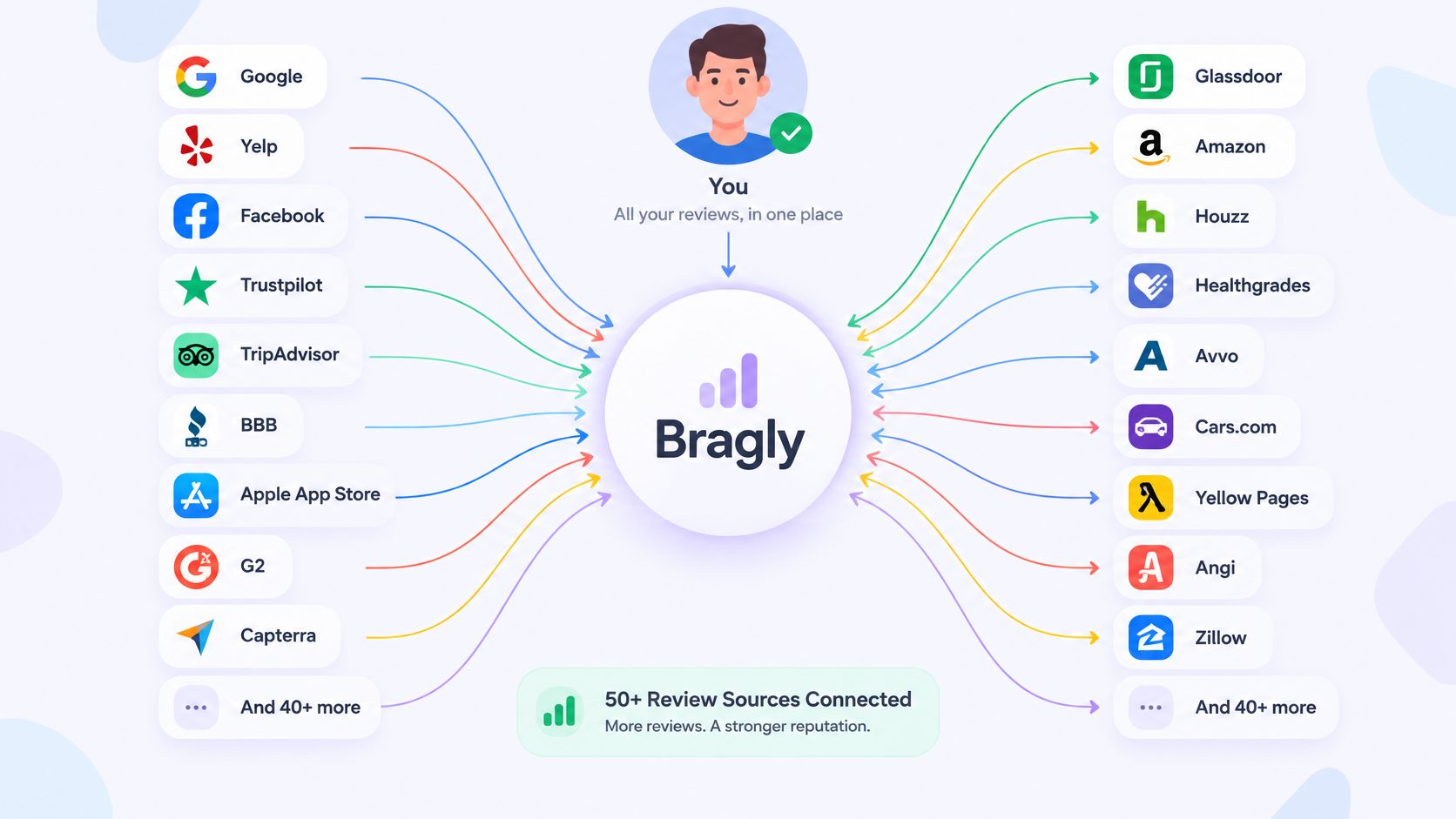
Once you're in the right workspace, connect sources deliberately. The platform supports review aggregation from 50+ sources, including Google, Trustpilot, G2, Facebook, Yelp, Product Hunt, TripAdvisor, Capterra, App Store, Google Play, Shopify, Airbnb, Glassdoor, and Zillow. Open the source connection area, select the platform, and follow the connection steps shown there. Check the status after connecting instead of assuming that signing in to the source completed the import.
Connect the sources that matter first
Start with the source that already carries the most relevant customer feedback for your website. A store might prioritize product reviews, while a software company might first connect a business-review or app source. Once that source is visible in the workspace, add niche platforms that provide useful context or reach a different audience.
Don't assume every platform behaves identically after connection. Check the source's status and available actions to see whether it syncs automatically, offers a refresh option, or needs a manual import. If you use an export, keep track of which file and source it came from so you can explain any gaps later. For a Shopify-specific walkthrough, ECORN's guide to adding reviews on Shopify can help you think through how reviews fit into a store experience. For a closer look at automated connections, see how review auto-connect works.
You can also add text reviews manually when a source isn't supported or you've collected an in-person testimonial. Keep the original wording intact and organize each entry so it's clear where the feedback came from. Manual entry can fill a gap, but it doesn't replace checking that connected platforms are still syncing.
Match collection capacity to your plan
Collection forms let you gather first-party testimonials alongside imported reviews. The plan limits differ: Pro includes up to 20 forms, and Business includes up to 100. Choose the forms you'll actively use, such as one for a product and another for a service experience, rather than creating forms without a collection plan.
Choosing the Right Widget Layout for Each Page
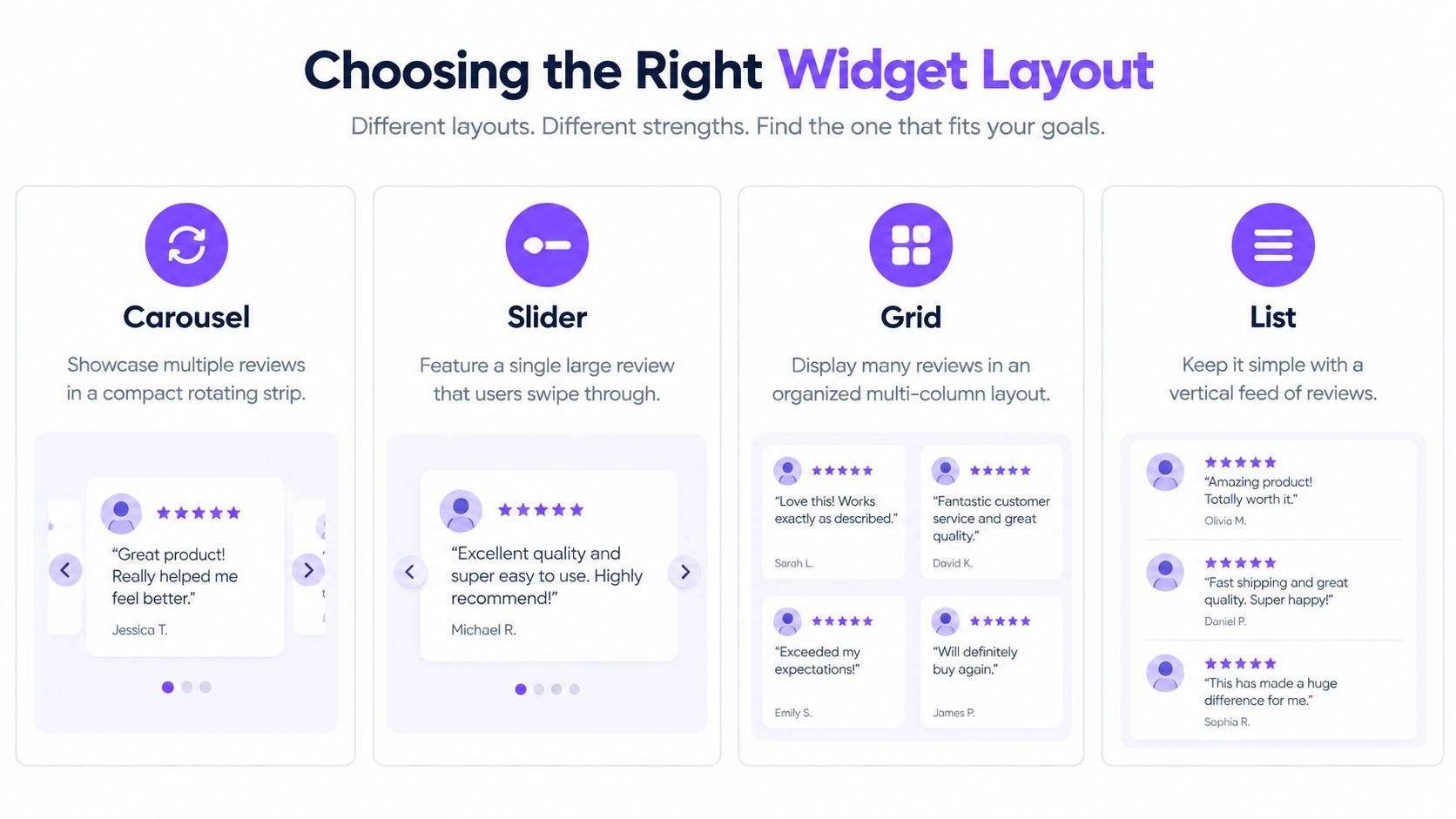
Choose a layout based on the job the reviews need to do on the page. A compact strip near the top of a homepage should be easy to scan. A testimonials page can give visitors more room to compare feedback. The layout should support the page's purpose rather than compete with its main content.
Pick a format by placement
| Layout | Best Placement | Best For |
|---|---|---|
| Carousel | Homepage or another compact section | Showing multiple reviews in a rotating strip |
| Slider | Landing page or product section | Giving one review prominence at a time |
| Grid | Testimonials or review page | Presenting several reviews in an organized layout |
| List | A page with room for a vertical feed | Making reviews easy to read in sequence |
| Mosaic | A visual testimonial section | Mixing review cards into a varied arrangement |
| Ribbons and badges | Header, footer, or a focused trust area | Adding a compact trust mark |
| Video highlight | A landing page or story-led section | Anchoring the page with a customer video |
Start with one widget on the page that matters most, then preview it on desktop and mobile. A carousel can save space, but a visitor may not see every review immediately. A grid makes several reviews visible at once, but can take over a page that needs a concise product pitch. Website carousel examples can help you compare placements before settling on a format.
Tag for relevance, not just source
Source tags tell you where a review came from. Use case tags help you decide where it belongs. Tag feedback about a product, onboarding, or customer support so you can filter for reviews that match the page a visitor is reading. Then check the widget's filters against those tags. A review can be imported correctly and still stay hidden if the widget is set to display a different category.
Embedding Bragly Widgets on Webflow, WordPress, Wix, and Custom Sites
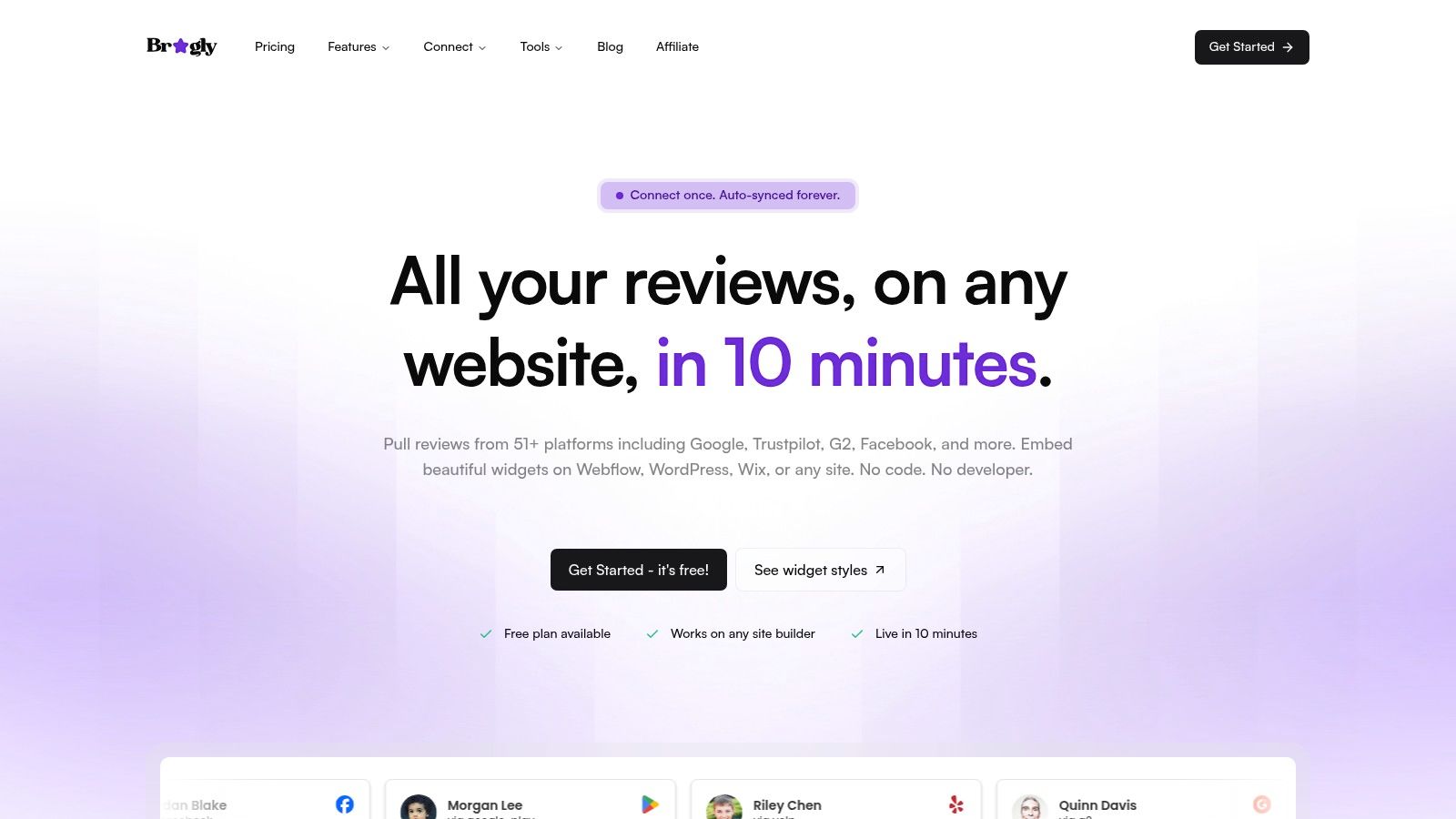
Getting a widget configured and getting it onto a live page are separate tasks. In the workspace, copy the embed snippet for the widget you've chosen. In your site builder, add it to an embed or custom-code element intended for scripts, not a rich-text block that may strip or alter the code.
Place the snippet where the page can run it
In Webflow, use an embed element in the page section where the reviews should appear, then publish to test the rendered page. In WordPress, use a custom HTML block or the site's supported code-insertion method. In Wix, use its embed or custom-code feature and place the widget in the intended page area. If you're using a custom-built site, paste the complete snippet into the relevant HTML location.
For builder-specific guidance, see the Webflow platform details. Whichever builder you use, verify the published page rather than relying on the editor preview. A draft or preview environment may not behave like the live page.
Verify the display before handing it off
After publishing, hard-refresh the page, open it in an incognito window, and check it on a phone. These checks help catch cached pages, account-specific previews, and layouts that look cramped on smaller screens. If the widget works on staging but not production, compare the published embed and any domain or publishing restrictions before rebuilding it.
Check who in your workspace can manage embeds, too. If a developer needs the snippet, share the embed code through your normal team process and keep private credentials out of chat, tickets, and public code. The developer needs the code required to place the widget, not access to an account secret.
Troubleshooting the Issues Returning Users Hit Most
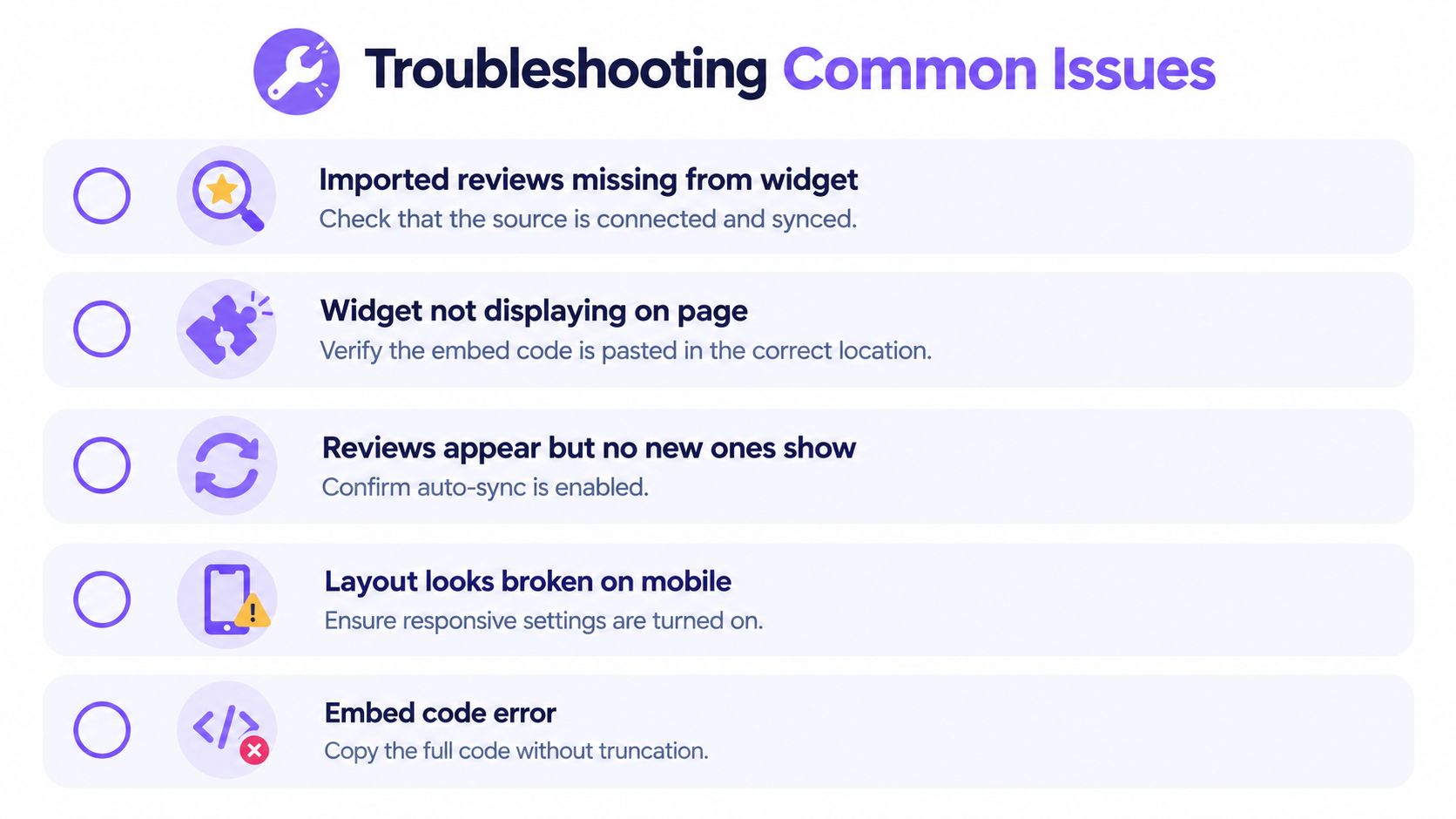
When a widget doesn't look right, diagnose the failure where it begins. Check the source connection first if reviews aren't arriving, the widget's filters if imported reviews are missing from its display, and the website embed if the widget itself isn't rendering. Changing all three at once makes it harder to identify the cause.
Diagnose the failure state
- Reviews imported, but the widget looks empty: Check that the source is connected and has completed a sync. Then review the widget's tags, filters, and display settings.
- Widget works in staging but disappears in production: Confirm the production page has the full embed and is published. Next, check caching and any domain or site restrictions that could block the live version.
- A source stops updating: Open the source connection and check its status or refresh controls. A widget can display its existing reviews even when the source connection needs attention.
- The expected team or imports are missing: Check the account email and workspace before reconnecting sources. A second account won't inherit the original workspace's content.
- The widget appears incorrectly on mobile: Check its responsive settings and placement in the page builder. A layout that fits desktop may need a different placement or format on a narrow screen.
Escalate with details that help support
If the first checks don't resolve it, send support the workspace ID, source name, widget ID, and a screenshot of the problem. Include the affected page and describe what you expected to happen, such as a source refreshing or a widget appearing after publication. That gives support a specific path to investigate instead of a vague report that reviews are missing.
Also check your plan's limits before treating a feature as broken. AI review analysis has monthly limits by plan, so a pause in analysis may reflect a usage cap rather than an import or display failure. If you're unsure, describe what you can still access and what stopped working.
The review workflow is easier to manage when sign-in, source connections, widget settings, and embedding stay connected in one workspace. Visit Bragly to explore review aggregation, collection forms, and no-code widgets, then use the checks above to get your existing account back to work.