Looking for a Shorter Overview?
AI Summary
Key Moments
Flagging Policy Violations
Flag reviews that clearly break Google’s content policies for possible removal.Appealing Denied Flags
You can appeal once to provide evidence if your flagging request is rejected.Temporary Review Suspension
Request suspension of new reviews during a coordinated fake review attack with proof.Controlling On-Site Display
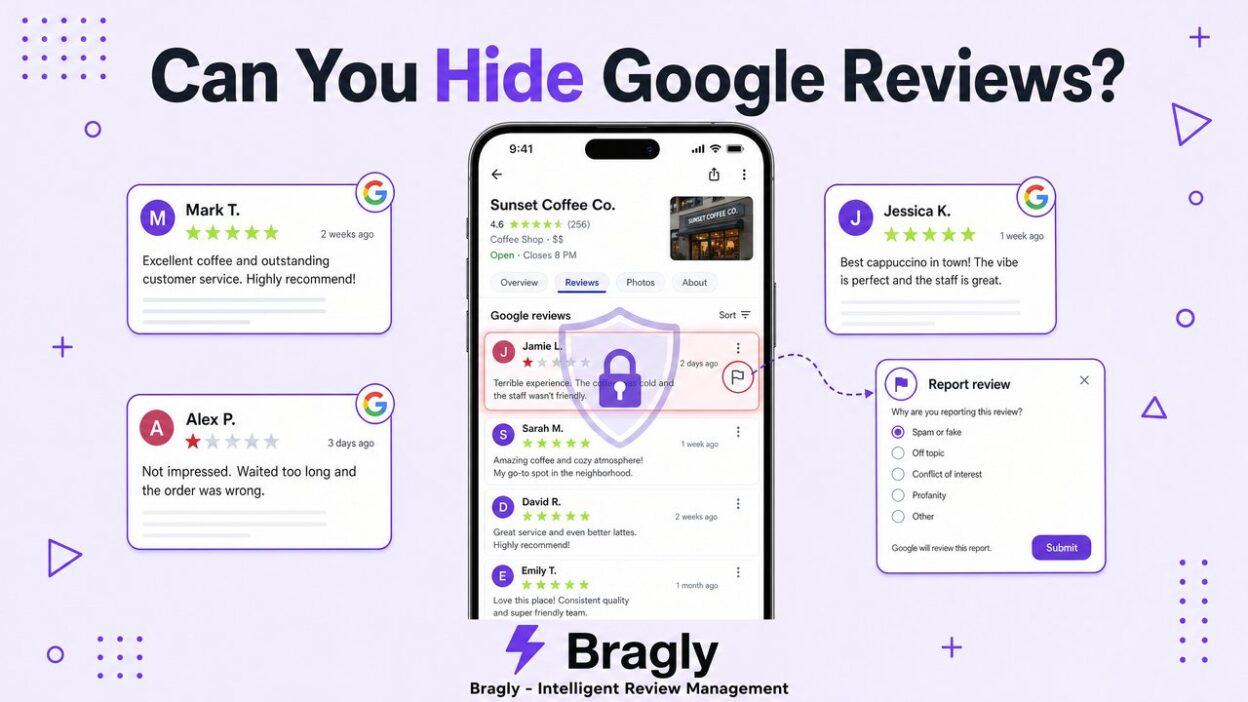
Use review widgets on your website to curate which Google reviews visitors see.If you’ve landed here after a frustrating one-star review, you’re not alone. The first thing most business owners search for is some way to make that review disappear, or at least hide it from potential customers. The honest answer is that you cannot hide Google reviews directly. Google doesn’t give businesses a switch to flip, a filter to apply, or a setting to restrict who sees what.
But that’s not the whole story.
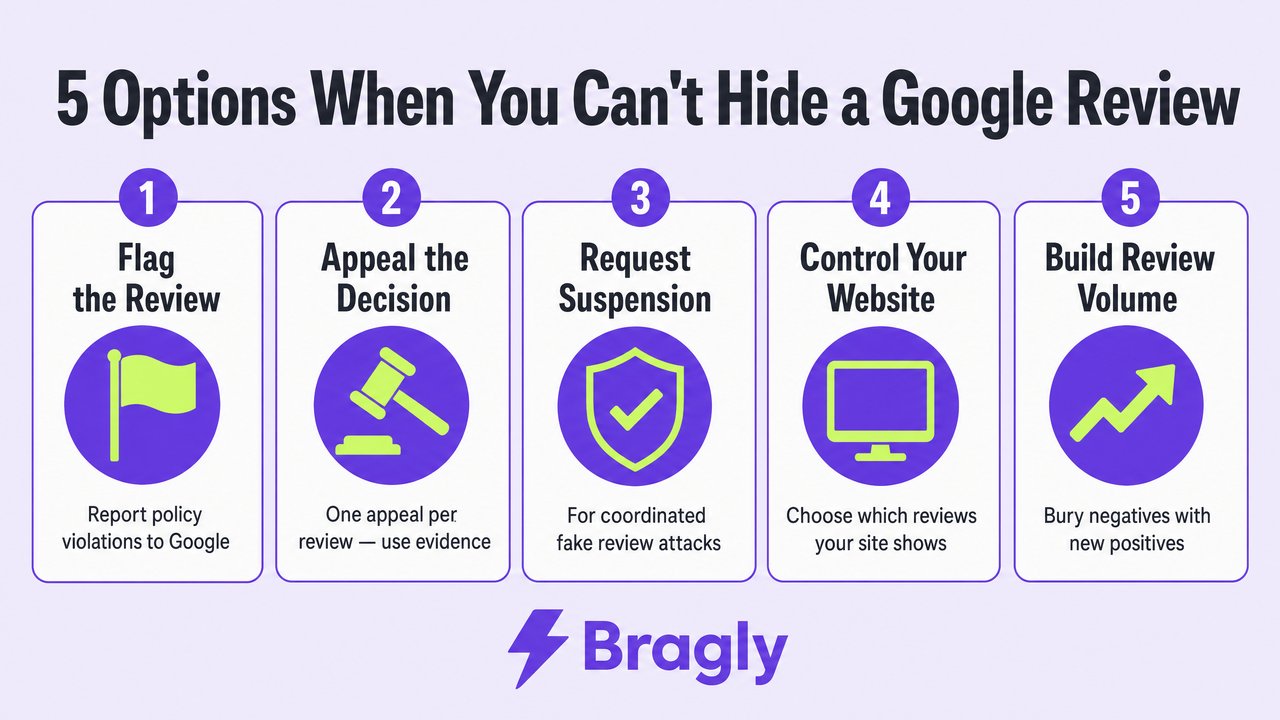
You have more control than most articles let on. There are five legitimate options available to you, ranging from flagging policy-violating reviews to controlling exactly which reviews appear on your own website. This guide covers all five: what each one does, how to use it, and when it actually works.
Key Takeaways
- Google does not allow businesses to hide, disable, or delete reviews from their Google Business Profile.
- You can flag reviews that violate Google’s content policies. Spam, fake content, harassment, and off-topic posts are all grounds for removal.
- If Google denies your flagging request, you can appeal. You get one shot, so prepare carefully before submitting.
- During a coordinated fake review attack, Google may temporarily suspend new reviews on your profile if you can provide evidence.
- You can control which reviews appear on your own website using a review widget. This is the one area where you have genuine display control.
- The most reliable long-term strategy is volume: enough new positive reviews will push negative ones down in your review feed.
- It’s also worth knowing that some reviews disappear on their own. If you’re missing reviews unexpectedly, see our guide on why Google reviews sometimes disappear.
The Short Answer: No, You Can’t Hide Google Reviews
Google’s position is firm. Reviews are part of the platform’s public record, and businesses do not have the ability to hide, filter, or disable them. This applies whether the review is unfair, inaccurate, or just plain mean. Unless it violates a specific Google policy, it stays.
Google’s own support documentation states that the platform does not get involved when merchants and customers disagree about facts, since there is no reliable way to determine who is right about a particular customer experience.
Five real options are worth knowing about. Some remove reviews entirely. Some reduce their visibility. One gives you genuine display control. Here’s how each one works.
Option 1: Flag Reviews That Violate Google’s Policies
This is the most direct path to getting a review removed, and it works when the review actually breaks one of Google’s content policies.
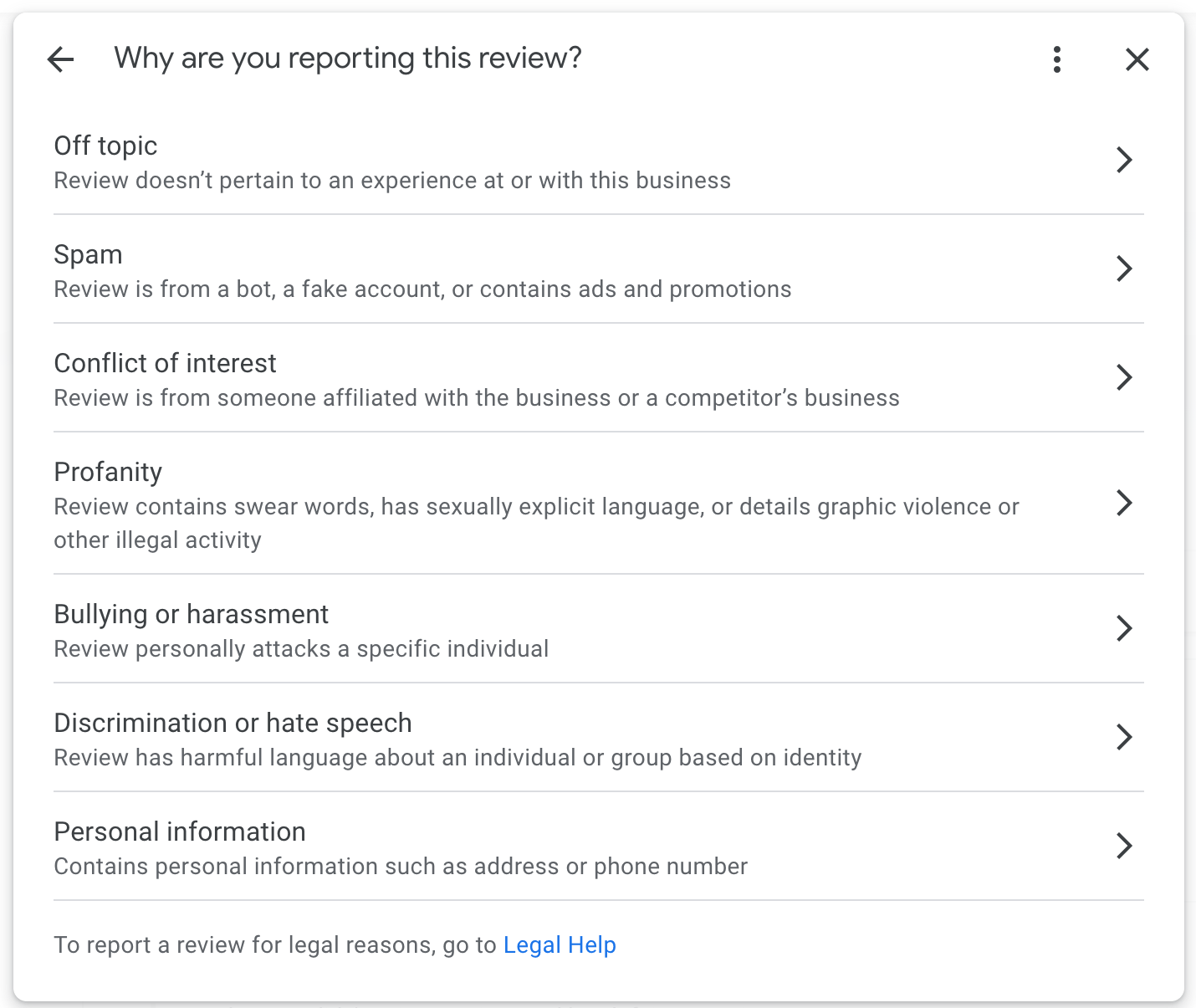
Google will consider removing a review if it falls into one of these categories:
| Policy violation | Examples |
|---|---|
| Spam and fake content | Reviews from people who never visited, bulk review attacks, competitor reviews |
| Off-topic content | Reviews about a different business, political commentary unrelated to the experience |
| Restricted content | Promotion of illegal goods or services |
| Offensive content | Slurs, hate speech, explicit language |
| Conflict of interest | Reviews from current or former employees, reviews from business owners about competitors |
| Harassment or personal attacks | Targeting individuals rather than the business experience |
Google will not remove a review simply because it is negative, one-sided, or unfair. If the review describes a genuine customer experience, even a bad one, it stays.
For a full breakdown of what qualifies as a policy violation, see our guide to Google’s review content policies.
How to flag a review:
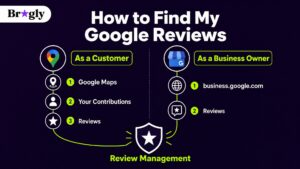
- Sign in to your Google Business Profile at business.google.com.
- Go to the Reviews tab.
- Find the review you want to flag.
- Click the three-dot menu in the upper right corner of the review.
- Select “Report review.”
- Choose the policy violation that applies.
- Submit.
Google typically takes three to five business days to review a flagged report. If the review is removed, you’ll see it disappear from your profile. If it stays, you’ll receive a notification that the review was found not to violate policies.
Option 2: Appeal a Flagging Decision That Was Denied
If Google reviews your flag and decides to keep the review, you’re not out of options. You can appeal. You only get one appeal per review, so it’s worth preparing properly before submitting.
How to appeal:
- Go to Google’s review removal tool at support.google.com/business/workflow/9945796.
- Verify your business account and select the listing.
- Choose “Check the status of a review I’ve already reported and my appeal options.”
- If your report was denied, you’ll see an option to “Appeal eligible reviews.”
- In the appeal form, lay out your case clearly: why the review violates policy, any evidence you have (screenshots, order records, proof the reviewer was never a customer), and any previous reports you’ve submitted.
- Submit. You’ll receive a decision within three business days.
The appeal is your best chance to provide context that the automated system may have missed. If you have a screenshot showing the reviewer is a competitor’s employee, include it. If you have records showing no transaction ever took place with that person, include that too. Specificity matters.
If the appeal is also denied, the review stays. At that point, your remaining options are a legal route (if the review is demonstrably defamatory) or the volume strategy covered in Option 5.
Option 3: Request a Temporary Review Suspension During a Fake Review Attack
This option applies to a specific situation: your business is being hit with a coordinated wave of fake negative reviews in a short period of time.
Google may temporarily block new reviews from being posted to your profile if two conditions are both true:
- You’ve received a high volume of negative reviews in a short timeframe.
- You have evidence that the attack is coordinated, such as a threatening message, a viral social media post calling for reviews, or a news story about a controversy targeting your business.
This is not something you can trigger by simply having a bad week. Google looks for clear evidence of coordinated inauthentic behavior.
To request a suspension, contact Google Business Profile support directly through the Help Center. Explain the situation, provide your evidence, and request a temporary review pause while the situation is investigated. Google has granted this in documented cases, including businesses that went viral for the wrong reasons and received thousands of reviews from people who had never visited.
Note that this is a temporary measure. Reviews will re-enable once the situation is resolved.
Option 4: Control Which Reviews Appear on Your Own Website
This is the option most articles miss, and it’s the one that gives you the most direct display control.
Google controls what appears on your Google Business Profile. You control what appears on your own website.
If you’re using a review widget to display Google reviews on your website, you can choose which reviews to show and which to hide. Most review display tools let you filter by star rating, date, or individual review. A 1-star review that’s visible on Google doesn’t have to be the first thing a visitor sees when they land on your homepage.
This isn’t hiding the review from Google. It’s curating what you choose to display in your own space. The review remains visible on Google Maps and your Business Profile, but your website can show your best reviews front and center.
If you’re not already using a review widget, this is worth setting up. Bragly’s review widget lets you pull in reviews from Google and 30+ other platforms, choose which ones to display, and embed them anywhere on your site without any coding required. It’s one of the few areas where you have genuine control over the review experience.
Option 5: Bury Negative Reviews With a Higher Volume of Positive Ones
You can’t delete a negative review. But you can make it less visible by surrounding it with better ones.
Google sorts reviews by recency and relevance. A negative review from two years ago sits much further down your review feed than one from last week. A business with 200 reviews and a 4.4 average looks very different from one with 12 reviews and a 4.4 average, even if the star rating is identical.
The math is straightforward. If you have 50 reviews and a 3.8 average, you need roughly 30 new 5-star reviews to move your average above 4.2. If you have 200 reviews and a 3.8 average, you need around 120 new 5-star reviews to reach the same threshold. The more reviews you have, the more stable your rating becomes.
The practical approach: build a consistent system for asking satisfied customers to leave reviews. A follow-up message sent 24 hours after a positive interaction, a QR code at the point of sale, or a short link in your email signature can all generate a steady stream of new reviews that gradually push negative ones down.
For a step-by-step guide on building that system, see our article on how to collect more Google reviews.
What About Closing or Changing Your Business Profile?
Some articles suggest that permanently closing your business profile or changing your business category might remove reviews. This is not a reliable strategy.
Closing your profile does not delete your reviews. Google retains the review history even for closed businesses, and the profile remains visible in search results. Changing your business category may occasionally affect review visibility in edge cases, but it is not a mechanism Google supports for review management.
These approaches are not worth pursuing for review management purposes.
Final Thoughts
The frustration of seeing a false or unfair review on your profile is real. But the options available to you are more useful than most people realize, especially once you understand which tool applies to which situation.
For reviews that clearly violate policy: flag them, and appeal if the first flag is denied. For coordinated attacks: document the evidence and contact Google support. For your own website: use a review widget and show your best reviews. For everything else: build volume.
The businesses that manage their online reputation well aren’t the ones trying to hide reviews. They’re the ones generating enough genuine positive reviews that the negative ones stop mattering. If you want a practical guide on how to respond to negative reviews in the meantime, that’s a good place to start.
Frequently Asked Questions
Can a business owner hide a Google review?
No. Business owners cannot hide, delete, or disable individual reviews on their Google Business Profile. The only way a review can be removed is if Google determines it violates their content policies after a flagging or appeal request.
How do I hide my Google reviews from the public?
You cannot hide your Google Business Profile reviews from the public. Google makes all reviews publicly visible as part of its transparency policy. You can flag reviews that violate policies, but you cannot restrict public access to your review section.
Can I turn off Google reviews for my business?
In almost all cases, no. Google does not allow businesses to disable the review feature. The rare exceptions are certain business categories (such as some schools) where Google has disabled reviews by default, and temporary suspensions during verified fake review attacks.
How long does it take Google to remove a flagged review?
Google typically takes three to five business days to review a flagging request. If you appeal a denied decision, the appeal process takes an additional three business days.
Can I hide Google reviews on my website?
Yes, but only on your own website, not on Google itself. If you use a review widget to display Google reviews on your site, you can choose which reviews to show. The review will still appear on your Google Business Profile and Google Maps, but you control what visitors see on your website.
Can I delete a Google review I left?
Yes. If you left a review yourself, you can delete it. Open Google Maps, go to your profile, find the review under “Your contributions,” and select the option to delete it.