
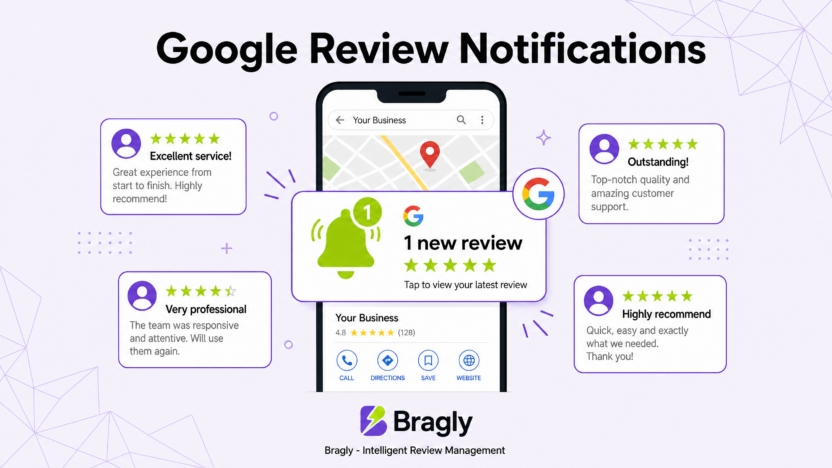
A 1-star review lands on your Google Business Profile at 9am on a Tuesday. You don’t see it until Thursday. By then, it’s been sitting there with no response, and a dozen people searching for your business have already read it.
That’s not a reputation problem. It’s a notification problem.
Google does send review alerts, but the system has real gaps. Emails get delayed. Push notifications get buried. If you manage more than one location, or have a team, the default setup almost certainly isn’t covering everyone. And when the notifications stop working entirely (which happens more often than Google admits), most business owners don’t notice for days.
This guide covers how to set up Google review notifications properly, what to do when they stop working, and how to build a backup system so a review never goes unnoticed again.
Key Takeaways
- Google offers two built-in notification methods: email alerts and push notifications via the Google Maps app.
- Each person on your team must configure their own notification settings. There is no master switch.
- Google’s email notifications are unreliable and frequently delayed or missed entirely.
- If you manage more than 100 locations in one account, Google stops sending email alerts altogether.
- When you reply to a review, the customer who wrote it gets an email notification. That’s a strong reason to respond quickly.
- A review management tool works as a reliable backup when Google’s native notifications fail.
How Google Review Notifications Work
When a customer leaves a review on your Google Business Profile, Google can alert you in two ways: by email, or by push notification through the Google Maps app. Both are tied to the Google account you use to manage your profile, not to the business profile itself.
This distinction matters. If three people manage your business profile, each one needs to configure their own notification settings. There is no shared inbox, no team-level switch, and no way to set it once for everyone.
Google also controls which notifications you receive. Beyond reviews, you can get alerts for new photos, profile update suggestions, customer messages, and bookings. But for most businesses, reviews are the one that actually matters. If you want to understand just how much those reviews influence buying decisions, the Google review statistics for 2026 make a strong case for taking them seriously.
How to Set Up Email Notifications (Desktop)
Setting up email notifications takes about two minutes. Here is how to do it on a desktop browser:
- Go to business.google.com and sign in with the Google account that manages your profile.
- Click the three-dot menu (More) next to your business name.
- Select Email notifications from the dropdown.
- Find the Customer reviews toggle and make sure it is switched on.
- Confirm the email address shown is where you want alerts sent.
That is it. Google will send an email to that address every time a new review is posted.
One thing to check: if you have multiple business locations, you may need to repeat this for each one. The settings are per-profile, not per-account.
How to Set Up Push Notifications (Mobile)
Push notifications are faster than email. They usually arrive within minutes of a review being posted. Here is how to enable them on your phone:
On Android
- Open the Google Maps app.
- Tap the Business tab at the bottom right.
- Tap Notifications at the top right.
- Toggle on Customer reviews.
On iPhone or iPad
- Open the Google Maps app.
- Tap the Business tab at the bottom right.
- Tap Notifications at the top right.
- Toggle on Customer reviews.
Make sure your phone’s notification settings also allow alerts from Google Maps. If the app is blocked at the OS level, none of this will work.
Push notifications are useful for real-time awareness, but they disappear once you swipe them away. If you miss one, there is no easy way to go back and find it. That is why email notifications are worth keeping on as a backup record.
Setting Up Notifications for Your Whole Team
If you have employees or team members who also manage your Google Business Profile, each person needs to set up their own notifications separately. There is no way to push settings to everyone at once.
The practical approach: make notification setup part of your onboarding checklist for anyone who gets added as a manager. Walk them through the desktop steps above, and have them enable push notifications on their phone as well. It takes five minutes and prevents the situation where a review sits unanswered because everyone assumed someone else saw it.
One important note: managers have the same notification options as owners. Being added as a manager does not automatically turn on any alerts. It just gives the person access to configure their own.
What to Do When Google Review Notifications Stop Working
This is the part most guides skip. Google’s notification system breaks. Not occasionally, but regularly. Search Google’s own support forums and you will find threads from 2024 and 2025 with dozens of business owners reporting the same thing: notifications were working, then they stopped, with no explanation from Google.
When this happens, here is what to check:
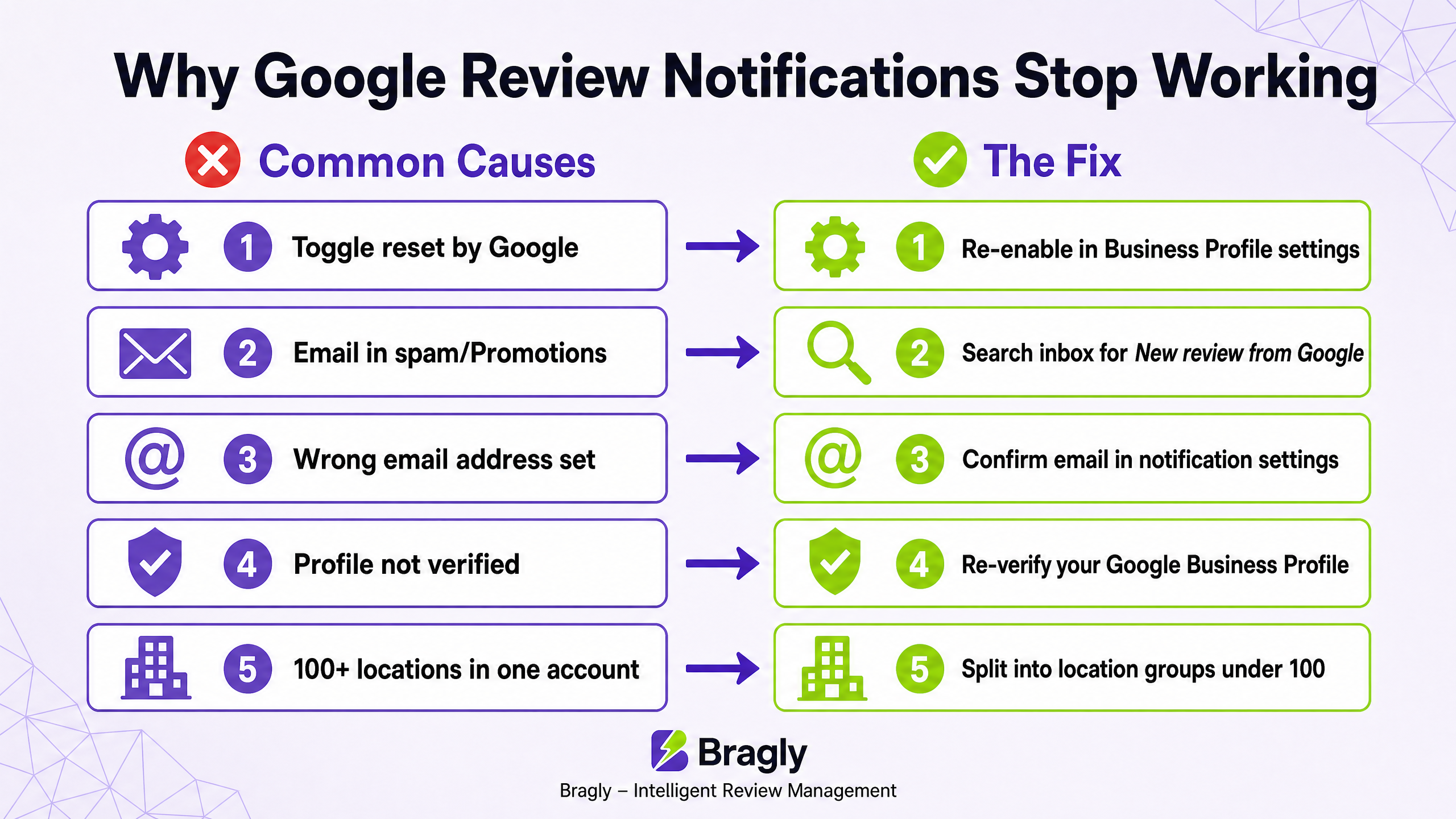
1. Verify the toggle is still on. Google has been known to reset notification preferences after account changes or profile updates. Go back to your email notification settings and confirm the toggle is still enabled.
2. Check your spam and promotions folders. Google’s review emails sometimes land in Gmail’s Promotions tab or get caught by spam filters. Search your inbox for “New review” from Google.
3. Confirm the right email address is set. If you changed your Google account email or added a recovery address, the notifications might be going to an old address.
4. Check that your profile is verified. Unverified profiles can trigger notification issues. If your profile lost its verified status, review alerts may stop.
5. Re-save your notification settings. Sometimes toggling the setting off and back on resets whatever internal state was causing the problem.
If none of those fix it, the honest answer is that Google does not have a reliable fix. Multiple support threads from 2025 confirm this is an ongoing issue with no official resolution. The workaround is a third-party tool, which is covered below.
The 100+ Location Problem
If you manage more than 100 business locations in a single Google account, Google stops sending email notification alerts entirely. This is not a bug. It is a documented limitation, and it does not matter what your notification settings say.
The workaround, documented by local SEO expert Joy Hawkins, is to split your locations into groups of fewer than 100 using Google’s location group feature, and assign a separate notification email to each group. It is tedious, but it works.
- Create location groups in your Google Business Profile dashboard so no group exceeds 100 listings.
- Create a dedicated Gmail address for each group (e.g., [email protected]).
- Add each Gmail as a manager of its corresponding location group.
- Set up email forwarding in each Gmail to send alerts to your main inbox.
This is a real operational headache, and it is one of the clearest signs that Google’s native notification system was not built with multi-location businesses in mind. If you are managing reviews at scale, the guide on how agencies can manage client reviews at scale covers the broader workflow.
Does the Reviewer Get Notified When You Reply?
Yes. When you respond to a Google review, the person who wrote it receives an email notification letting them know you replied. Google confirmed this in their own support documentation.
This has two practical implications. First, your response is not just for future readers. The original reviewer will actually see it. A thoughtful reply to a negative review can change how that customer feels about your business. Second, a generic or defensive response will also land in their inbox. What you write matters more than most people realize.
The faster you respond, the more likely the reviewer is still paying attention. Responding within 24 to 48 hours gives you the best chance of turning a frustrated customer into a recovered one. If you want to get faster at writing responses, using AI to respond to customer reviews can cut the time down to under a minute per reply.
Using a Review Management Tool as a Backup
Given how unreliable Google’s native notifications are, treating them as your only alert system is a risk. A review management tool monitors your Google Business Profile independently and sends its own alerts when new reviews appear, without relying on Google’s email system at all.
The better tools do more than just notify you. They show you the review text directly in the alert, let you draft a response immediately, and track your response rate over time. For businesses that take reviews seriously, that workflow is faster and more reliable than switching between tabs.
Bragly’s centralized review dashboard pulls in reviews from Google and 33 other platforms in one place. When a new review comes in, you see it alongside everything else. No separate inbox to check, no missed alerts because Google’s email system had a bad day. The AI reply feature can draft a response in about 30 seconds, which makes the gap between notification and response much smaller.
If you are managing reviews across multiple locations or platforms, a tool like this is not optional. It is the only practical way to stay on top of it without spending hours each week manually checking profiles. For a broader look at what to evaluate, the best Google review management tools for 2026 covers the main options.
Final Thoughts
Google review notifications work well enough when everything is configured correctly and Google’s system is behaving. But “well enough” is not the same as reliable. Delays happen. Emails get missed. Settings reset. And if you manage more than one location or have a team, the default setup almost certainly has gaps.
The fix is straightforward: enable both email and push notifications, make sure every team member has their own alerts configured, and use a review management tool as a backup. That way, a new review never sits unanswered because of a notification failure.
If you want to see how Bragly handles this, the free plan covers Google and 31 other review sources. Set it up once, and you will not have to think about missed notifications again.
Frequently Asked Questions
Does Google notify you when you receive a new review?
Yes, Google sends email notifications and push notifications through the Google Maps app when a new review is posted on your Business Profile, but only if you have configured those settings in your account. The notifications are not on by default for all users.
Why am I not receiving Google review notifications?
The most common causes are: the notification toggle was turned off (or reset by Google), the email is landing in your spam or Promotions folder, your profile is unverified, or you manage more than 100 locations in one account (which disables email alerts). Check each of these before assuming the system is working.
Can multiple managers receive Google review notifications?
Yes. Each manager on a Google Business Profile can configure their own notification settings through their personal Google account. There is no master switch. Every team member needs to set up their own alerts individually.
Does the reviewer get notified when you reply to their review?
Yes. Google sends an email to the reviewer when you post a response to their review. This makes timely responses more valuable, because the original reviewer will actually see what you wrote.
What happens if I manage more than 100 Google Business Profile locations?
Google stops sending email notifications once a single account manages more than 100 locations. The workaround is to split locations into groups of fewer than 100 and assign a separate notification email to each group.
How do I turn off Google review notifications?
Go to business.google.com, click the three-dot menu next to your business, select Email notifications, and toggle off Customer reviews. For push notifications, open Google Maps, tap Business, tap Notifications, and toggle off the review alerts.